DFW Metroplex, Memory Keeping, Photo Organization, Photo Organization Coach, Photography, Scrapbooking

FOREVER – Try It You’ll Like It!

MEMORY KEEPING 101: TRY IT FOR FREE & GET $20

A FOREVER Account Is Free

There may be no free lunch, but there is a free FOREVER account. If you’ve chosen Memory Keeping as your New Year Resolution or if you’re just curious, there is no cost and no obligation when you try out FOREVER.

Just use this link to get signed up:  https://www.forever.com/ambassador/jane-sadek

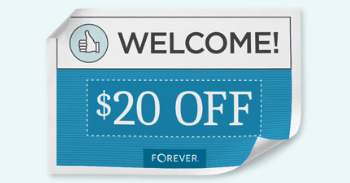
When you click the link, it will take you to FOREVER and walk you through the sign up process. Then FOREVER will send you an email to verify your address. You’ll want to do that, because the reward is a $20 Off Welcome Coupon and you have 60 days to spend it. If you decide against FOREVER, no harm, no foul, but you’ll have 60 days to try it out and if you find something you love, just apply the coupon code.

So, I Have the Account, What Now?

Now, that you’ve signed up, start checking things out.
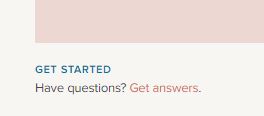
If you’re the kind who likes to start with a little how-to, then right on the first page under the big picture, you’ll see this. Click “Get Answers” and you’ll enter a world of how-to intro videos. That should keep you busy for awhile!

Or if you learn by doing, look for the avatar icon in the upper left hand corner. Hover over it and choose “Library”. FOREVER gives you 2GBs of storage for free, which is 375-1250 images depending on their size. You can upload some images and get started with your curating!

Whether you start with the videos or just start, you can’t blow up FOREVER, so try everything. The Library is where your images will live, but you can set up albums according to how your brain works. FOREVER does not create duplicates, so you’re not using up GBs. The albums can be nested for ease of handling. There’s also great tagging tools that let you cross reference the ways you find images. Don’t forget to name the photos and write a description.

Check Out the FOREVER Guarantee

You may not be impressed, yet. I loved FOREVER from first sight and couldn’t wait to put all my memories there, but you might be telling yourself you haven’t seen anything you can’t get with other cloud providers. Well, there is the fact that you own FOREVER storage rather than rent it. That’s a big deal, but the really big deal is the FOREVER Guarantee. You don’t just get FOREVER for your lifetime, but access to the images is guaranteed by FOREVER for 100 years after you are gone, without anyone having to pay another penny.

After you’ve looked at what FOREVER does for you and for your images, go check out the terms you agreed to with whoever has your digital images now. Basically those other agreements say that when you load your images, you give us all rights to those images to whatever provider you’ve chosen. They can compress them, delete them, transfer them, mine them for ads, etc. etc. etc. 

One Stop Shop

And speaking of those other providers, how many of them would you need to do all the things for you that FOREVER can? We don’t just store your images, we’re a platform for sharing them. We can digitize your hard copy media. You can make photo books and photo gifts. We have video streaming and family history research. There’s a world of amazing software available for managing your images and using them everywhere. There’s even an online community you can join who know everything there is to know about Memory Keeping. There’s a blog. There’s pages and groups on social media. Whatever Memory Keeping tools, devices and support you need, you can find them with FOREVER. No need to juggle multiple photo-related accounts and apps.

Test Drive Our App

Your FOREVER account is free and so is the app. It is available for both Apple and Android phones. Go to the App Store on your phone to install the app and then see what it does. Imagine being able to have access to your images on your phone without having to worry about losing your phone, damaging your phone, having your phone stolen or having it die. That’s what the app does. It does more than store your images – it protects them. You can set the app to auto-synch with your phone and every picture and video you take can go right to FOREVER.

Drive-Thru Create & Print

Though FOREVER is great for storage and sharing, it’s also good for photobooks and gifts. Click the Create & Print tab, choose a product and try out our interface. There are lots of great products to personalize with your photos – from greeting cards and calendars, to photobooks and coffee cups. Though our products might look like some you’ve seen on other sites, I assure you that when you hold them in your hand, you’ll understand why FOREVER is a better choice.  

It’s OK to create a few things, just for the fun of it. It doesn’t cost you a thing until you actually order it. You can try things out and change them a zillion times. You can even share your creation and show off your ideas without spending a cent. Sometimes the process of creation itself is enough, but it is tempting to buy and share your creations.

Will It Be a Yes or a No?

I hope you’ll take FOREVER up on it’s free account. Check out all the pages, load up some photos, look at the deals, take advantage of the free trials and see how FOREVER fits into your life. If you need a guided tour, we can jump on Zoom and I’ll show you around.

Once you’ve gotten your account, find something to spend your $20 on. Coaster sets and magnets are a fun inexpensive way to check out our print products. Or you can invest that $20 towards storage or digitization. Or you’re welcome to delete your account and walk away. 

I’m Jane Sadek, your Memory Keeper. I’m Saving Legacies and Sharing Smiles. Let’s talk, 972-971-5263.
DFW Metroplex, Memory Keeping, Photo Organization, Photo Organization Coach

Have You Ordered Your Christmas Cards Yet?

MEMORY KEEPING 101: HOLIDAY CARDS

Christmas is My Holiday, What’s Yours?

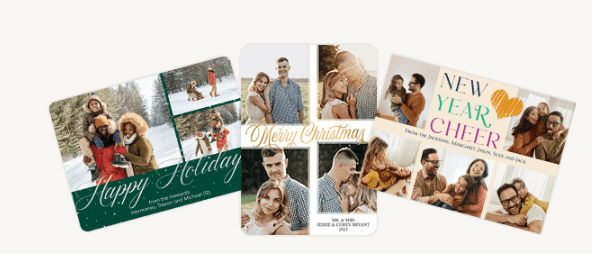
As the aisles of your favorite shopping sites and shops fill up with holiday décor, I’m wondering what your holiday is. Do you do Christmas? Or just send Seasons Greetings and Happy Holiday cards? Or are you totally a holiday card dropout? If you’re going to send cards this season, you need to come to FOREVER.

We Have It All!

With the introduction of foiled cards, the improvement of our address book and upgrade to our Create & Print templates, allowing text, trim and finish choices, there’s no reason to go anywhere else. I couldn’t have said that last year. We had great choices, but there were reasons you might look elsewhere. Not this year.

And pricing? Forget about it. No one touches us. They may have come up with some scheme that looks like a bargain on the surface, but I assure you, when you hit the order button with FOREVER, it’s going to shame the competition. All standard cards are 50% off through October and that 50% off everything, you’re gonna love it!

With Artisan, We Have Even More

While our Create & Print Templates are gorgeous, we have something else those other guys don’t have – Artisan. If you look through all our designs and don’t see anything you like, then your card can be designed from scratch. If you’ve got the designer’s touch, get Artisan and design it yourself OR, tell me what you want and I will design it for you – free of charge.

I designed my personal Christmas card to first pay homage to the birthday of Jesus Christ and then moves on what Bill and I have been up to, but that’s my thing. The point is this, you can do whatever you want. That’s not really possible with the other guys.

So, for your Holiday Cards, whatever you want to celebrate, from Halloween to Happy New Year, come see me!

DFW Metroplex, Memory Keeping, Photo Organization, Photo Organization Coach, Photography

Let’s Talk About the Library

MEMORY KEEPING 101: THE FOREVER LIBRARY, THAT IS

What’s a FOREVER Library?

OK, so FOREVER is a Digital Media resource that offers everything from Media Digitization to Video Streaming – but if you hang around me much, then you already know that.

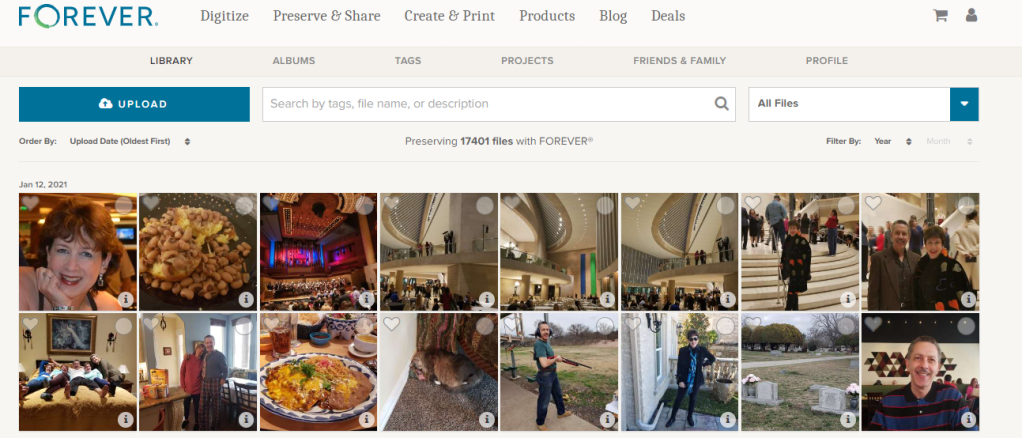
The FOREVER Library is the place where all the stuff you’ve uploaded to FOREVER hangs out. It’s not the only place. You also have albums, as well as tags for sorting and finding your photos, but the library is where everything is all at the same time. You can upload directly to the library or to your albums. It doesn’t matter.

What Can It Do?

Your library can do a lot of cool things for you, so I decided to take a few minutes to introduce you to it’s features. Obviously, the great big blue “upload” button is the one you’d use for adding photos from your computer to your storage. If you want to add photos from your phone, there’s a free app for that. If your media is hard copy, we need to talk about digitization. See last week.

Next to it is a search bar. The effectiveness of your search bar is directly related to the thoroughness of your curating. The more information you have about your photos in FOREVER, the more accurately you can search. A sampling of the search terms you could use would be dates, titles and tags, but whatever you’ve got, FOREVER will try to deliver something.

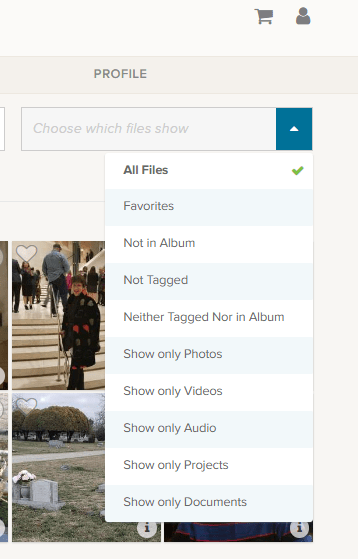
At the end of the upload and search area is a box that says “All Files”, but if you click the blue area you get these choices.

Obviously, All Files is all files. Favorites are photos you have marked with a heart. You can see an example of the heart on the left corner of the photo by the blue and white selection box.

The next are three very helpful choices as you begin to curate your images: “Not in Album,” “Not Tagged” and “Neither Tagged Nor in Album.” As you get your photos organized, labeled, tagged and such, the number of photos these choices will bring up will grow smaller.

I’m proud to say all but a handful of my photos are in Albums and all of those not in albums were taken in the last few days. I have my photos automatically added from my phone, by the app, when I take them. Then I delete them or add them to albums daily or weekly, according to the day and the week.

I’m working on the “Not Tagged”. Tagging is a great tool for searching. Some day I will have all the people and places tagged in every photos, so I can search by name or location to find any photo I want. So far, I have them all tagged as either Travel, At Home, Out & About, etc., but I have a long way to go. FOREVER recommends spending 15 minutes a day on this task and it’s a great idea.

Then there are a series of “Show Only” choices. With them you can see only photos, video or audio. You can also isolate documents in the collection. Projects are cool, because FOREVER keeps a copy of all the projects they do for you – the photobooks, photo gifts, greeting cards and such. These projects do not take up your storage space, but are always available to you.

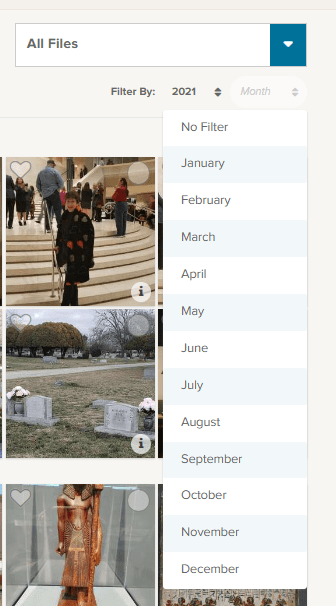
Under that selection box associated with “All Files” is a section where you can filter by both year and month. So, if you know you’re looking for the pictures of your husband’s 50th birthday, just select the year and the date of that celebration. In this image I chose 2021 for the year and have brought down the month selections.

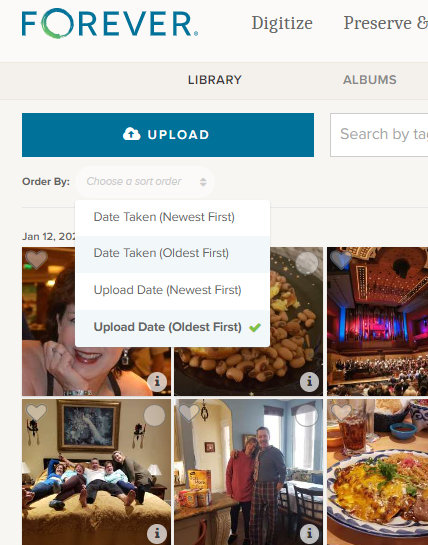
Moving to the other side, under the “upload” button, you find the “Order By” selections. I tend to leave it on Date Taken (Oldest First) because I think in chronological order, but you can reverse it and as for (Newest First) if you are looking for something taken recently.

Sometimes you aren’t as concerned with when it was taken as you are when it was uploaded and the next choices cover that.

Other Things to do in the Library

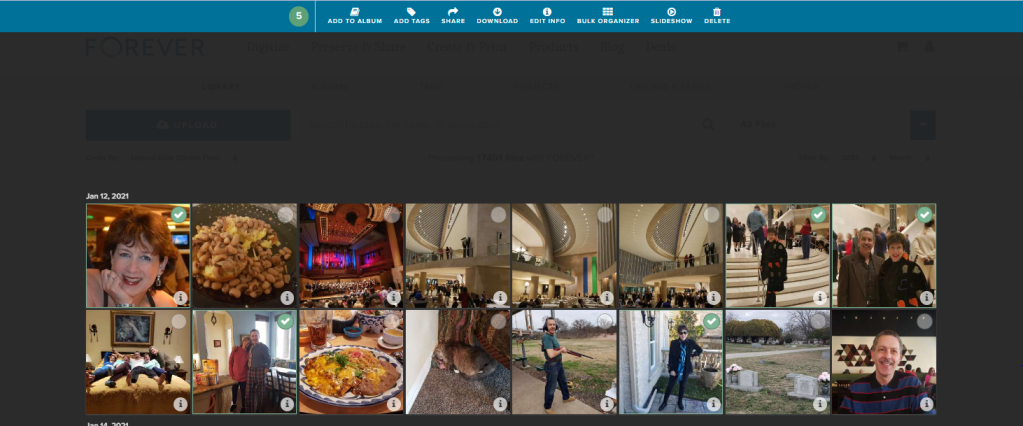
Returning to the picture at the top, you’ll notice that each individual photo has a heart and a circle at the top. The heart, as I mentioned above, allows you to mark your favorites and you can always choose to have the Library show those to you. The circle allows you to select images for curating. Let me show you.

On the main Library page, I checked a picture and the screen above opened up, giving me new choices. I went ahead and selected all the pictures I was in, on the first date available, but I could have chosen every picture of me in the library, all the pictures on that date or even just one photo at a time to work on.

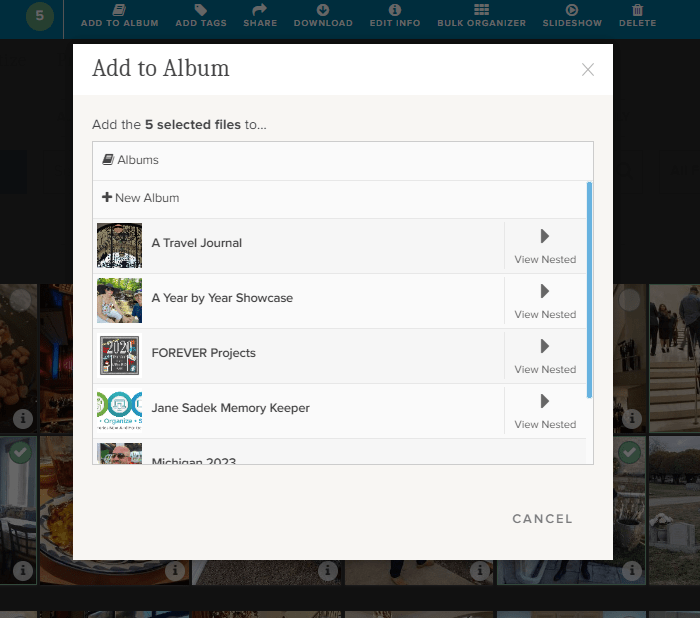
If I chose “Add to Album,” I would get this screen. It allows me to either set up a new album, add the selected photos to a top level album or with the “View Nested” arrow, I could actually add them to albums which are “nested” under the main album.

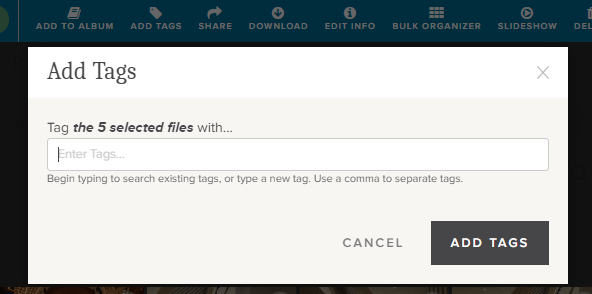
If I chose “Add Tags,” then I could add tags common to all five of those photos. Obviously, since I chose pictures of myself, I could tag them “Jane Sadek,” but you are allowed an unlimited number of tags, so people are only the beginning. And you can do more than one tag at a time, so if I had three ways of identifying all these photos, I would add all three tags. They could either be tags I had already created or I could create them using this tool.

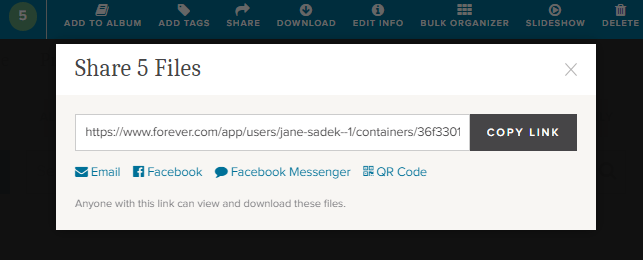
Also from the Library you can share photos with other people. You can select as many photos as you like and then either share the link which is created or create an email or a post or message for Facebook. You can even create a QR code. How cool is that!

There’s a “Download” button next and when you click it, you’ll be linked immediately to your browser. Select where you want the photos to be saved and save. You’ll have a copy of these photos on your computer.

The “Delete” button (at the far end) will bring up a screen which asks if you want to delete photos. If you do, it will put them in your FOREVER delete bin for 60 Days.

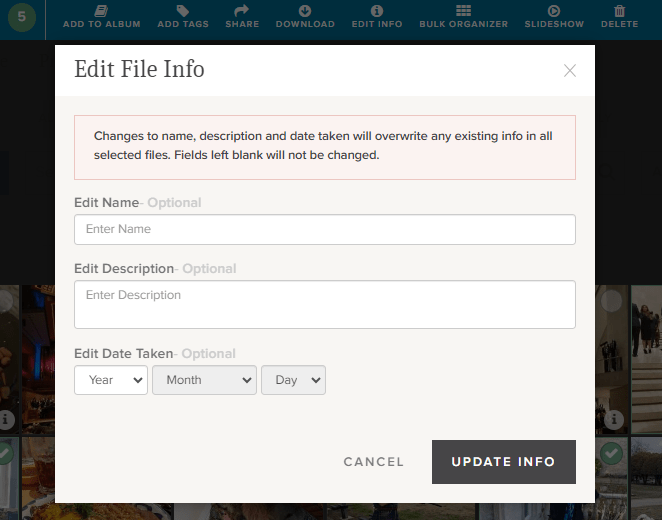
Now this is a good one. The “Edit Info” button allows you to change the basic information on a file. You know how photos come from your camera with vague names like IMG 36 or a string of numbers. Well, you can change it to a more specific title like Jane in Dallas 2021 or whatever name would be more useful.

You can also provide a description of the photo here. You could explain who Jane was, what she was doing in Dallas, what your relationship to her is – whatever you want. In fact, while the description boxes you run into with many programs have a 25 word or 100 character limit, this description can go on for as long as you’d like it to.

You can also edit or add a date. Sometimes our devices try hard to fill in blanks and provide a Date Taken which has no basis in reality.

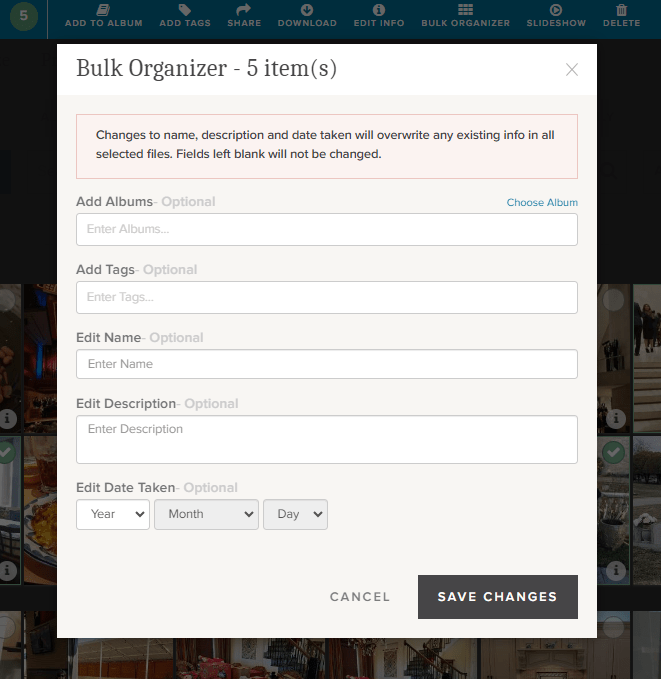
If you’re loading a whole bunch of photos to your storage, the Bulk Organizer could be your best friend. You could do the whole curating job in one fell swoop. You just have to remember that whatever you put here will override anything else you might have in the metadata.

You can make changes to all of these sections or just choose those you want.

One more choice. Perhaps you’d like to select a group of photos for a slideshow. Well, there’s a “Slideshow” button. It will autoplay whatever you’ve selected and you can even put it on “Loop” so you can play it continuously.

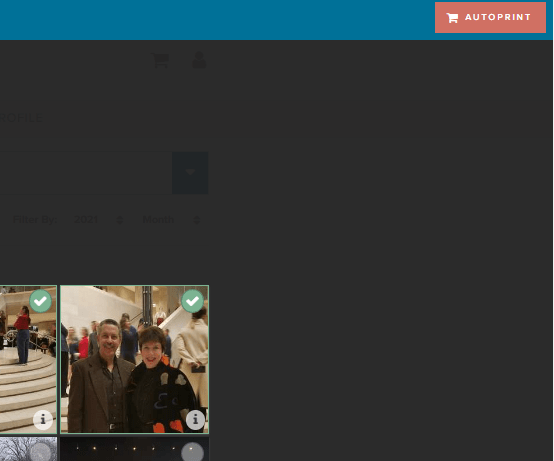
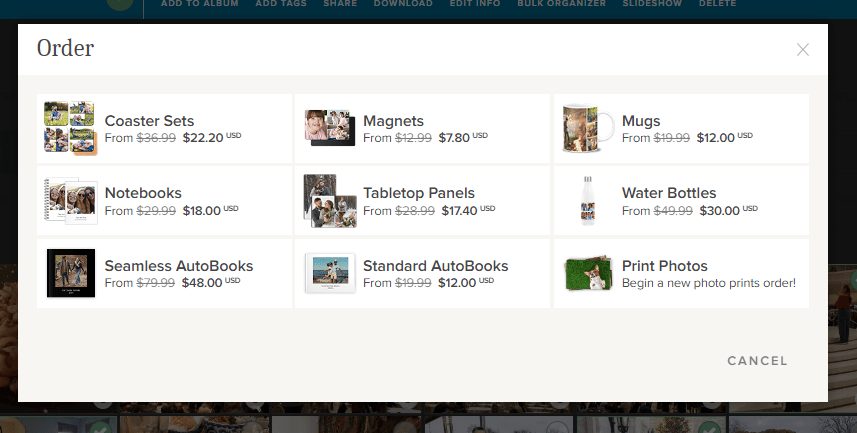
Well, there is one more thing you can do from this screen. You see that brick colored square that says “AUTOPRINT”? Well, this could be step one for your next print project. Just select all the images you want to include in a digital photobook, photogift or perhaps you’d just like to print some copies to share.

The AUTOPRINT buttons connects you directly with the various potential projects in Autoprint. That’s where FOREVER does most of the work, like magic. You select the images and the project. FOREVER will do the rest. You’ll be given the opportunity to do some minor editing, if you chose, then all you have to do is pay for it and select your delivery method and address. You can have custom projects ready in seconds!

Wrapping It All Up in the Library

Most of these same features are available in the FOREVER app, as well as on the website, as I have shown them here. You just find them in different places. Personally, I enjoy working on files in the Library when I’m at my desktop or using my laptop, but I’ve heard of people who curate their entire collection of media on their phone, sitting by the pool, drinking a cool adult beverage.

It’s up to you. If, while you are in the Library on your computer, you need a reminder about any particular images, just hover over the “i” in the bottom right of any images. A small black and white screen will pop up to show you what FOREVER knows.

And that’s all there is to it. I plan to write similar posts about Albums, Tagging and the App in the coming months, but next week we’re going to AutoPrint. Start thinking about a project you’d like to have completed quickly – like magic.

DFW Metroplex, Photo Organization, Photo Organization Coach, Photography, Scrapbooking

Picture Perfect Prints

MEMORY KEEPING 101 – GET YOUR PRINTS WITH ME

I Remember the Good Old Days, Too

Remember when getting your printed photos was fun. You took pictures with a camera, not your phone. You used film, not an SD card. You couldn’t look at or share the photo until the film was developed. You’d gather up all your rolls of film and take them to the drug store to get printed. They took your photos and sent them to a lab and a few days later, you could have your photos. Seeing what you shot was like reliving your vacation or event. You even loved the bad photos.

Photo printing became big business and getting your photos back fast became the gold standard. Eventually, we all expected to get photos back in an hour, but instead of a technician in a lab developing your photos, you had some high school kid running the film through a machine that may or may not have been properly maintained, so those pictures might or might not be worth the paper they were printed on.

Along Came Digital

In my opinion, digital cameras were not an improvement. Suddenly, a whole new layer of challenges stood between me and my photographs. Yes, I know all about the improved photo quality and some people might like all that editing, but I liked dropping it off at the drug store and waiting a few day for the photos.

I’ve tried a lot of things since the advent of digital photography – printing the photos myself, taking a disc to the drug store or big box store and I’ve used SO many of the online photo printing services that I could not start to name them all.

An Education in Exploitation

Then a couple of years ago I discovered Forever and it has totally changed my outlook on the whole process, from where I store my images to where I get them printed and why. Have you ever wondered why so many places are so eager to print your photos and why they are willing to do it for such a cheap price? Try reading one of those terms and agreements that pop up as you fill in the blanks on your order. That would be an eye-opening experience.

Basically, when you download your photos to Shutterfly, Snapfish, MixBook, Costco, Walgreens – you name it, you sign an agreement which transfers the rights to your photos to that company. In turn, they do print photos for you on the cheap, but in return, they’ll use those photos for all kinds of things you never dream your photos would be subjected to. We’ve all heard horror stories about people seeing the photos they post on Facebook ending up in an ad campaign or on the dark web or other equally bad scenarios. The same thing happens when you upload your photos for printing.

And print quality? Once I spent a day editing a set of gorgeous vacation photos. I sent them off to Snapfish and eagerly awaited their delivery. The images I sent were sharp, crisp and beautiful. The images I got back were hazy. I’d been in the photography business long enough at that point to know something had happened to my images since I edited them and I was right. The company compressed all the photos before printing, because they could only handle up to a certain resolution. Sure it was all there in the terms and agreements, but who reads those.

So Now I Know

Then I found Forever. Instead of loading my photos onto a commercial site where who know what would happen to them, I load them into my very own online storage that I own. Nobody will ever mine my photos for advertising, sell them for stock photmpress them. When I want to print, I just choose the photos I want out of my account and order whatever size photo I want.

And here’s a tip. You know those letters and numbers on the back of some photos. Ever wonder who makes those up? Ever try to read them and decide what they mean. You can actually control what that says with Forever. That’s a big help.

Another Choice

So, you may be thinking to yourself, but I don’t WANT to store my photos on Forever. I just want to print them! OK, fine! But I have another option. Don’t go to the big box stores of online photo processing. You can print your photos with Creative Memories. Amazing quality, no compression, and yes you can control the print on the back of the photos.

What’s more, you’ll get your images back in these cool little plastic boxes that keeps them all nice and neat until you use them in your scrapbook. Then they are great for storing embellishments. I love them!!

Have It Your Way

So, if you want safe, secure storage along with your very affordable and convenient photo printing. You want Forever. Here’s the link: https://www.forever.com/ambassador/jane-sadek/autoprint/photo-prints

If you just want to upload your images and get them back in nice little plastic boxes, also very conveniently and affordable, then here’s your link: https://www.creativememories.com/photo-prints.html

When you are considering how you are going to handle your memory keeping, please consider me. I have all the answers you will ever need and sometime I have more than one way to do what you want. Come back next and let’s do some more memory keeping together.