MEMORY SHARING: THREE WAYS TO CREATE PROJECTS #2
The Many Templates of Create & Print
Last week we navigated to the AutoBook Section of the FOREVER site. The first options shown (unless you’ve used the filter) will be AutoBooks. You select the photos and AI does the rest. This this feature is not unique to FOREVER, but you’ll find it easy to use and the resulting photo books are gorgeous.
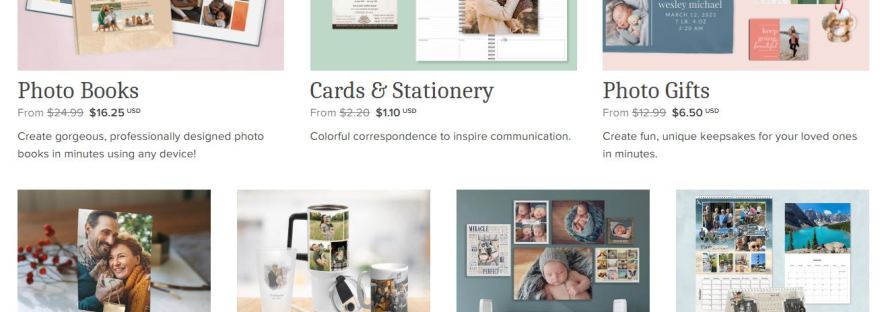
Today we’ll once again go to Create & Print and select Photo Books, but this time we’ll skip the AutoBooks and look at all the template options. As with all Create & Print, you can choose your photos from your device or from your FOREVER storage. These beautifully designed photo book templates offer many cover choices and go from minimal page decor to fancy. I’m guessing you’ll be overwhelmed, so let’s start with the filter!
The Filter
Once you consider book size, cover selection and all the other options you have with FOREVER’s Create & Print Templates, you have literally thousands of choices to use for your project.
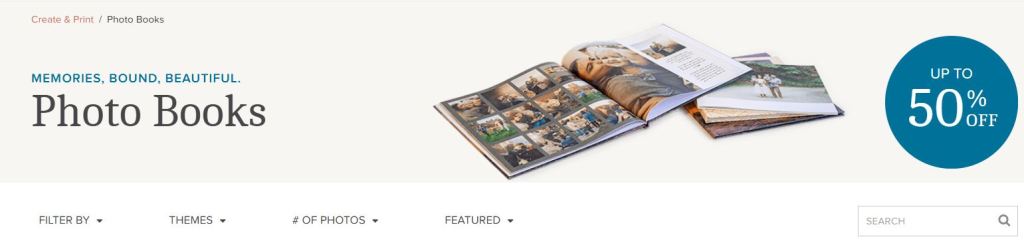
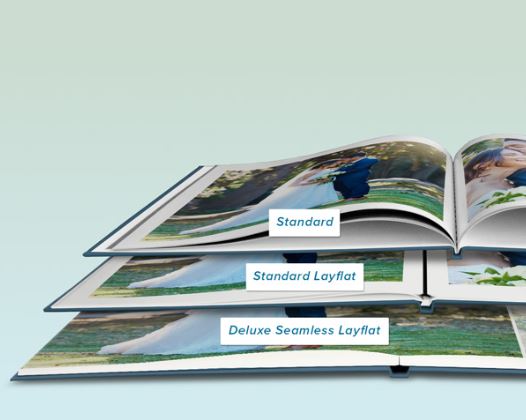
The FILTER BY Button addresses the basics. What size do you want your photo book to be? Will it be a Standard book or Deluxe Seamless? Will it be a Hardback or Soft Cover album? You can even let FOREVER know if you’re looking for a particular color palette or Black & White.
THEMES tells FOREVER what style of book you’re looking for. Classic, Modern or Rustic? Are you remembering a wedding, travel or holidays? These are just a few and you can mix and match. Perhaps you want a classic theme for a holiday wedding. Just check the boxes which apply to your project.
Next is another style question: # OF PHOTOS per page. Maybe you’ve got a series of school portraits and you want to put one on each page. Maybe you want more than one photo on the page, but you’re still looking for simple elegance. Few Photos would be your choice. Maybe you’ve just gotten back from the cruise of a lifetime and you have hundreds of photos for every port. You might be interested in Many Photos.
The final button is FEATURED. If you leave it at that, it will show you the default page – the way FOREVER decided to display the choices. However, click on it and it will toggle between Most Popular and Most Recent. Most Popular shows what most people select when they’ve used the filters you have. Most Recent shows you the newest designs in FOREVER.
Personalize
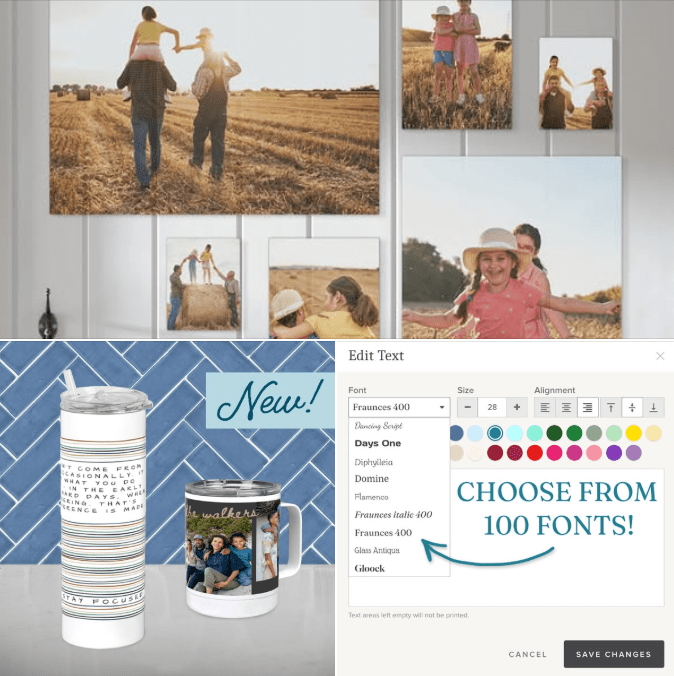
When you click PERSONALIZE after choosing the basic parameters of your photo book, you’ll be taken to the template of the book. First, you’ll customize the cover design with your colors, your fonts and your photos. Then page by page, you choose! FOREVER has selected a template for each page and if you’re in a hurry, maybe you just want to load your pictures using the page templates they selected. However, you can also choose a template from the 100 or so available page templates, each differing in style, number of photos, title and journal box. There’s also the option to add a QR code linked to a FOREVER file. You won’t have that option with the fish and the fly.
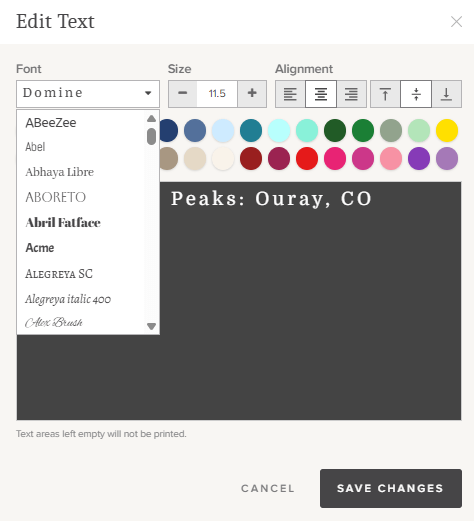
Once you’ve chosen a template with the number of photos you want to include on a page, you customize any Titles with your own words and fonts. Same with the journaling boxes. Do it your way!
If You Find the Templates Limiting…
Create & Print Templates are designed to make the creation of a photo book easy, but some of us want more control, because we just can’t be satisfied. We like a page template, but we’d like it better if it had a larger journaling box or no title or we need one more photo on it. Or maybe you just feel like you’d like to have a little more decoration on the page. Guess what! You’re not a Create & Print customer. You’re looking for Artisan 6, just like I was. Come back next week and let me tell you about my addiction.










 jane sadek