ART, DFW Metroplex, Libraries, Memory Keeping, Photo Organization, Photo Organization Coach, Photography, Scrapbooking

Can FOREVER Save That?

MEMORY KEEPING 101: THE FORMATS FOREVER CAN STORE

What Do You Have and What Do You Want?

There is one question I ask a lot and this is it! It applies to many steps in the Memory Keeping process, but in our digital world, wondering what formats can be saved on FOREVER is a pretty important one.

If you are a general consumer with photos, video and audio on your devices and computer, then FOREVER is going to save pretty much anything you want it to. Here’s a list of all the things FOREVER will save.
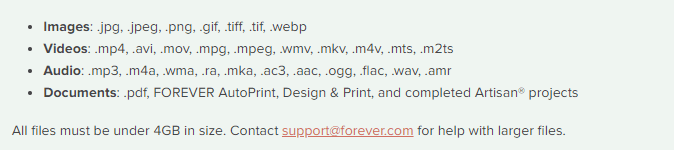
As you can see, this is a pretty comprehensive list. In fact, I don’t even know what some of those formats do. However, there are things FOREVER can’t save (yet), so let’s talk about those.

Raw Files

Many pro and hobbyist photographers take photos in Raw. This is a a generalized category which creates huge files for the purpose of file manipulation. When we were in the real estate photography business, our photographers would take their shots in raw on the HDR setting. This meant the files were huge and that basically they were in parts. Our guys would take multiple shots in a variety of exposures for each image, which would then be processed to create one data rich file for editing. The purpose was to manipulate light, so that we could take a picture of a room with the curtains open and get everything in the room and everything outside with perfect lighting. Various photographers use a variety of other methods to do the same thing, but this is the method we used and a lot of other photographers do, too.

The difficulty with this is that different cameras take different types of raw photos. Our Canon camera took .cr2 and the DGI drone took .dng. Your Nikon takes something else and other cameras will take another format. And this is why FOREVER has not yet embraced RAW in it’s suite of supported files, yet.

While FOREVER will not save all these raw files, most of the time the raw state is just a temporary destination for files which will become jpg’s. That’s what we did. General consumers don’t want to handle or store the huge, unedited files. We always converted our raw files to jpg’s as we processed the files for delivery. While FOREVER doesn’t store raw files, yet, it does realize that for some photographers, this capability is a high priority.

I have spoken with Dr. Nathan Bowers, the VP in charge of R&D and supporting these files is on the short list of development with FOREVER, but there are technical challenges associated with it. Nathan would have been happy to explain these details to me, but I wouldn’t have understood. If you would, then perhaps you should call him, but for the time being, suffice to say, FOREVER can’t store Raw files, but we’re working on it.

HEIC

Those who use and are familiar with Apple know they sort of like to be unique. If you have an Apple phone, then this is the format your photos are taken in. Not to worry! While FOREVER will not store your photos in HEIC, it will automatically convert them to .jpg as you upload them. For 99% of the population, that’s fine. They actually don’t care what extension is attached to their files, they just want to save them. There are some proponents of HEIC who want to keep their files in that format and unfortunately, at this time, FOREVER cannot save these files. I say “at this time,” because an ongoing desire at FOREVER is to never say no to any format. At this time it is not possible to store .heic on FOREVER, but that won’t be the answer forever.

Various Documents

Let me start this part of the conversation here. You can save PDF files on FOREVER. The document files on your computer are much like the raw files from a camera, because the type of file created depends on a variety of factors. That’s why PDF was created in the first place.

PDF stands for Portable Document Format. It was designed to make your files portable, whatever format they were created in. Converting most files to PDF is easy. You just change the extension to .pdf and viola, you have a PDF which can be stored on FOREVER.

So, will FOREVER store your documents? Absolutely! Just save them as jpg’s and upload.

APPS

When one of my friends bought FOREVER storage, the first thing they wanted to do was save everything on their Quickbooks. Well, for one thing, Quickbooks is already saved and backed up. Perhaps not to the extent of FOREVER, but certainly safer than the photos on your phone or the VHS tapes sitting on a shelf.

After a little discussion, I discovered that what she really needed was not the whole app, but the reconciliation she created each month. Easy peasy! The reconciliation was a PDF doc. Now she saves those to FOREVER and is perfectly happy.

The point is that while you cannot save a whole app, probably what you want to save is some document which is already in a format FOREVER can save.

Specialized Formats

The items I have covered so far in this post are the most common questions I hear, however the longer I do this, the more formats I discover. Did you know quilters have a specific format for saving their quilt patterns and genealogist have their own format? The list goes on.

If you have a specialty format that you’d like to save on FOREVER, please let them know. The development team prioritizes projects based on need and demand. I know quilters and genealogists have their own formats, because I’ve been on ZOOM calls where Dr. Bowers has mentioned these formats as items on his development list.

In the meantime, many of these formats can be converted to something like jpg or pdf, which can be saved. Or you can take a picture of the file and save the picture. It may not be the complete digital file, but it’s better than nothing, until it can be saved on FOREVER.

Summing Up

While FOREVER cannot save every type of file in the world, the list of things they can save is very comprehensive and most files can be saved with a simple conversion to PDF. FOREVER was designed for the specific purpose of memory keeping and it does that very well for the vast majority of formats in which people have captured their memories. If you have something in particular you need to save that isn’t on the list above, let’s talk. You might be closer than you realize to keeping your memories on FOREVER.


DFW Metroplex, Memory Keeping, Photo Organization, Photo Organization Coach, Photography, Scrapbooking

How to Get Your $20

MEMORY KEEPING 101: A LITTLE INCENTIVE TO GET STARTED

The $20 Welcome Coupon from FOREVER

I want you to discover FOREVER! I know I rave about it all the time, but I’m not sure you know how easy it is to get started. I probably also fail to tell you FOREVER has $20 waiting for you to sweeten the pot. Here’s how it works!

It Starts With My Link

FOREVER has assigned me a unique and specific link. They want you to sign up with an Ambassador you know. Someone who you feel comfortable with. They do not want to be an anonymous website like so many of web-based companies out there which assign you a number and talk to you through bots. They have a wonderful Customer Service staff and a great help page, but they want you to have a real live Ambassador of your very own.

This is my link: https://www.forever.com/ambassador/jane-sadek

If you prefer QR Codes, here you go:

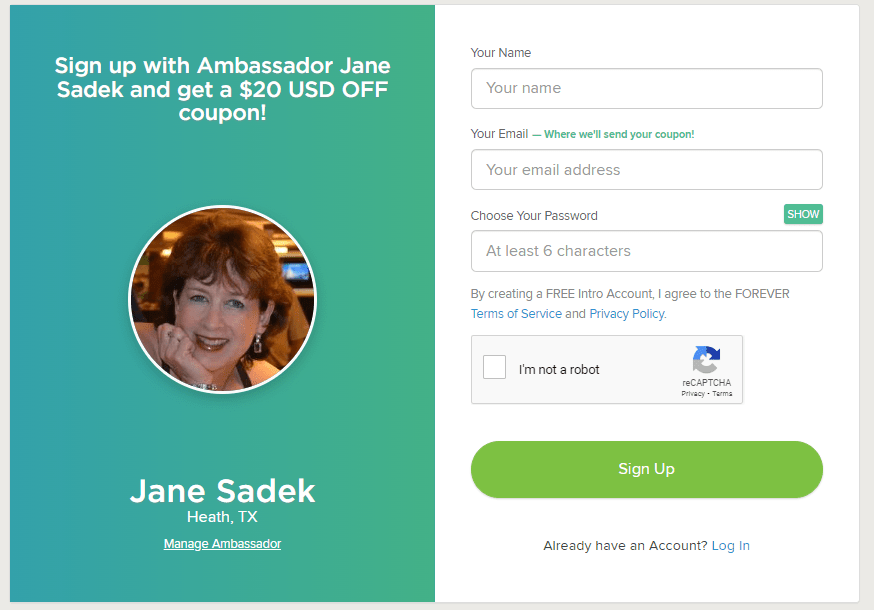
That link takes you to FOREVER. According to the device you use, you may immediately be asked to provide your email and create a password. It’s OK, it’s free. If it just takes you to the Home Page, click on Log In in the upper right hand corner and then under the green Log In button, there’s a link “Need an Account? Sign Up Free”. Click that and you will go here.

Fill it in and hit the Sign Up button. That’s it! Welcome to the wonderful world of FOREVER, but don’t stop there, because you need to claim your $20.

FOREVER Will Send You an Email

When your sign up is through, go to your email. If you don’t see an email from FOREVER then check all those spam folders. Confirm your email address and then FOREVER will send you your Welcome Coupon.

Twenty dollars is waiting for you. When you open the Welcome Coupon email I suggest you either print it out and/or save it someplace where you can find it again.

Near the bottom of that email is a code. That’s your $20. You’re going to want that when you make your first order. Many clients are ready to buy when they join. They cut and paste their code into their order and they are done. But I also have clients who aren’t ready to buy from the get go. That’s why I want you to print it out or save it somewhere you’ll be able to find it later.

In Fact, FOREVER Will Send You a Lot of Emails

So, one of the reasons FOREVER wants you to verify your email address is because like everyone else, they want to send you all their stuff – and that’s why you have an Ambassador. FOREVER stuff is great if you are about to start a bunch of projects, because the emails will keep you informed of all the great promotions which are going on. If you’re just sticking your toe in the water and aren’t interested in the stuff, when you get your first promo email, go to the bottom and click either “update your preferences” or “unsubscribe from this list.” Then you can tell them thanks, but no thanks – but wait until after you get your $20 coupon!!! I don’t want you to miss that.

Use That Coupon!!

First of all, you have 60 days to use that coupon. On Day 61, it will no longer be valid. So please find a way to use it within 60 days of signing up. The coupon will work with most things on FOREVER, with a few exceptions – gift cards, events, FOREVER Club memberships etc., but for merchandise, it’s all good.

Stack your deals!! Many, many, many companies are quick to send you a coupon, but then trying to use it is almost impossible, because you can’t use it with any other offers. That’s not so with FOREVER, except in very, very rare cases, which will be clearly marked. You can stack your $20 welcome coupon with all the deals on the Deals page, as well as with The FOREVER Club discount, which I would be happy to explain to you.

Get the best price! At the first of every month, FOREVER informs its Ambassadors about all the deals for the month. When you know what you want to buy, just give me a shout before you hit the buy button. I can let you know if you can get a better price by waiting a day or a week.

And that’s it! Twenty dollars towards your Memory Keeping project. You can also get $20 for referrals, but we’ll talk about that and The FOREVER Club another day!

DFW Metroplex, Memory Keeping, Photo Organization, Photo Organization Coach, Photography

Let’s Talk About the Library

MEMORY KEEPING 101: THE FOREVER LIBRARY, THAT IS

What’s a FOREVER Library?

OK, so FOREVER is a Digital Media resource that offers everything from Media Digitization to Video Streaming – but if you hang around me much, then you already know that.

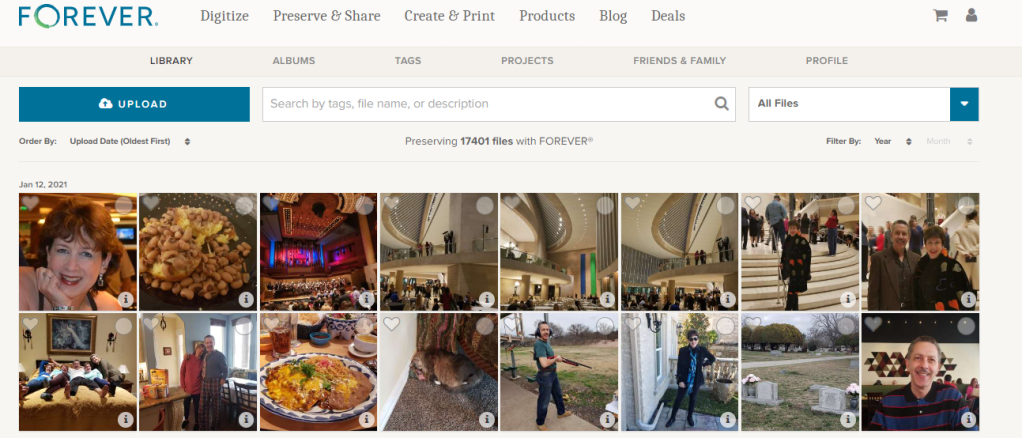
The FOREVER Library is the place where all the stuff you’ve uploaded to FOREVER hangs out. It’s not the only place. You also have albums, as well as tags for sorting and finding your photos, but the library is where everything is all at the same time. You can upload directly to the library or to your albums. It doesn’t matter.

What Can It Do?

Your library can do a lot of cool things for you, so I decided to take a few minutes to introduce you to it’s features. Obviously, the great big blue “upload” button is the one you’d use for adding photos from your computer to your storage. If you want to add photos from your phone, there’s a free app for that. If your media is hard copy, we need to talk about digitization. See last week.

Next to it is a search bar. The effectiveness of your search bar is directly related to the thoroughness of your curating. The more information you have about your photos in FOREVER, the more accurately you can search. A sampling of the search terms you could use would be dates, titles and tags, but whatever you’ve got, FOREVER will try to deliver something.

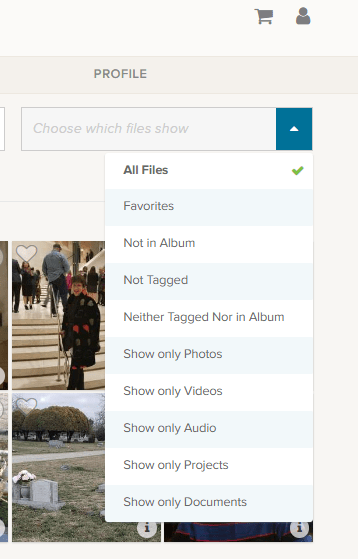
At the end of the upload and search area is a box that says “All Files”, but if you click the blue area you get these choices.

Obviously, All Files is all files. Favorites are photos you have marked with a heart. You can see an example of the heart on the left corner of the photo by the blue and white selection box.

The next are three very helpful choices as you begin to curate your images: “Not in Album,” “Not Tagged” and “Neither Tagged Nor in Album.” As you get your photos organized, labeled, tagged and such, the number of photos these choices will bring up will grow smaller.

I’m proud to say all but a handful of my photos are in Albums and all of those not in albums were taken in the last few days. I have my photos automatically added from my phone, by the app, when I take them. Then I delete them or add them to albums daily or weekly, according to the day and the week.

I’m working on the “Not Tagged”. Tagging is a great tool for searching. Some day I will have all the people and places tagged in every photos, so I can search by name or location to find any photo I want. So far, I have them all tagged as either Travel, At Home, Out & About, etc., but I have a long way to go. FOREVER recommends spending 15 minutes a day on this task and it’s a great idea.

Then there are a series of “Show Only” choices. With them you can see only photos, video or audio. You can also isolate documents in the collection. Projects are cool, because FOREVER keeps a copy of all the projects they do for you – the photobooks, photo gifts, greeting cards and such. These projects do not take up your storage space, but are always available to you.

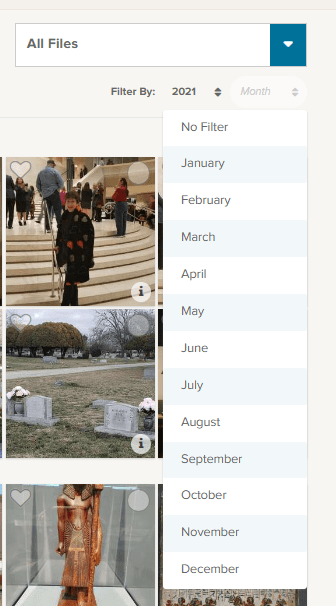
Under that selection box associated with “All Files” is a section where you can filter by both year and month. So, if you know you’re looking for the pictures of your husband’s 50th birthday, just select the year and the date of that celebration. In this image I chose 2021 for the year and have brought down the month selections.

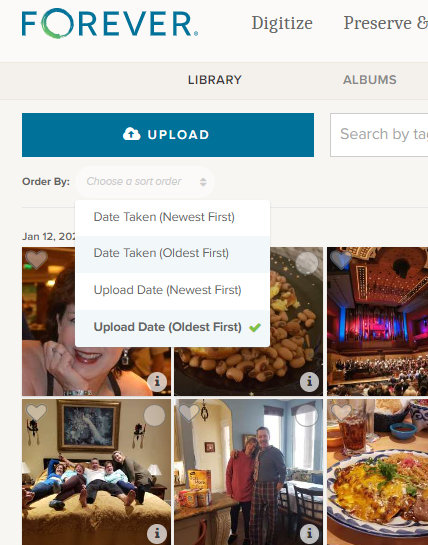
Moving to the other side, under the “upload” button, you find the “Order By” selections. I tend to leave it on Date Taken (Oldest First) because I think in chronological order, but you can reverse it and as for (Newest First) if you are looking for something taken recently.

Sometimes you aren’t as concerned with when it was taken as you are when it was uploaded and the next choices cover that.

Other Things to do in the Library

Returning to the picture at the top, you’ll notice that each individual photo has a heart and a circle at the top. The heart, as I mentioned above, allows you to mark your favorites and you can always choose to have the Library show those to you. The circle allows you to select images for curating. Let me show you.

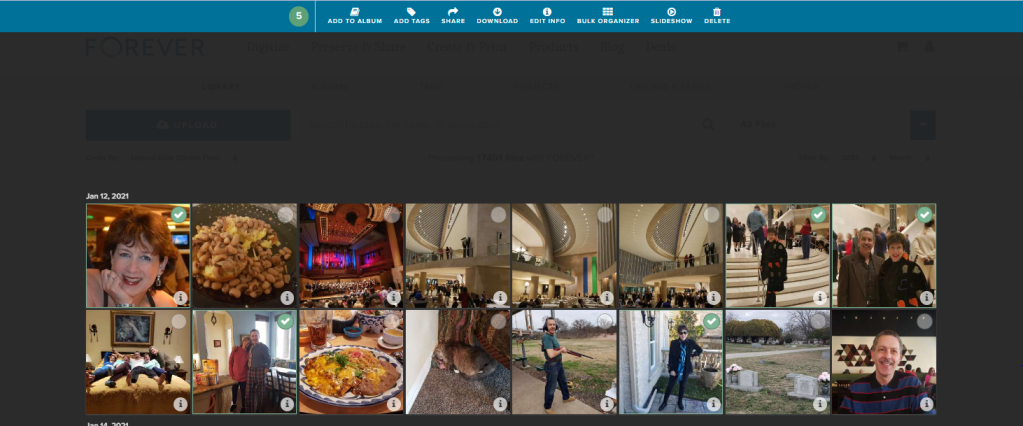
On the main Library page, I checked a picture and the screen above opened up, giving me new choices. I went ahead and selected all the pictures I was in, on the first date available, but I could have chosen every picture of me in the library, all the pictures on that date or even just one photo at a time to work on.

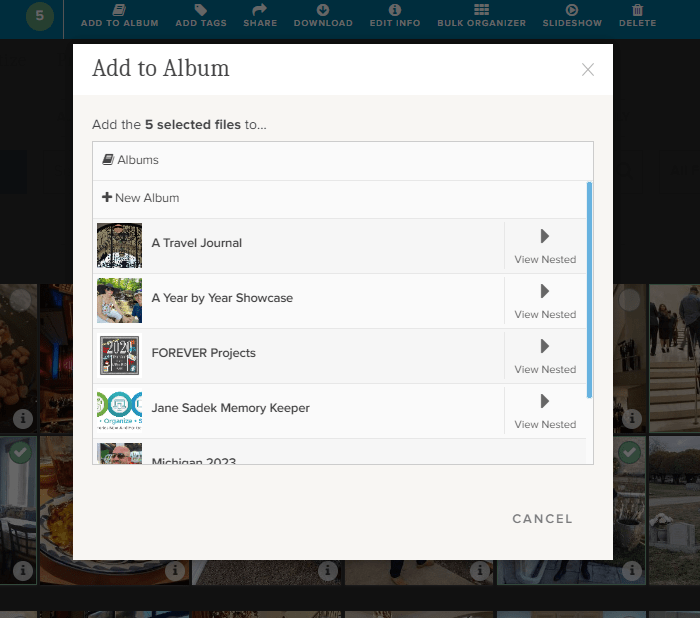
If I chose “Add to Album,” I would get this screen. It allows me to either set up a new album, add the selected photos to a top level album or with the “View Nested” arrow, I could actually add them to albums which are “nested” under the main album.

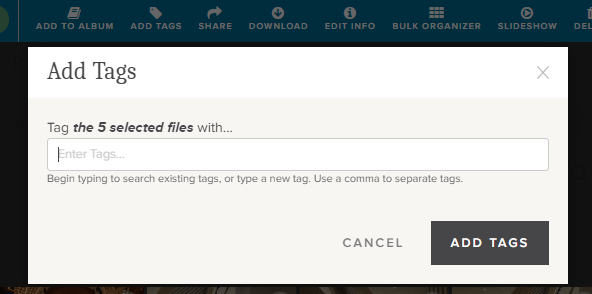
If I chose “Add Tags,” then I could add tags common to all five of those photos. Obviously, since I chose pictures of myself, I could tag them “Jane Sadek,” but you are allowed an unlimited number of tags, so people are only the beginning. And you can do more than one tag at a time, so if I had three ways of identifying all these photos, I would add all three tags. They could either be tags I had already created or I could create them using this tool.

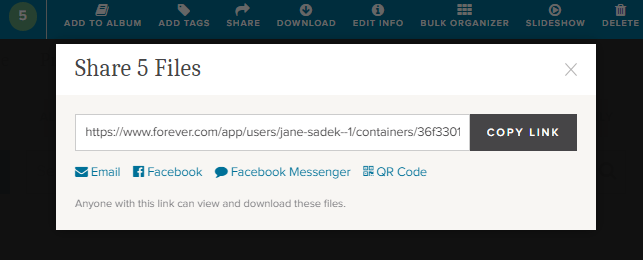
Also from the Library you can share photos with other people. You can select as many photos as you like and then either share the link which is created or create an email or a post or message for Facebook. You can even create a QR code. How cool is that!

There’s a “Download” button next and when you click it, you’ll be linked immediately to your browser. Select where you want the photos to be saved and save. You’ll have a copy of these photos on your computer.

The “Delete” button (at the far end) will bring up a screen which asks if you want to delete photos. If you do, it will put them in your FOREVER delete bin for 60 Days.

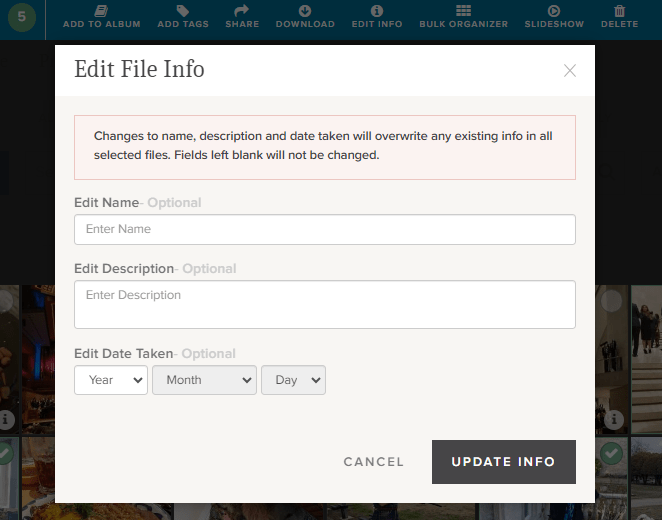
Now this is a good one. The “Edit Info” button allows you to change the basic information on a file. You know how photos come from your camera with vague names like IMG 36 or a string of numbers. Well, you can change it to a more specific title like Jane in Dallas 2021 or whatever name would be more useful.

You can also provide a description of the photo here. You could explain who Jane was, what she was doing in Dallas, what your relationship to her is – whatever you want. In fact, while the description boxes you run into with many programs have a 25 word or 100 character limit, this description can go on for as long as you’d like it to.

You can also edit or add a date. Sometimes our devices try hard to fill in blanks and provide a Date Taken which has no basis in reality.

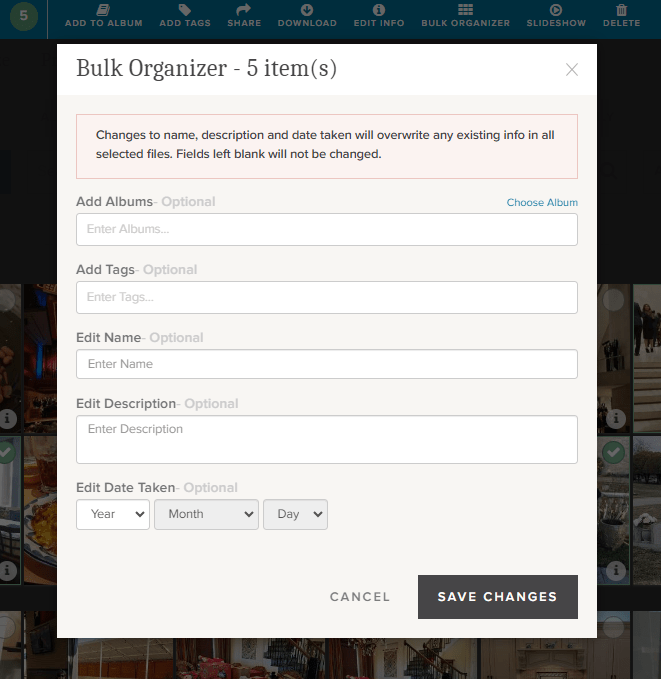
If you’re loading a whole bunch of photos to your storage, the Bulk Organizer could be your best friend. You could do the whole curating job in one fell swoop. You just have to remember that whatever you put here will override anything else you might have in the metadata.

You can make changes to all of these sections or just choose those you want.

One more choice. Perhaps you’d like to select a group of photos for a slideshow. Well, there’s a “Slideshow” button. It will autoplay whatever you’ve selected and you can even put it on “Loop” so you can play it continuously.

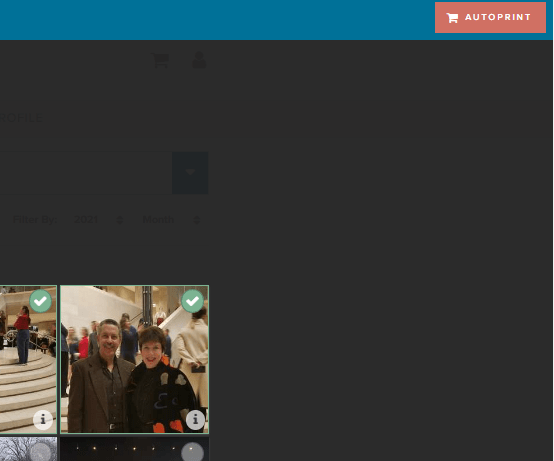
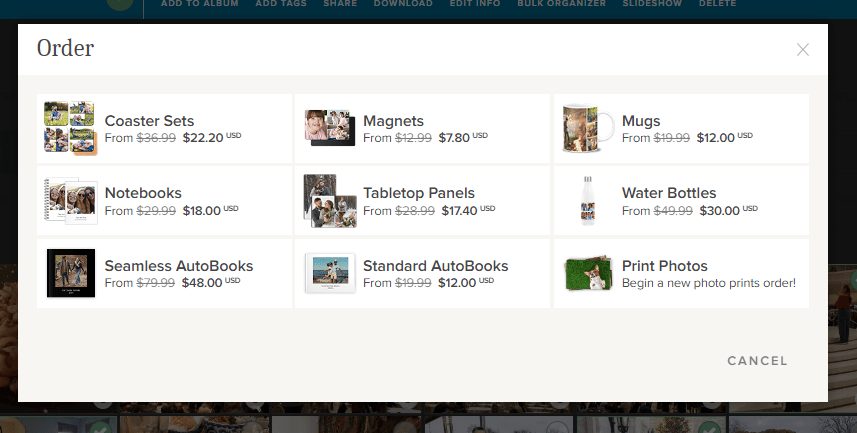
Well, there is one more thing you can do from this screen. You see that brick colored square that says “AUTOPRINT”? Well, this could be step one for your next print project. Just select all the images you want to include in a digital photobook, photogift or perhaps you’d just like to print some copies to share.

The AUTOPRINT buttons connects you directly with the various potential projects in Autoprint. That’s where FOREVER does most of the work, like magic. You select the images and the project. FOREVER will do the rest. You’ll be given the opportunity to do some minor editing, if you chose, then all you have to do is pay for it and select your delivery method and address. You can have custom projects ready in seconds!

Wrapping It All Up in the Library

Most of these same features are available in the FOREVER app, as well as on the website, as I have shown them here. You just find them in different places. Personally, I enjoy working on files in the Library when I’m at my desktop or using my laptop, but I’ve heard of people who curate their entire collection of media on their phone, sitting by the pool, drinking a cool adult beverage.

It’s up to you. If, while you are in the Library on your computer, you need a reminder about any particular images, just hover over the “i” in the bottom right of any images. A small black and white screen will pop up to show you what FOREVER knows.

And that’s all there is to it. I plan to write similar posts about Albums, Tagging and the App in the coming months, but next week we’re going to AutoPrint. Start thinking about a project you’d like to have completed quickly – like magic.

DFW Metroplex, Memory Keeping, Photography

Yes, You Can Digitize That

MEMORY KEEPING 101: JUST IN CASE YOU’RE WONDERING WHAT WE CAN DIGITIZE

We Digitize More and Better

That gray box company that you may or may not be familiar with, which has all the advertisements on the radio and social media about digitization, says this about what video formats they digitize: “We work with many video formats including VHS tapes, VHS-C, Mini-DV, Hi8, Digital 8, MicroMV, Betamax, and PAL.”

You know what? That sounds good until you compare it to what FOREVER says, “We can digitize any and all consumer videotapes including VHS, beta, Hi8, Mini DV, DVDs, and 3/4″ U-matic.” Did you see those three little words? ANY and ALL?

And our more is more. Search around the other guys website and you’ll never see statements like these, which are just everyday jobs for FOREVER:

  • We can digitize standard 12” x 12” scrapbook album pages.
  • We can digitize photos larger than 8” x 10”, historical documents, newspaper clippings, photo albums, books, oversized scans, medium and large format slides, and medium and large format negatives.
  • We can transfer content from picture CDs and data discs, flash drives, external hard drives, 3.5″ floppy discs, flash memory cards, smartphones, and digital cameras with internal memory cards.
  • We can digitize exceptionally large orders, or orders requiring an advanced level of organization and processing.

We Offer More and Better Delivery Options

When your digitization is over, the other guys do not offer permanent storage solutions for the images you’ve just paid so much money to digitize. They want to sell you DVD/CD’s, Thumb Drives or Cloud Storage.

Well, if a DVD/CD or Thumb Drive is what you really want, FOREVER is happy to deliver, but it’s not what we recommend. Why? Because those are just Memory Disasters looking to happen. DVD/CD’s and Thumb Drives are devices – devices which can fail or become obsolete. The other guys are just setting you up for the next time you need to upgrade your technology.

Oh, the other guys will happily rent you a piece of the Cloud, but which Cloud? The one that will bill you monthly or annually for as long as you both exist. The one that can compress your images, transfer them to another company and mine for advertising. The Cloud which has forced you to sign terms and agreements which say if your photos are deleted you have no recourse. The one which has told you they will delete your photos as soon as your account is not active – as in you didn’t pay for your storage or merchanides that month? That’s not FOREVER storage.

Instead, FOREVER offers permanent storage you own rather than rent. You can pay for it with a one time payment or in 24 installments, but then it is yours and your family’s forever – seriously. You’ll never have a device which can be corrupted, fail or become obsolete. You can’t lose it or destroy it. Your online images will never be compressed or deleted. They’ll never be transferred to another company. They’ll never be mined for adverting. Your photos are guaranteed safe for your life plus 100 years, in part because they are triple backed up in diverse geographical locations and protected by a fund devoted to your storage. And the best part, instead of coming back to you when technology once again renders you obsolete, FOREVER will just upgrade you to whatever the new technology is. Doesn’t that sound a lot better?

And one other small item – we’ll send you back all your originals. You are welcome to throw them away if you like, because they are digitized and safe, but most of us would like to keep at least some of them around. But the other guys, when they’re through, so is your stuff. You never see it in the physical world again. Ouch!!

So, if you are thinking about digitizing your photos, then let’s talk 972-971-5263. I want you to have a more and better experience!

DFW Metroplex, Memory Keeping, Photo Organization, Photo Organization Coach, Photography, Scrapbooking

Why There’s a FOREVER!

MEMORY KEEPING 101: FOREVER FOUNDER SHARES HIS WHY

What’s FOREVER?

FOREVER is not yet one of those companies everybody knows about, yet I think a day will come when it will be the go-to place for all things digital-memory-keeping. Until then it’s one of my missions in life to be sure people don’t lose their memories from lack of knowing about FOREVER.

You can’t be around me very long without finding out I care about your photos and have all the tools you need to preserve them for generations to come. That’s especially true if you read this blog.

Why FOREVER?

The founder of FOREVER recently took the time to share the reasons why he has devoted the rest of his life to this company. In this short (4:40 minutes) video he tells what led him to discover the need for the company and why he feels it is such an important tool for anyone and everyone to use.

No one could be more eloquent on this subject, so today, instead of writing a few more hundreds of words, I’m sharing this video. Please take the time to watch it. I think you’ll agree with me, the time has come for FOREVER.

Glen Meakem, Founder & CEO of FOREVER shares his why

So, what do you think? Are you ready to make FOREVER your memories’ home?

DFW Metroplex, Memory Keeping, Photo Organization, Photo Organization Coach, Photography

Get Ready for FOREVER Valet

MEMORY KEEPING 101: THINK OF IT AS A RED CARPET FOR YOUR PHOTOS

What Do You Have & Where Do You Want It?

When I ask this question, most people have only the vaguest idea of where all their memories are and they really don’t have a really good idea of where they want them to be, but together we come up with a plan to find everything and get it someplace safe for generations to come.

When the bulk of their memories are on traditional media, like photographs, slides, video and such, the answer is easy. It has to be digitized! While there are a number of ways to go about getting from a pile under the bed to organized folders on FOREVER, it’s a pretty straight forward process.

If those memories are on their phone instead, well that’s easy, too. The FOREVER app can upload everything on your phone to your FOREVER storage while you sleep. Then if you like, it will continue to do so into perpetuity, so you never have to worry about losing your photos, even if you lose your phone, it gets stolen or if somebody runs over it.

When those photos are on a computer or hard drive, getting all of that organized on FOREVER was doable, but could be a long drawn out procedure. In truth, the bigger your mess was, the easier it was to transfer. If everything was carefully organized, there was not really any way to transfer all of that organization to FOREVER without doing it all over again. BUT NO MORE!

Valet Is Here!

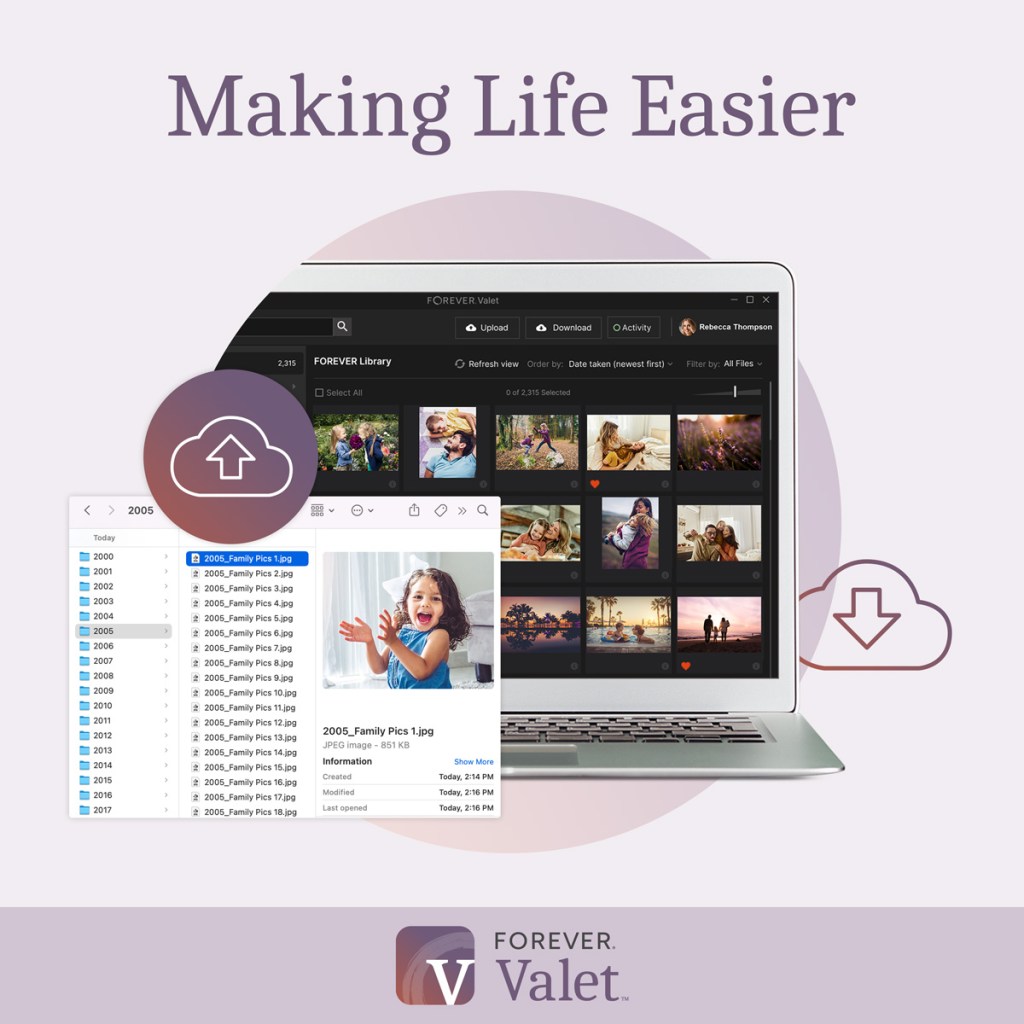
Valet is a magic carpet ride for your photos. Thousands and thousands of photos can be moved from your hard drive, computer or laptop, with a few clicks of a button. If your photos are nothing but a great big mess, that’s great news! With Valet, they can arrive in FOREVER in nice neat folders, sorted by year and date, with all the duplicates pulled out. However, if your photos and videos are already in nice neat little folders on your device, then FOREVER will just move the whole thing – organization and all into FOREVER – BAM! It’s done!!

What’s even better is that you get to decide what kind of Valet customer you want to be:

  • Free One Month Trial – If all you want to do is a one time upload from your computer to FOREVER, then this is the route for you. There is no limit to the number of photos you can upload to FOREVER (or download from FOREVER, for that matter), you just have to do it all in 30 days. You can use it to get photos off your computer, off your husband’s computer, off your parent’s computer or wherever. The Valet Trial is associated with your FOREVER account, not a particular device.
  • Yearly Subscription – If a month is not enough, then how about a year. For only $59.99 you can do all the things mentioned above, but instead of 30 days, you have a 365 of them. That’s pennies a day.
  • Professional Subscription – If for any reason you have access to more than one FOREVER account, then perhaps you’ll need the professional version. It was designed for professional organizers, but there are other applications as well – such as if you are part of a family, team or other group using FOREVER for a project. The professional subscription is $299.99.

Here’s the good news. You can use your Club Dollars to buy it and it qualifies for the Club Discount. How can you resist?

If Valet sounds like something you’d be interested in, let’s get together and talk about how it can help you. It’s a very exciting product!!