
Memory Keeping, Photo Organization, Photo Organization Coach, Photography, Scrapbooking

Try It! You’ll Like it!

MEMORY KEEPING: START YOUR RELATIONSHIP WITH ARTISAN 6

Not Exactly Point & Click

Have you ever used Canva or another program like it? Yes, they’re great and it’s easy, but at some point, it’s just not going to allow you to do what your imagination can dream up.

How about Photo Shop or Lightroom? They’re amazing, but a lot of overkill and not designed for scrapbooking.

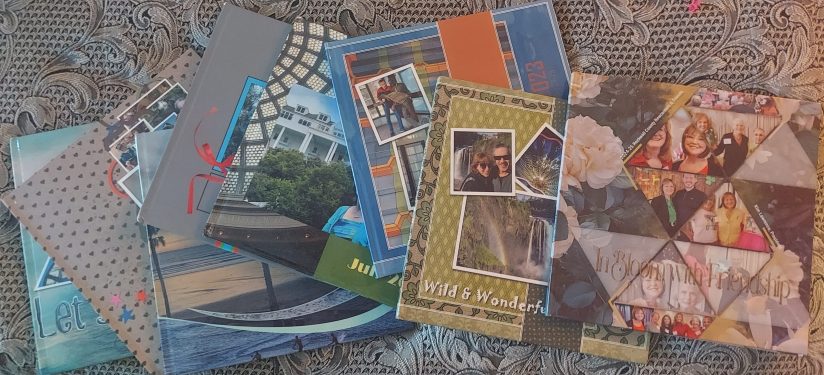
I’ve used all these and I don’t love any of them the way I do Artisan 6, the scrapbooking software from FOREVER, but the relationship was rocky at the beginning. When it comes to digital stuff, I rarely read the instructions. I just start clicking and somehow things work out. When I bought Artisan 6 and downloaded it to my computer, I couldn’t even figure out where to point and click!
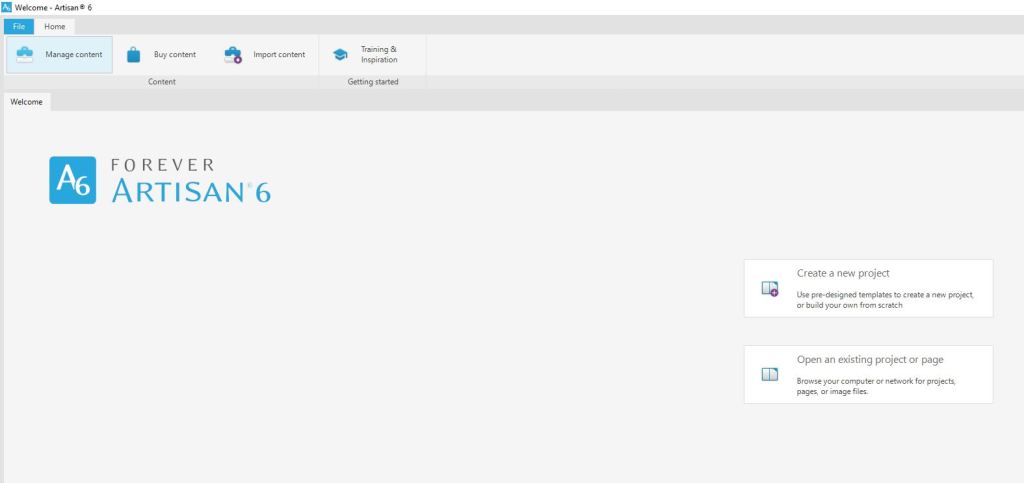
So, I followed some breadcrumbs to download the Getting Started Guide. I have to tell you honestly, it wasn’t the greatest documentation in the world and honestly, IMHO it’s still not. All of the videos were made for Artisan 5 and even though they promised everything was in the same place, “the fresh new look” for Artisan 6 threw me for a loop. But I kept on trying. Then I hit Lesson 2: Create a new project using the FOREVER Design Maps Template Book.

I tried. I really tried. Tameka, the head Pixie and the voice on the training videos, kept telling me to trust the process and just do what she said, but I ran into a brick wall. She talked about using templates like it was something everyone in the world had a familiarity with, but I was lost!

After a very emotional confrontation with the Getting Started Manual, I was crying and the manual was bouncing off my wall. This doesn’t sound like much of a recommendation, but I hope you can appreciate that in spite of this, I now love Artisan 6. Your brain may work completely differently or you might already be a template queen, so you might breeze right through all this. The point is this, even if you don’t, don’t give up!

I skipped to Lesson 8: Starting with a Blank Page and after a few false starts was creating pages, which in a day or two became a photo book.

I’d be lying if I pretended it was happily ever after for Artisan 6 and me. I also doubt that I would have ever gotten a handle on it without pixels 2 Pages and the annual Online Party. I’d also be lying if I tried to pretend I was some sort of Artisan 6 guru, but then again who is? Every time I sit in on a training, one of the Pixies says, “I didn’t know it could do that!! With Artisan I’m always learning and to be honest, that’s part of the fun.

So, Why Do I Love Artisan & pixels 2 Pages
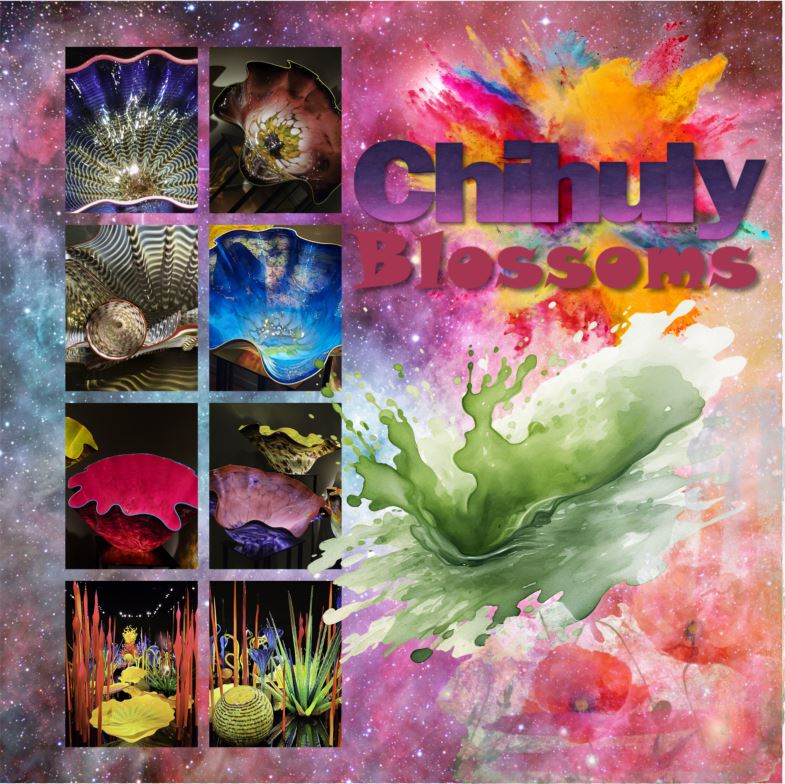
Reason #1: You can do things with Artisan you could never dream of with paper and tools. The layering, the frames and masks, the cut & color tools – if you can dream it you can do it!
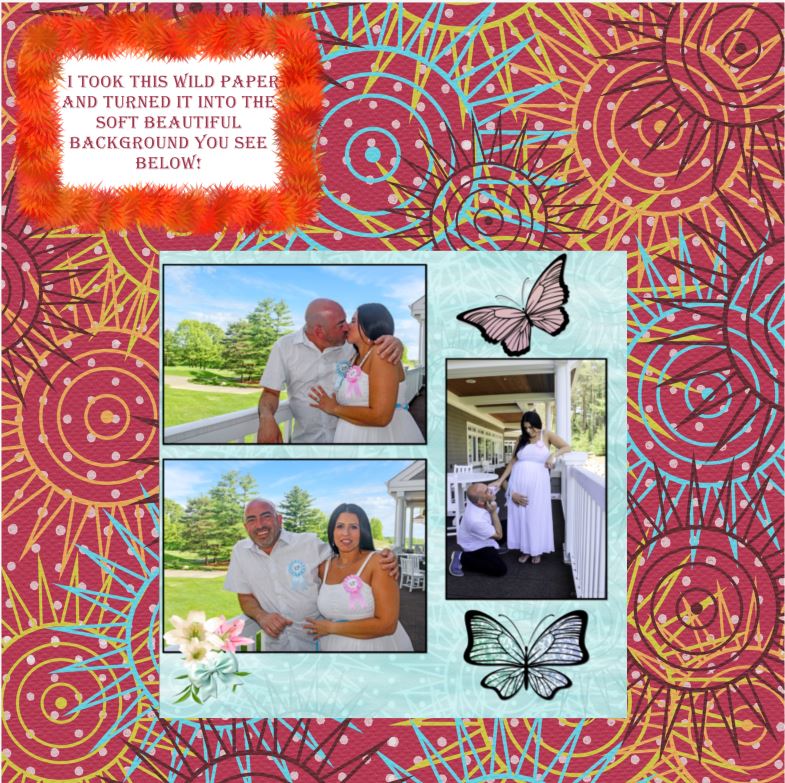
Reason #2: Digital is forever. You never run out of embellishments or paper. When you buy Artisan 6 you get so much free art you can make pretty much anything and when you use an item, it’s still there to use again. In fact, you could use it on the very next page and no one would even know it, because there are so many ways to change it up! See, the wild maroon and soft blue paper are the same thing with edits.

I remember the day I used up my last sheet of polka dot paper from Creative Memories and when I used the last of a floral embellishment kit I adored. I was bereft. I still run onto scraps of favorite CM papers no longer printed. You never run out with digital.

What’s more, you can’t ruin a digital photo. Crop it too close, cut it by mistake, whatever! As long as you have it digitally you can put it back on the page and give it another try. You can use it in more than one album without having to reprint. Heck you can even print multiple albums from just one creation.
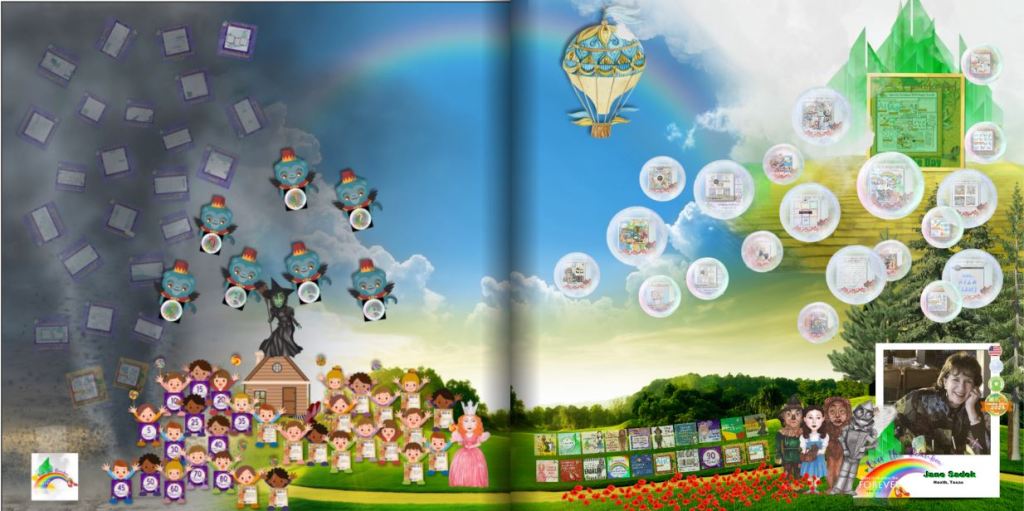
Reason #3: I love the feeling of accomplishment I get from winning things, sharing things, learning things, getting bargains and downloading free stuff. The image above is my badge page from Over the Rainbow. Each item on the page represents a badge I earned for something. Once you’ve gotten a certain number of badges you earn a free blueprint and those are my favorite blueprints. Online crops bring a great way to learn more and the pixels 2 Pages gives you someone to celebrate with.

Reason #4: Blueprints are flexible templates! I explained that the Create & Print Templates have limitations, but the limitations disappear completely when you move into the world of Artisan and p2P. The Blueprints are merely places to start! You can move the title, delete it, reduce it, enlarge it, change the font and so forth and so on. You can add photo drop points, remove photo drop points, enlarge them, reduce them and the same with the rest of the features on the page. Each Blueprint has limitless possibilities and when you belong to p2P, you get new Blueprints every month as part of your membership.

Reason #5: The Productivity Challenge! Sometimes I need a little incentive to participate. It doesn’t have to be anything big. I can get excited about badges and I love sharing my pages. The Productivity Challenge gives me both. As I complete a page to go along with all the Blueprint offerings in a month, I add them to a badge page and I show them off with appropriate hashtags. At the end of the quarter I post my badge page and get a prize. It could be a Blueprint or perhaps some digital art. At the end of the year, I qualify for a bigger prize. But at the end of the year, if I complete it all, I will have created 108 pages. That’s a lot!

There’s more to love, but I’ll stop there. If you have questions, let’s talk. Otherwise, your subscription to Artisan is waiting. You can get started NOW!

Memory Keeping, Photo Organization, Photo Organization Coach, Photography, Scrapbooking

The Savings Are Adding Up

MEMORY KEEPING: LEARN TO STACK YOUR DISCOUNTS WITH FOREVER DEALS

With FOREVER there’s always a deal to be had and if you play it smart, you can just keep adding up discounts to find the very best price!

The Deals Page

Your savings always start on the Deals Page. It lists every deal that’s available right now. It will tell you what the deal is, what the time frame is and how to get that deal. So basically, never buy anything unless you’ve looked at the deals page.

Don’t see what you were hoping to buy on the Deals Page? Then let me know. I have access to all the deals for the month and maybe what you want to buy will have a Deal tomorrow or next week. I love any excuse to talk to you, so you won’t be bothering me. You can let me know what you want and I can let you know if it’s going to be available for less soon.

Always the Best Deal on Basics

There are several items from FOREVER that never go on sale, because they are always sold at the best price. Those would be Storage, Video Streaming, Facial Recognition, Genealogy and Programs like Artisan, Historian, etc. However, that doesn’t mean you can’t sometime earn a discount, one way or another. Let’s talk about those opportunities!

I could give several examples, but for this example, during the Second Quarter of 2025 FOREVER had a Digitization Promo. During the last few weeks of the Promo, they sweetened the deal with a 5% off Coupon for Storage. If you had digitization done during that time, then you were sent an email with your 5% off storage coupon. This coupon is good for two storage purchases if used by September 30th. So, some of you may be holding on to this valuable coupon and hadn’t realized it was still good. If you lost your code – I have it AND there are ways for you to get even more off your storage purchase.

Always 5% Off for CLUB Members

The Club is a tool you can always use to get 5% off most everything from FOREVER and in ALMOST every situation you can stack this 5% off with whatever other deals are going on. There are rare exceptions, but they make it very clear when those occur.

The CLUB is designed for serious Memory Keepers. CLUB Members invest in dollars in the CLUB each month, like a savings account. The money is theirs from the get go and they can use it whenever they want – right then or or they can use it to cover monthly payments or they can save their dollars up to buy something special. However, pretty much whatever they buy, as long as they belong to the CLUB is 5% off. But there’s more! Every third month you belong to the CLUB you are awarded free storage. 5% off, free storage – what’s not to like. There are other benefits, but those are the biggies.

So, remember those people who earned the 5% off coupons for the Q3 promo? Well, now they have 5% off from that AND if they are CLUB Members, they have another 5% off. They just doubled their discount.

Or There’s a Back Pocket Discount

Some people have no desire to join the CLUB, but they’d like to make a large one-time purchase. As an Ambassador, I can give them a one-time 5% Discount. So, if you purchased Digitization in late June and have one of those coupons, but you don’t want to join the CLUB, then you can use your coupon and my one-time discount so that you too, can double your discount.

I did this for a family recently who was buying a TB of storage. That’s $6,000! The guy who was buying it isn’t going to be using it himself, but he’s turning it over to the Family Historian. Why would he join the Club? But, with my 5% Back Pocket Discount, he saved $300!

And Then There’s This Quarter’s Storage Offer

My July TB of Storage customer was brand new to FOREVER, so he couldn’t take advantage of the Q2 Bonus, BUT he did qualify for the Q3 Bonus. Because he bought storage last month, he had the opportunity to also buy Facial Recognition and/or Video Streaming at 5% off. So, he went ahead and purchased Permanent Facial Recognition for the Family Historian. Permanent Facial Recognition is $1300. He got 5% off with because he bought the storage AND another 5% off because he was using my one-time Back Pocket Discount. That was $130. So he stacked and saved a total of $430!

New Customers $20 Off Welcome Coupon

But that’s not the end of it! Since this customer was also brand new to FOREVER, he got a $20 off coupon from FOREVER and I was able to apply it to that transaction, for a total savings of $450!! Isn’t that amazing! What would have been a $7300 purchase was instead $6850!

Are You Ready to Stack Up a Great Deal?

With FOREVER, every purchase can be a great deal. With tools like the CLUB, Back Pocket Discounts, Welcome Coupons, Referral Coupons and Monthly Deals the value of your Memory Keeping investment just gets greater and greater. Whatever you need, let me know and I will dig deep to get you every discount you qualify for!!

Whether you’ve been my customer for a long time or you’ve just now decided to start rescuing your memories, let’s talk! You’ve got a great discount waiting for you!

Memory Keeping, Photo Organization, Photo Organization Coach, Photography, Scrapbooking

Three Ways to Create #3

MEMORY SHARING: THREE WAYS TO CREATE #3

Artisan – The Long & Winding Road to Now

For those of you who are already digital scrapbooking fans, perhaps you remember way back in the early 2000’s when Creative Memories offered Storybook. Then they went bankrupt, for a lot of reasons that had nothing to do with how wonderful their products were and Storybook began a journey that has turned it into one of the most powerful and most popular digital scrapbooking software programs in the world. It’s more wonderful than ever, it was renamed along the way to Artisan and the only place to get it is FOREVER.

I’ve been a Creative Memories customer since the nineties, through both bankruptcies, but in the infancy of digital scrapbooking I did not embrace it. I held firmly to my traditional scrapbooks and printed all my photos. Eventually, I did try creating photo books with some of the popular sites like the fish and the fly, but I hated it. How could they expect me to be satisfied with pre-programmed, pre-designed photo slots, when I had enjoyed the freedom and creativity of blank pages.

Then I decided to have this Memory Keeping business and realized I needed to offer options for people who did not love traditional scrapbooking the way I do and I needed to know how to use them. So, I bought Artisan software and did battle with the Getting Started Manual. Then I threw the manual across the room and started clicking buttons. I wanted to do this. With the purchase of Artisan comes a truckload of digital art and what scrapbooker can resist using embellishments? Through gritted teeth I created my first album and even though there had been some things I liked about the experience, I retreated back to my comfort zone of traditional scrapbooking.

My Cousin Led the Way to pixels 2 Pages

One of my very best FOREVER customers is my cousin Debbie. She embraced scrapbooking a long time ago – thanks to me. I took a pile of my scrapbooks to a family reunion and the rest is history. She also went places with it I never ventured. I was pretty focused on Creative Memories, with a few sticker and paper purchases from craft stores, but when I found Artisan, I introduced her to it and she was off again – and again she embraced it with more fervor than I did. She joined the online community called pixels 2 Pages (p2P) and was whipping out digital pages to beat the band.

In the next year or so, I created a few more items with Artisan, but I was embarrassed by the fact that my cousin had gone so much further with it than I had. She asked me questions about the software I was selling that I couldn’t even answer.

So, in 2024 I joined p2P and attended my first online crop. I’d been on vacation and had just gotten back into town in time to join one of the final sessions. Tameka Bond, the Boss Pixie, was teaching some technique and as I tried to follow her lead, I felt as if someone had thrown me back into Getting Started Manual hell.

I might have quit right then and there if I hadn’t already bought my ticket to the Over the Rainbow Online Party. I had no clue how I was going to get through six weeks of training in March and April, when I couldn’t even figure out how to make it through one lousy session in January, but I was determined to do it.

I’ll confess, the first day or so of Over the Rainbow was a baptism by fire. I was back in Getting Started Manual hell, but this time I dipped into the power of p2P, an online community of scrapbookers who had walked my path. I’ll never forget what it was like to post my first page. I hated the page, but by golly I was going to get that badge! Moments after it went up, the designer of the kit I used commented on it and told me it had been a great use of her artwork. I’m addicted to praise, so it was just enough to push me on to the next seminar.

Six weeks later I was also addicted to my new hobby, digital scrapbooking. Yes, I had struggled, but the p2P Community was amazing. They oooohed and aaaaahed over my pages, commiserated with my frustrations and encouraged me to keep trying. I was also earning badges and filling up my bingo card. I’m not much on games in general, but hang a carrot out for me, let me win a badge or get a free blueprint and I’m there.

Why am I telling you all of this? Why aren’t I telling you how easy peasy this digital scrapbooking thing is? Well, it’s not easy. I don’t want you running off to buy it after I sing its praises and then hating it and me. Next week I’ll take you on an overview. I want you to share my addiction, but you have to get past the Getting Started Manual.

Memory Keeping, Photo Organization, Photo Organization Coach, Photography, Scrapbooking

The Backbone of FOREVER Storage

MEMORY PRESERVATION: LEARNING THE BASICS OF FOREVER STORAGE – The Gallery

FOREVER’s Main Menu

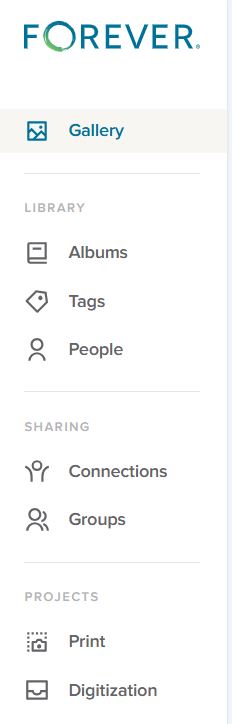
The menu you see on the right is the basic menu of your FOREVER Storage. Whenever you are in your personal storage account, this is what you will see on the left hand side. Some of the terms may seem familiar to you from other websites you’ve been on and chances are the uses are similar, but let’s make sure they actually mean what you think, because originally I assumed I did, and I was wrong.

The Gallery

In FOREVER land, all of your photos, videos and documents live in your Gallery. You have other tools like Albums, Tags and People to organize your access to these images, but the images don’t actually go there. They stay in the Gallery.

I didn’t understand that at first. I thought the Gallery was a place and Albums were a place and I didn’t need the items in two places. So, after I uploaded the first photos and put them in an Album, I deleted them from the Gallery. WRONG! Then I had an empty Gallery and an empty Album.

Thankfully, the Delete Bin stores deleted items for 30 days. I restored those I’d deleted to the Gallery, added them back into the Album and realized I’d learned an important lesson. Galleries on other sites work the same way, but I wasn’t familiar with them, because the only place I’d stored photos in the past was on my computer.

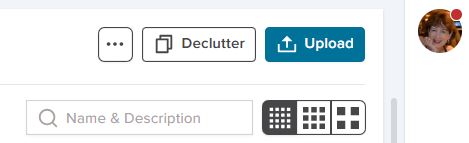
Images are added to the Gallery in two ways. In the upper right hand corner of the Gallery page is a blue Upload button to add images manually or the images can come there through the free FOREVER app, which can be set to automatically synch with Storage. Whether images are added manually or automatically, the Gallery will automatically sort them by the Date Uploaded (Newest First).

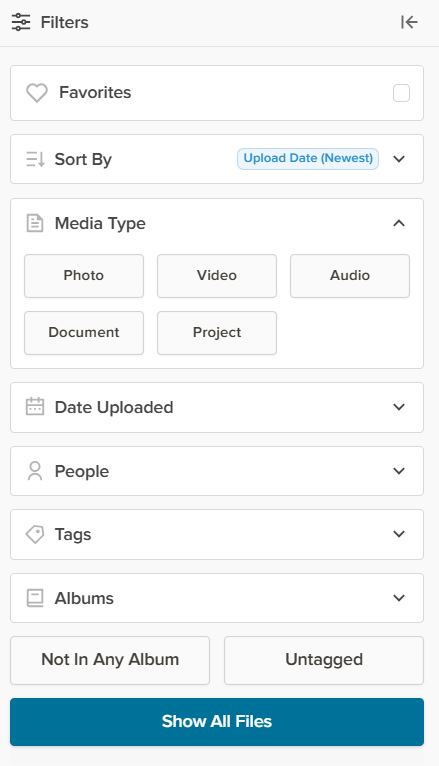
Beneath the word Gallery on the left side of the page (next to the Main Menu) there’s a Filter button and it will open up the Filter Menu, (illustrated below) which allows sorting by a wide variety of values.

The Favorites button will hide all images which have not been selected as a Favorite. Any image can be made a Favorite by double clicking the image to open the Lightbox and once there clicking the heart in the top row.

The Sort By button tells FOREVER how you want to see the images in your Gallery. As mentioned the automatic choice is Date Uploaded (Newest First). The other choices are Date Uploaded (Oldest First), Date Taken (Newest First), Date Taken (Oldest First), Names (A-Z), Names (Z-A), and File Size (Largest) or File Size (Smallest). At first you may wonder why they have so many choices. In part, that’s because people have different preferences, but the more I use my account, the happier I am FOREVER gives me so many choices.

Sorting by Media Types shows only one type of media at a time and the selections are Photo, Video, Audio, Document and Project. Date Taken allows you to pick a Date Range, from 2 days to whatever you need. People, obviously allows only images of the person you choose to show, but you will have to have set up people albums to select them from (which we’ll talk about another time). Tags works the same way as the People filter, but with Tags rather than People. Albums works like People and Tags with the Albums you set up.

The bottom two buttons – Not In Any Album and Not Tagged – are my favorites, because I try to keep my images organized in Albums with Tags. With those buttons I can quickly see how far behind I am, because it will show me just those images I need to work on.

Now, the real magic happens when you start getting fancy. You can mix & match the filters, choose more than one person, pick a date range and more – all at once. The more you narrow it down, the fewer images you see.

We’re almost through, but before I finish, I wanted to show you these last few buttons on the Gallery Page.

The box with the three buttons let’s you View a Slideshow. Now you can see why the filters can be so great. You could select just the images from a vacation you just had, hit the slideshow button, sit back and enjoy. The box will also give you automatic access to the delete bin, if you need it.

Declutter is something for another day, but it’s a great tool, and I’ve already told you how to use the Upload button.

The search bar allows you to search by text for a photo. Let’s say you know you had several photos you named “Bob’s Graduation”, but you weren’t sure exactly what album they were in. Just type “Bob’s Graduation” in the box and it will find the images.

That bar with the dots in them selects the size of the images in the Gallery. The more dots, the smaller the images. The less dots the larger. You’ll love that the thumbprints show the full image with orientation, not just some sliver or portion.

Memory Keeping, Photo Organization, Photo Organization Coach, Photography, Scrapbooking

Three Ways to Create #2

MEMORY SHARING: THREE WAYS TO CREATE PROJECTS #2

The Many Templates of Create & Print

Last week we navigated to the AutoBook Section of the FOREVER site. The first options shown (unless you’ve used the filter) will be AutoBooks. You select the photos and AI does the rest. This this feature is not unique to FOREVER, but you’ll find it easy to use and the resulting photo books are gorgeous.

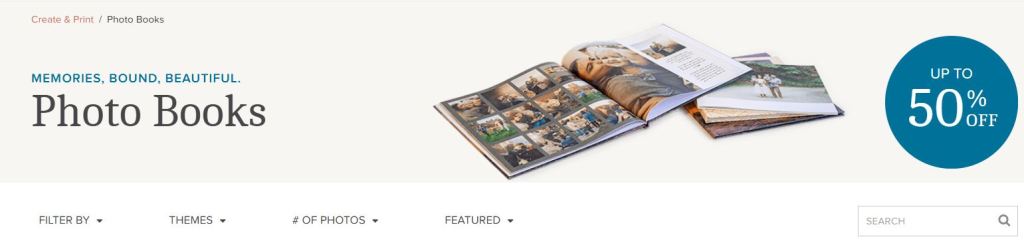
Today we’ll once again go to Create & Print and select Photo Books, but this time we’ll skip the AutoBooks and look at all the template options. As with all Create & Print, you can choose your photos from your device or from your FOREVER storage. These beautifully designed photo book templates offer many cover choices and go from minimal page decor to fancy. I’m guessing you’ll be overwhelmed, so let’s start with the filter!

The Filter

Once you consider book size, cover selection and all the other options you have with FOREVER’s Create & Print Templates, you have literally thousands of choices to use for your project.

The FILTER BY Button addresses the basics. What size do you want your photo book to be? Will it be a Standard book or Deluxe Seamless? Will it be a Hardback or Soft Cover album? You can even let FOREVER know if you’re looking for a particular color palette or Black & White.

THEMES tells FOREVER what style of book you’re looking for. Classic, Modern or Rustic? Are you remembering a wedding, travel or holidays? These are just a few and you can mix and match. Perhaps you want a classic theme for a holiday wedding. Just check the boxes which apply to your project.

Next is another style question: # OF PHOTOS per page. Maybe you’ve got a series of school portraits and you want to put one on each page. Maybe you want more than one photo on the page, but you’re still looking for simple elegance. Few Photos would be your choice. Maybe you’ve just gotten back from the cruise of a lifetime and you have hundreds of photos for every port. You might be interested in Many Photos.

The final button is FEATURED. If you leave it at that, it will show you the default page – the way FOREVER decided to display the choices. However, click on it and it will toggle between Most Popular and Most Recent. Most Popular shows what most people select when they’ve used the filters you have. Most Recent shows you the newest designs in FOREVER.

Personalize

When you click PERSONALIZE after choosing the basic parameters of your photo book, you’ll be taken to the template of the book. First, you’ll customize the cover design with your colors, your fonts and your photos. Then page by page, you choose! FOREVER has selected a template for each page and if you’re in a hurry, maybe you just want to load your pictures using the page templates they selected. However, you can also choose a template from the 100 or so available page templates, each differing in style, number of photos, title and journal box. There’s also the option to add a QR code linked to a FOREVER file. You won’t have that option with the fish and the fly.

Once you’ve chosen a template with the number of photos you want to include on a page, you customize any Titles with your own words and fonts. Same with the journaling boxes. Do it your way!

If You Find the Templates Limiting…

Create & Print Templates are designed to make the creation of a photo book easy, but some of us want more control, because we just can’t be satisfied. We like a page template, but we’d like it better if it had a larger journaling box or no title or we need one more photo on it. Or maybe you just feel like you’d like to have a little more decoration on the page. Guess what! You’re not a Create & Print customer. You’re looking for Artisan 6, just like I was. Come back next week and let me tell you about my addiction.

FOREVER's Front Door
Memory Keeping, Photo Organization, Photo Organization Coach, Scrapbooking

Beginning at the Beginning

FOREVER's Front Door
Here’s where to start

MEMORY PRESERVATION: SUPPORT BEGINS ON THE VERY FIRST PAGE

FOREVER’s Front Door

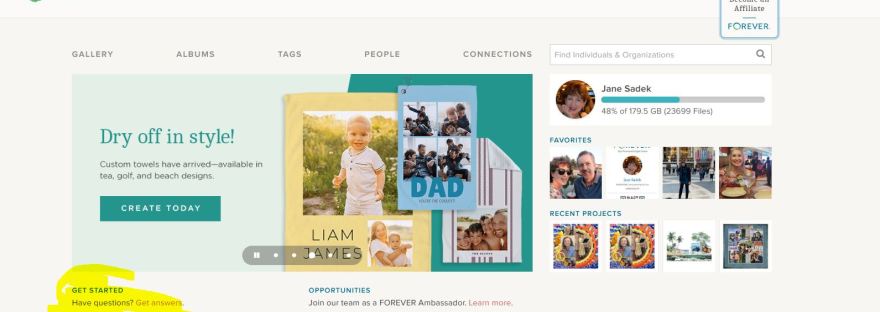
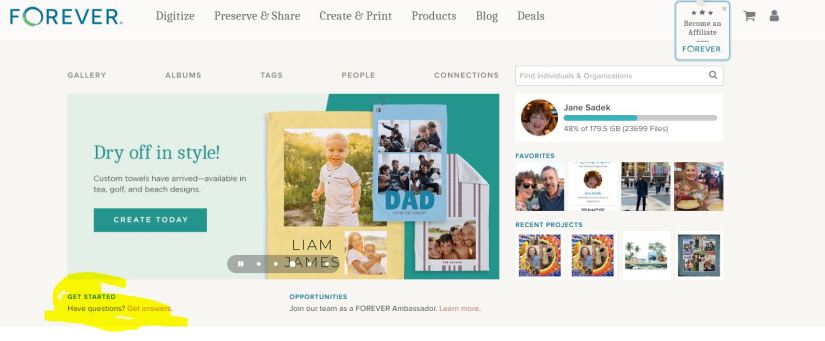
What you see above is the first page of the FOREVER website. The top row (Digitize, Preserve & Share, Create & Print, Products, Blog & Deals) are links to other pages on their website. Further along they invite you to a career with FOREVER, offer a shopping cart and then there’s the avatar which you can hover over to take you to various places in your FOREVER account.

You do have a FOREVER account, right. It’s free and they give you 2GB’s of storage so you can play around with things AND when you join, you get a $20 off coupon (if you verify your email address). So, if you haven’t joined, here’s the link: https://www.forever.com/ambassador/jane-sadek .

As you get to know FOREVER, you’ll find out that everything is hyper-connected. You can get to pretty much anything you want to get to on their site or yours with just a click, maybe two, and usually, because all of us are wired differently, there’s more than one way to get there.

For example, there are a couple of ways to get from FOREVER’s front door to the pages of your account. One way was the avatar on the top row. The second row is direct links to various parts of your account (GALLERY, ALBUMS, TAGS, PEOPLE & CONNECTIONS). (Then there’s a search bar to help you find other FOREVER people. Just type in their name and see if they are on FOREVER also. We’ll talk about Connections and Groups, later. I just wanted you to know what that was.)

Below the links to your pages, there’s a slideshow to show you some highlights of things to come. The one you see in the image above introduces FOREVER’s new towels. Yes, you can make personalized beach towels, sport towels and tea towels! That’s just the latest thing FOREVER has introduced.

GET STARTED

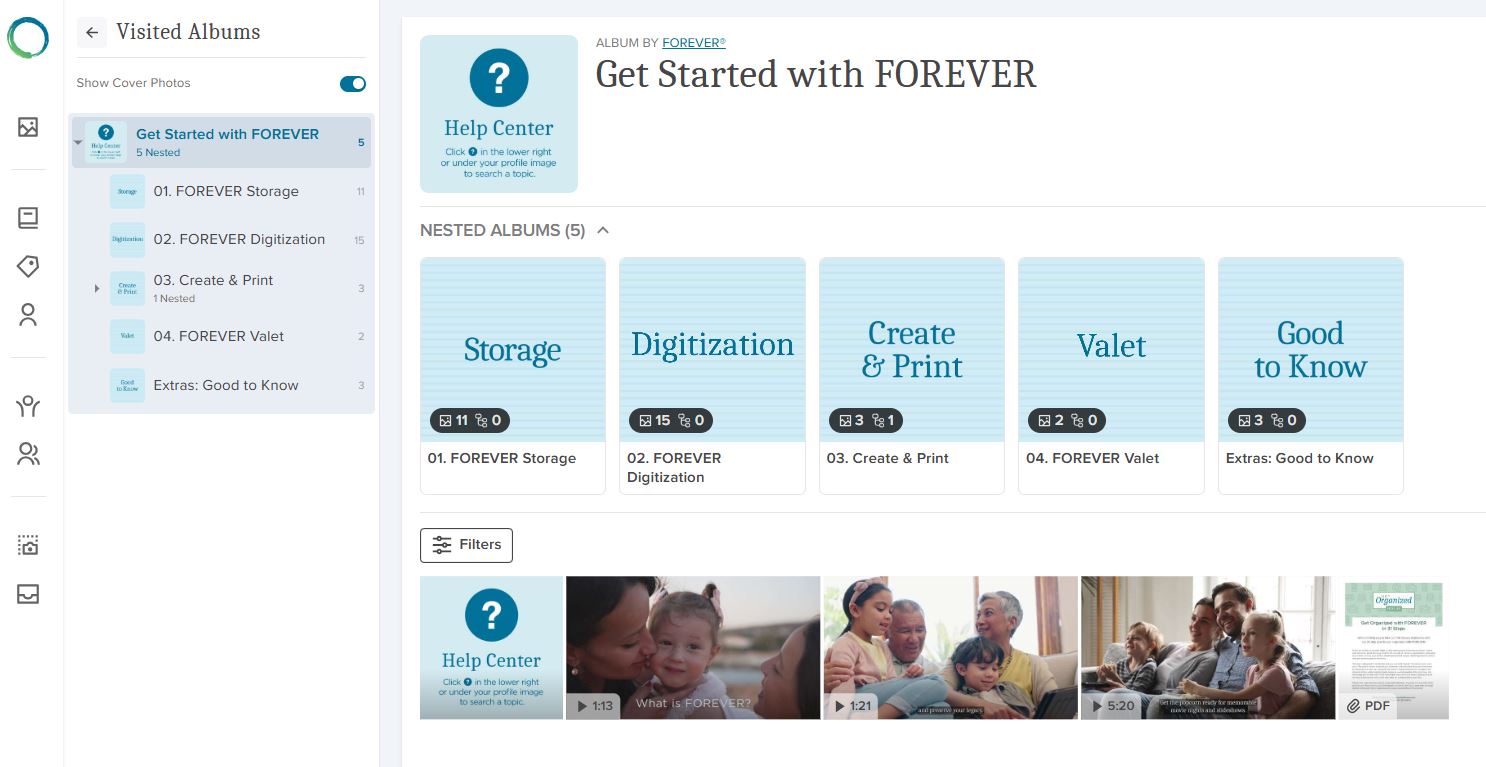
Now we’re where I wanted you to go. See, how under the slideshow I’ve highlighted “GET STARTED | Have Questions? Get answers.” Well, “Get answers” is a live link which will take you to the page I’ve inserted below. Let’s see what’s there.

Remember how I told you FOREVER always offers several ways to get around, well here’s proof. On the far left is a column of icons. The green and blue FOREVER Circle will take you back to FOREVER’s home page. The rest of them take you to places in your storage. From below the FOREVER circle down, they take you to Your Gallery, Your Albums, Your Tags, Your People, Your Connections, Your Groups, Your Print Projects and Your Digitization Projects.

Screenshot of FOREVER's Get Started Page
Videos for Everything FOREVER

Next to that you have a small block next to a large block. The small block are short cuts to the items you see in the big block. You can reach those sections of the site by clicking the shortcut or one of the files in the large block. Whichever way you go, you’ll keep the first column and the small block on the right for navigation and you’ll find nested files under that. These “files” in FOREVER are called albums.

This section of FOREVER’s website is a sort of hybrid. If you had gone to the top row choices, that would have taken you into FOREVER’s site and from those pages, you would have to go back to the main page to get to your pages. If you had instead chosen the second row, you would be in your site and according to which section you were in, it might look like this three row configuration or only the two blocks on the right. The bottom line is that wherever you are, getting to the rest of it is easy.

SO THEN, WHAT DO WE HAVE HERE?

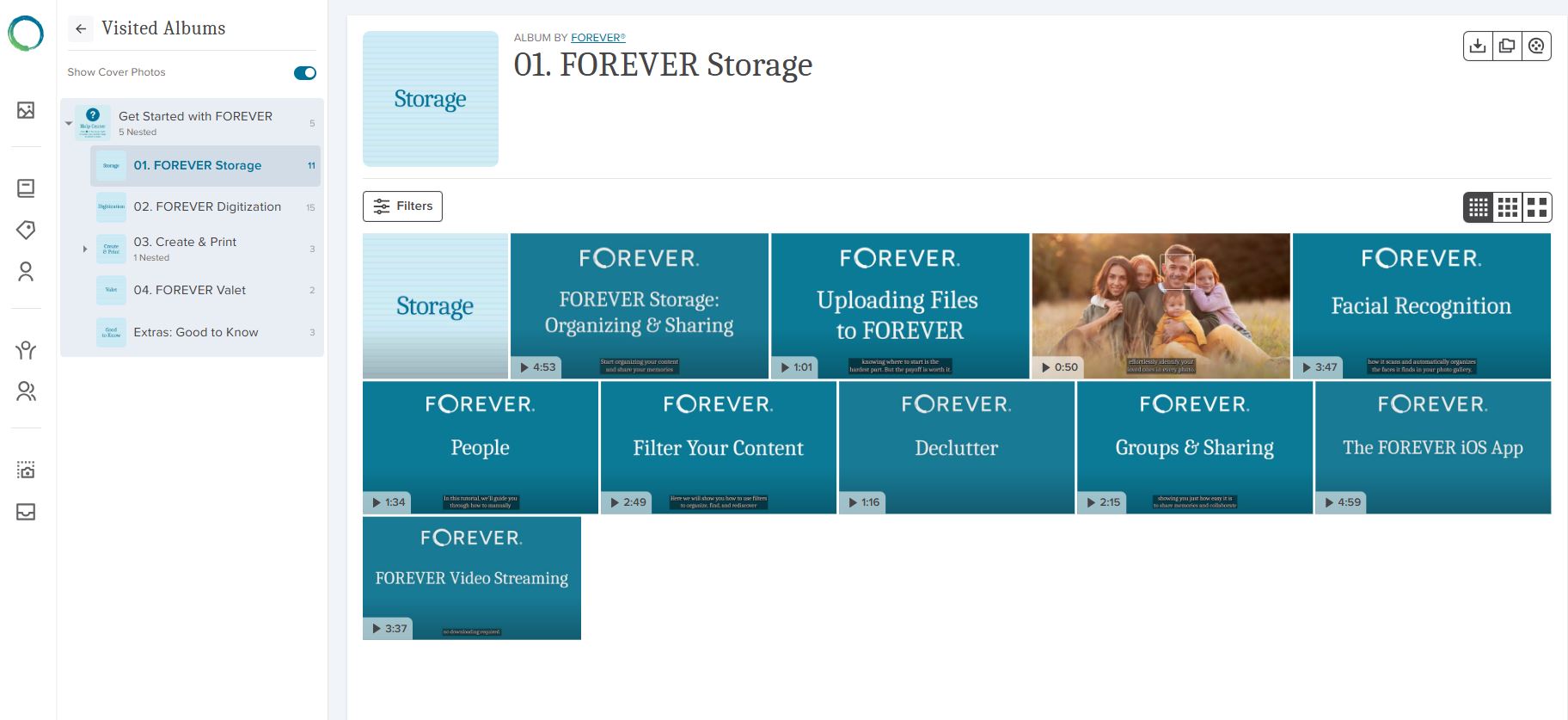
All that leads me to why we are here. The albums you see in the big block contain videos about using FOREVER. You can go directly to the album holding the videos related to what you want to know about. If, for instance, you clicked on “Storage”, you’d see the page I have inserted below. As you can see, most of these items have a small arrow and a time stamp in the lower left hand corner. That tells you they are videos. The items without a stamp will be simple images.

A Screenshot of the Storage Album in FOREVER's Website
Great Training Videos at your fingertips!

DIGGING DEEPER

If you click on the arrow in the corner of the video, it will play the video, because the actual FOREVER site has video streaming. If you hover over the video, a box appears which you can click. That allows you to copy or download a video. That functionality is there, because in your own storage you might not have video streaming, so you’d need to download a video to watch it. Autoplay is a great reason to add video streaming to your account and some day we’ll talk about that (or you can go to FOREVER now and watch the video you see in the image above!).

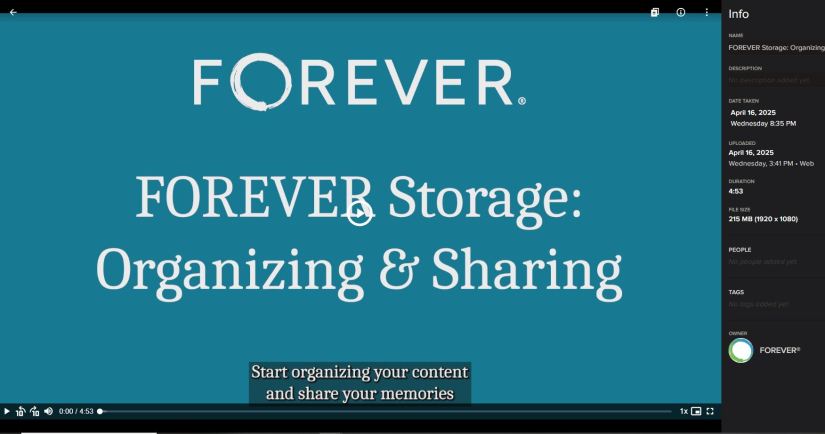
If instead you clicked on the item, it would take you into the light box I’ve inserted below. You could play the video from the video bar at the bottom and it also has an Info box. That tells you more information about the video and we’ll discuss the light box further in another blog, but I wanted to point it out, because just as FOREVER has a light box for the items in it’s albums, your albums will also have light boxes.

Screenshot of a FOREVER lightbox

And that’s that. Next week I will begin walking you through FOREVER storage or if you prefer, you could go watch the videos yourself at your convenience. Friday we’ll be making something fun for Memory Sharing and Monday we’ll be on the road, Memory Making! Stay with me!

Memory Keeping, Photo Organization, Photo Organization Coach, Photography, Scrapbooking

Three Ways to Create #1

MEMORY SHARING: THREE WAYS TO DESIGN PROJECTS #1

AutoBook

The easiest way to create a photo book with FOREVER is AutoBook and it’s quite magical. Whether you store your images on FOREVER or somewhere else, once you have chosen the photos you want to include, you just click your way to Create & Print on the FOREVER website and select Photo Books. Decide which AutoBook format you want, choose your parameters and then hit Personalize.

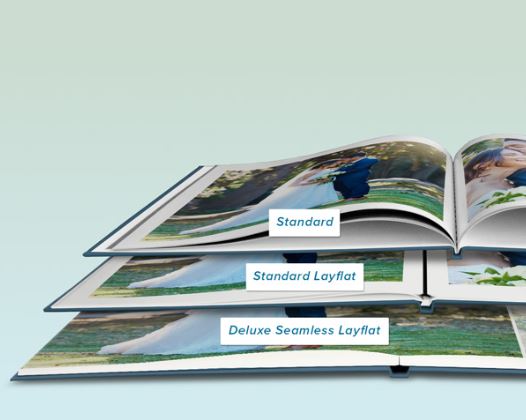
There are two AutoBook formats: Standard & Seamless. Standard means there will be a seam between the pages and Seamless means there won’t be. Within the Standard format there are two choices – Standard and Standard Layflat. Standard is like any other book, the pages go into a sort of valley and it is the most economical. With Seamless Layflat the valley is eliminated with a little trick which lifts the valleys between the pages and adds a think black line. It’s more labor intensive to create, so it costs a little more Seamless is more expensive because along with the necessary technology, you’ve also got thicker pages. I use standard most of the time and Deluxe Seamless for special creations, but some people only design in Standard Layflat. It’s a matter of preference and budget.

Once you choose a format, you choose a size -8X8, 10X10, 11X8.5 or 12X12 – and then the cover, hard or soft cover. Each size and cover has it’s benefits, from economy to durability, it’s up to you. Since most of the albums I’ve created over the years have traditional 12X12 Creative Memories coversets, I’m used to the 12X12 format and usually get the hard cover. However, some albums I want to be a little more economical or lighter weight, so I will go one of the other routes. I have a client that creates a 8X8 album every month. Other clients want something malleable for their kids or lighter weight for older family members.

Once you make those choices click Personalize. Then click Add Photos and navigate to your images, whether that’s on your device or in your storage. Once you add your photos, the magic begins and in seconds the magic of AI distributes your photos on the pages and you’re ready to print, if you like. Or, if you’d like to edit the pages, add some captions or backgrounds – that’s up to you.

Other AI Assisted Choices

There’s another book called the The Big Picture which also uses the AutoBook technology, but it has a very specific use. We’ll talk about it some day when we’re discussing the digitization of scrapbook pages.

But the AutoPrint magic of AutoBooks extends to many of the other Create & Print projects, so don’t hesitate to shop around the store. With most of the items in the Create & Print store, primarily with the exception of Photo Book Templates and Calendars, once you’ve selected your photos, you’re seconds away from printing.

Need more control? Then you’ll want to check out the Photo Book Templates and perhaps Artisan 6.

Need someone to do it for you? Yep, that’s me. Give me access to your files or photos and I will do it all for you. It’s my favorite thing to do!

DESTINATIONS, Memory Keeping, Photo Organization, Photo Organization Coach, Photography, Scrapbooking, United States

One More FOREVER Thing Before Moving On

MEMORY PRESERVATION: IT’S A MULTI-GENERATIONAL THING

Good Concepts, But How Do They Do That?

For the last couple of weeks I’ve been sharing the differences in preserving memories with FOREVER and the rest of cloud providers. The bottom line is that you OWN your storage and so you get to decide what happens with it, because Memory Preservation is a multi-generational thing.

As to how they plan to do what they promise, you may not realize the company is already13 years old. What’s more it has a very steady and manageable growth plan that is working well. When you buy storage from FOREVER, a small part of your money goes into the cost of setting up your personal cloud, but the rest of it is poured into a trust which is set up to maintain that cloud into perpetuity.

The rest of the products and services FOREVER offers go to the bottom line, just like any other company, but the assumption is that the majority of their customers own a personal cloud with FOREVER and enjoy a relationship with the company that enhances all their other Memory Keeping activities.

The Way It Works

With such an out-of-the-box premise for the creation of the company, they went right ahead and did everything else differently, also. FOREVER does not advertise and that’s why you don’t find them when you google the products and services they offer. You don’t see ads in magazines or hear them on the radio. In fact, you may have never heard of them before and that’s OK, up to a certain point.

Instead of relying on traditional marketing, FOREVER is an e-commerce site with a team of independent contractors who spread the word and help support the clientele. However, this is not some pyramid scheme or multi-level marketing. Some of the contractors do choose to build their business by building a team and FOREVER has a model for that, but “recruiting” is not required for success with FOREVER. Many of FOREVER’s very successful independent contractors never recruit a soul – like me. For us, FOREVER is just integrated into a larger purpose. Some examples are professional photographers, organizers and genealogists. We’re busy offering our specialized services to our customers and we don’t have time to manage a team, nor do we want to.

What some people don’t want to admit is that they stick to the fish or the fly, because they hate those networking businesses. You know what I’m talking about. Kitchen Gadget Companies that want you to have a party to get free product. Skin Care Reps who want you to join their team to get a discount. Jewelry Salespeople who contact you at the end of the month desperate to meet some number. Guess what! I hate them to! I’m a scrapbooking artist and a memory keeping coach, not a salesperson. I don’t have time for that.

Mine is a service business. I create custom scrapbooks and photo books for people who want them, but want someone else to do them. I also consult with people who want to get their memory media under control, whether they want to do it themselves or hire me to do it. In providing these services I recommend two vendors – FOREVER & Creative Memories. I don’t have a team. I don’t want one. My business model is based on my own personal skills and preferences. Yes, I am a sole proprietor, so I also have to do my marketing, but that’s just how small business is.

So this is my Memory Keeping company. These are the vendors I trust and feel comfortable recommending to my customers. I’d love for you to learn more about my unique business. Can we talk?

Memory Keeping, Photo Organization, Photography, Scrapbooking

New, New, New

SHARING MEMORIES: NEW IN CREATE & PRINT

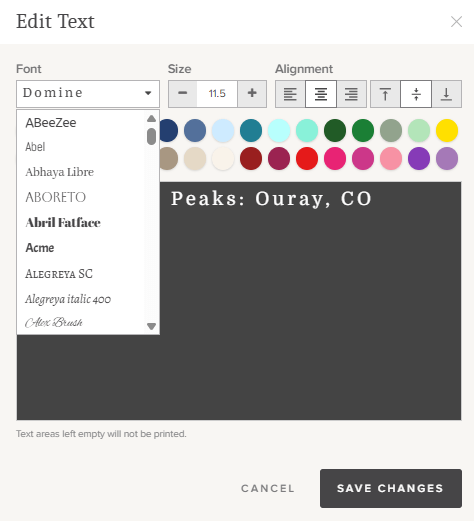
Choose from 100 Fonts

I think FOREVER is wonderful, but that doesn’t mean I don’t have a wish list. You know like, “I wish I had a better choice of fonts for some of my projects.” I’m a font enthusiast, second only to my role as a paper fanatic. It’s one of the reasons I usually run to Artisan for my projects rather than use Create & Print, when using Create & Print would be a lot quicker. Artisan is an easy choice for me – I own it and I know it – but not for everyone.

If lack of font choices is the reason you’ve continued to use the other guys, then that reason is no longer valid! EVERY FOREVER Create & Print Project now has a choice of 100 Fonts. After looking at the choices, now I’m wishing Artisan had all the font choices Create & Print does!

Check out a project you might want to create. You can see how easy our process is and you don’t have to pay anything to create the project, only when you hit the print button. https://www.forever.com/ambassador/jane-sadek/create-and-print/

New Drinkware Sizes

Were they reading my mind, or what? I have enjoyed the 40 ounce tumbler I created last year. I loved the handle, the cover and the way it fit in my car’s cup holder, but my husband thought it was entirely too big. Surprise!! There’s a new tumbler in town. This slim sweetheart is 20 ounces, keeps hot or cold beverages the right temperature for hours and comes with a well-designed lid and reusable straw!

But FOREVER did not stop there. Do you want a thermal coffee mug? Well then, you’re in luck, because that format is also available.

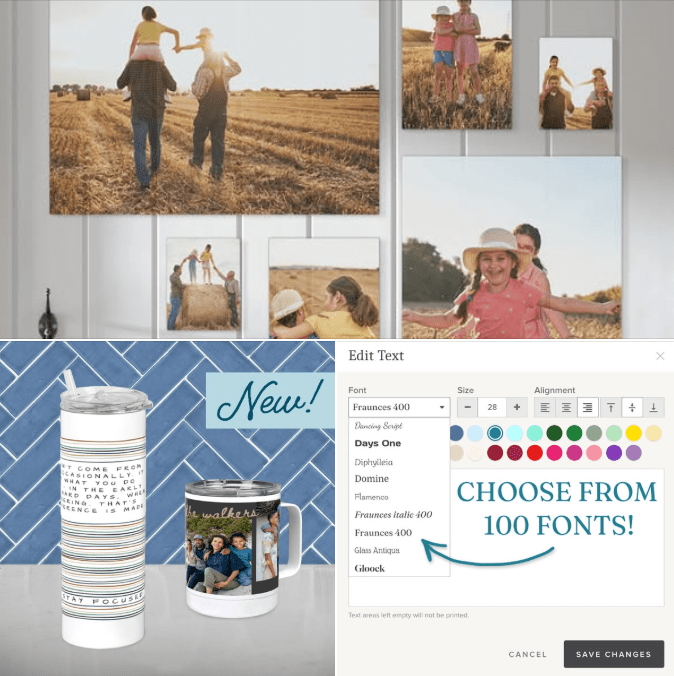
More Wall Art Sizes

And finally, they’ve extended the number of sizes for wall art – both canvas and metal products. Canvas Prints now come 8×8, 8×10, 11×14, 16×20, 20×24, 12×36, 20×30, and 24×36 inch sizes, in vertical and horizontal options. Metal Panels come in 8×10, 12×12, 12×18, 16×20, and 24×36 inch sizes, also in vertical and horizontal options.

If you’ve been thinking of creating a gallery wall, but weren’t sure how to go about it, then you need to see this new post on the FOREVER Blog.

I was so excited to hear about these new innovations and I thought you might want to know about them while they were available with a special discount through the end of the month. Yes, you got that right! You can get these new products (and all 100 fonts) at very special pricing. Wall decor, including all the new sizes, is 50% off and all drinkware, including the new 10 oz cup and mug, is 40% off. You can get the new fonts on special deals like 50% off standard greeting cards, photo gifts, notebooks & planners, 40% off foil greeting cards and 35% off everything else.

Memory Keeping, Photo Organization, Photo Organization Coach, Photography, Scrapbooking

What You Don’t Know Can Hurt You! Part II

MEMORY PRESERVATION: THE PROBLEM WITH FREE

Another Thing You Probably Didn’t Realize!

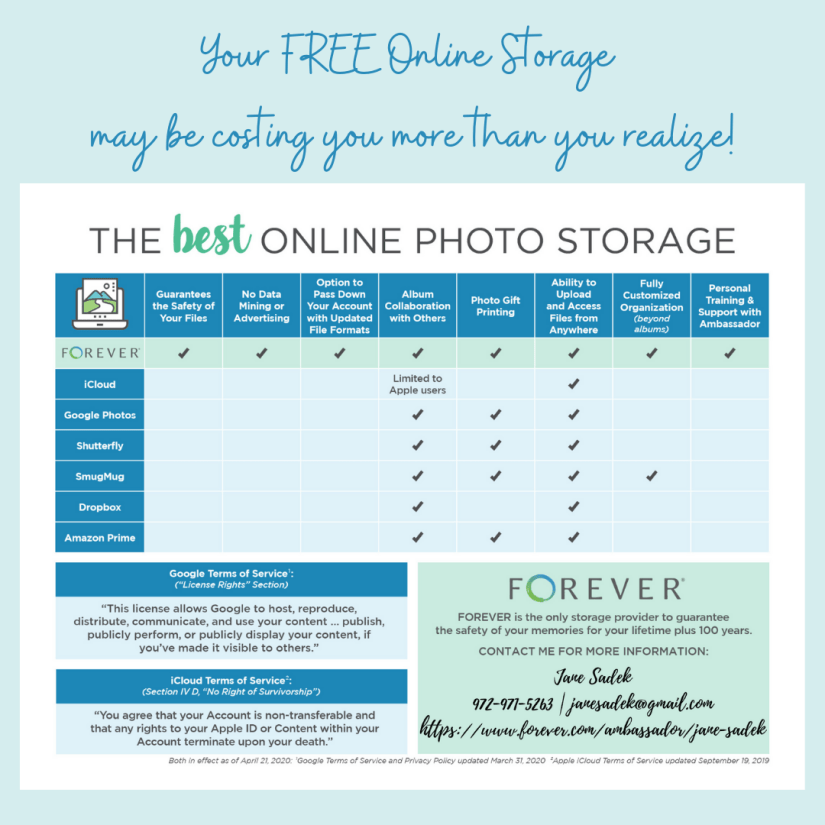
Last week I discussed secure cloud storage, data mining and advertising. This week I’m going to discuss the most important thing that sets FOREVER apart from it’s competition and basically, that’s why it’s called FOREVER.

Cloud Storage You Own Rather Than Rent

As I discussed last week, some companies provide free storage and the rest charge you a small (or not so small) fee monthly or annually, like rent. They are giving you a license to use their cloud, but they accept no responsibilities for it and they let you know they are going to data mine your account, while getting paid to advertise to you. If you are using their service for free, they will outline the circumstances in which your account will be shut down and they are not required to inform you about it. Some do, but in the end, if you don’t take action, your images will be deleted. It’s a lot more simple if you are paying rent (fees, maintenance, whatever they call it), because when you don’t, they delete your account.

At FOREVER you pay for storage up front with a one time payment or a 24 month payment plan and then its yours outright. You will not continue to pay a monthly or annual fee to maintain it. Your heirs will not have to take up your payments or pay any transfer fees. If you get dementia, get sick, go broke or die, you descendants not going to lose access to your space on the cloud (unless you want to bar them) and your images will be safe for whoever you would like to get them.

What you want FOREVER to do with those images if and when you aren’t managing them, for whatever reason, is up to you. There’s a way to set up everything up so your heirs get immediate access or you can make everything public or…well, there’s several options and one of them will suit your needs.

But What About That “Updated File Formats” Thing?

Updated File Formats are the icing on the cake and something no one else even mentions. Remember floppy discs? There was a time when floppy discs were state of the art. Now they’re useless (unless you get them digitized by FOREVER).

Well, a day is coming (and it won’t be long) when the same thing will be true of jpg, mp4, pdf and the rest of the alphabet soup What’s going to happen with your images if they are on Google Photos or Dropbox in the new soup? You don’t know, do you?

That’s something FOREVER cloud owners don’t have to worry about. When jpg goes the way of the floppy disc, then FOREVER is going to update your images to whatever the new thing is.

Remember not so long ago when Apple came up with the HEIC format? It was just one of their many ploys over the years to not play well with others. Almost immediately, FOREVER created a work around, so Apple customers would have seamless use of their FOREVER account and just recently, that work around became full integration.

I don’t know what the new alphabet soup will be. Will HEIC become the new jpg? Or is something else being developed somewhere else? It really doesn’t matter if you have FOREVER storage, because FOREVER’s got you covered!

A Few Final Footnotes

See those quotes in the lower left hand corner of the image above. Those were taken directly from the terms you agreed to when you signed up with Google and Apple. Apple has made some slight changes in their survivorship wording, but the effect is the same – you no pay, you no play.

The Google terms still apply. Share one photo from your account and Google owns everything. You’ve probably read something similar posted on Facebook. People tell you to copy and paste the post to protect yourself. These terms do apply to Facebook, the only difference being that by posting it on the social site you have shared it, so they own everything. You can copy or paste that post as much as you want it makes absolutely no difference at all. Tell your friends. I’ve been trying to nip it in the bud from the day it appeared, but the urban legend is bigger than the truth, even though the urban legend is a lie.