
Coffee Mugs, Water Bottles, Magnets, Coasters and More
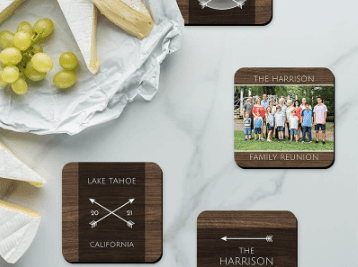
Most of the time, when I’m talking about the amazing photo gifts offered by FOREVER, I’m talking to individuals about items for them to gift to family and friends, but if you have a business, FOREVER could be your resource for gifts and giveaways your clients will love. We not only have the usual suspects like Coffee Mugs, Water Bottles and such, but we also have very unique, totally customizable ideas you will love.
The first thing business people want to know is, “How much?” My first question would be, “When do you need them?” FOREVER offers a variety of deals every month. I can see at the first of every month what the deals would be and if you don’t like the deals this month, hang on and let’s see what they have next month. For most items FOREVER offers (with the exception of storage, digitization and family history research), the deals can get as good as 50% off. Also, depending on how many you need, there might be a volume discount available.
But why FOREVER instead of one of the many other vendors on the internet? Well, to begin with, there’s me. I’m a local small businessperson and you know me. I know you, too, and I am going to take care of you. I am not a bot. I’m not an anonymous person on the phone. I’m not some app. I’m me.
Personalized Gifts should be Unique
I’m also not a template. When you order online from most vendors, you have to fill in their template and hope it turns out like you wanted. What’s more, they’re usually sourcing their offerings from someone else who is selling stuff to who knows how many other companies. In the end, your personalized gift looks just like every other personalized gift.
FOREVER has templates, too, if you want to go that route, but they also have their own designers on staff for those templates. FOREVER doesn’t merely look in some wholesale catalog and offer up what everyone else offers. They design what they want and then work with the printers to develop their unique templates for products unique to FOREVER.
But you’re not stuck with a template. You can send me your stuff, tell me what you want it to look like and I’ll design it for you. If you have no idea what you want, beyond you want something, I can also take it from there. Artisan is a design product unique to FOREVER. It began as a tool for digital scrapbooking which these days can be used to put a unique custom design on whatever FOREVER offers.
Quality First
Another reason to choose FOREVER is the quality of their products. I don’t know about you, but in my days before FOREVER, I ordered a lot of things that looked great on my computer screen, only to open the box when it arrived and drop it in the trash. It was what I ordered, but not what I wanted. Even more embarrassing, I’ve drop shipped things to people, thinking I’d sent something amazing, only to discover it was something awful. You won’t feel that way with FOREVER. They just don’t offer bargain basement products. You can get some version of their products a lot cheaper elsewhere, but I can assure you it won’t be the same thing. You might pay more, but you are going to be more satisfied.
So, let’s talk. Bring your budget and your ideas. I’ll be sure you have wonderful items for client gifts and promotional items. I hope you’ll contact me soon!
With your FOREVER Permanent Storage you have three ways to organize your media. I have told you about two in recent weeks, the Library and Albums. By way of review, your Library is where all the photos in your account reside. Whether you upload them to the Library or an Album, the actual photo will be stored in the Library and your Albums are merely a way of accessing them. For that reason, you can add a photo to as many albums as you like without taking up more storage.
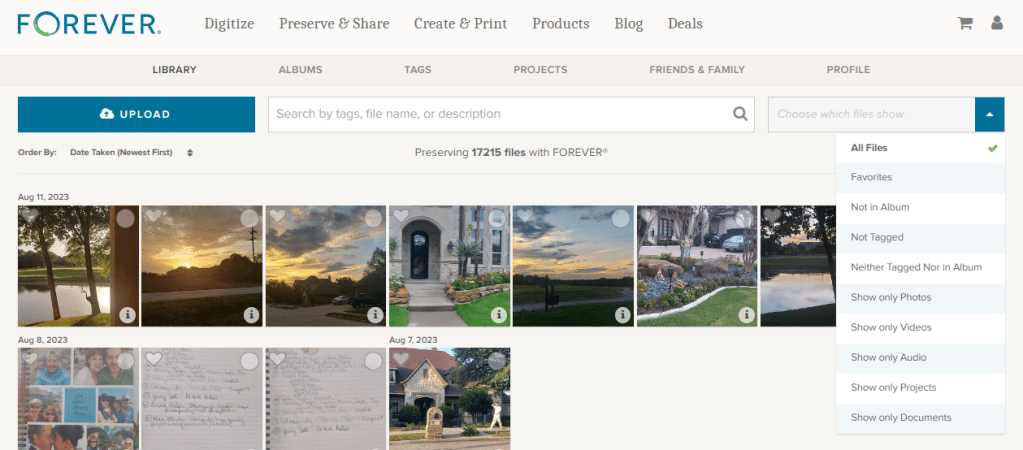
Your Library has a variety of tools you can use to sort, filter and order the images. You can also use the search bar to find images by tags, file name or description. Some people find this to be all they really need and they never get around to using the Albums or Tagging. Most of us love having other tools for curating.
I find Albums to be my favorite curating tool. I choose the categories I want for my top level Albums and then nest related albums beneath them. I can continue to nest other albums under those secondary albums for as deep as I need. It is important to note the images are not “in” the albums, they only show up there. (I will confess that initially I thought I was supposed to “move” images into albums and then I could delete them out of the library. Thankfully, the images remain in the Delete Bin for 30 days and I was able to rescue them, but then I had to repopulate my Albums.)
So Why Tag?
Until I found FOREVER, I was never happy with the way any program, app or service wanted me to organize my photos. Some people identify with organizing by year or with pre-designated categories. I didn’t. If creating your own album names is threatening to you, I will be happy to help you set up something, but for me, the ability to set up my own system was pure heaven.
If you want to know more about how I set up my account, see my post about Albums. It works for me, but I was even happier when I discovered the cross-referencing power of tagging. I’m not always interested in looking at a photo in the context it was taken. Instead I want to find a photo for a certain purpose.
One of the best examples of why you might need tagging involves other people. Let’s say there’s a birthday or anniversary coming up and your family/friends want to gather up great photos of the honoree. Without tagging, you’d have to recall what years or events or places you were with that person to find the images of them. If you’ve tagged your photos with the name of the people in your photos, then all you have to do is go to the Tags section of your storage and find the file for that person. Then enjoy choosing from all the images you have of that person. FOREVER even allows you to show them in a variety of orders to assist in your search for just the right photos. You can also click the hearts as you find those you like.
Multi-Level Tags
But that’s only one reason why you might want to use tags. You can use them for lots of things besides identifying people. The most important photos in my account are my travel photos, so I created a tag called “Travel.” That way, if I’m just in the mood to see a variety of travel photos, I can go to my tags and choose travel. I created a tag for “Cruises” and also for each country, state and/or city I have visited. If I want to see all the photos from my trips to Egypt – boom. I have a “Museums” tag, but also other tags for favorite museums so I can go directly to those.
When it comes to people, I have a tag for “Family” and for “Jane and Friends”, as well as for family members and close friends of which I have lots of photos. I have a Tag for “Bill and Jane” in case I just want photos which have both of us in them.
See, I can have as many tags as I want, so I don’t have to be stingy. If I think I might need to find something using a certain tag, I create it – but that’s me. Some people would be overwhelmed by all those tags. Well then, you do it your way!
So How Do You Do It?
There are many ways to go about tagging. I will go through those I use most often, but there is no wrong or right way to do it.
From the Library
If you want to do some high level tagging, like “Travel” or “Family” then the easiest way is to go to the Library and instead of “All Files”, select to see “Not Tagged”. From that view, start clicking the circle on all the photos you want to include in a tag. (You can do up to 500 at a time.)
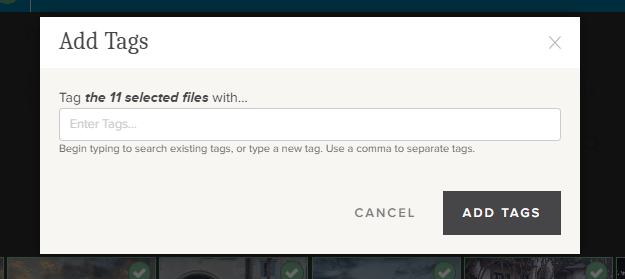
As you click you’ll be taken to an area where you have a choice of actions including “Add Tags”. Once you have chosen all you want to include, clicking “Add Tags” will take you here.
Then you just start typing in the tags you want. You can either add new tags or as you type, FOREVER will match what you have typed with available tags. Hit the “Add Tags” button and you are done.
From Albums
If you want to tag from an Album, you have to go deep enough to be in a file with photos in it. You cannot tag the Albums. Then you do exactly what you did in the Library. Start clicking and you will be in an area where you had the same choices you did above and you will do exactly the same thing.
From Individual Images
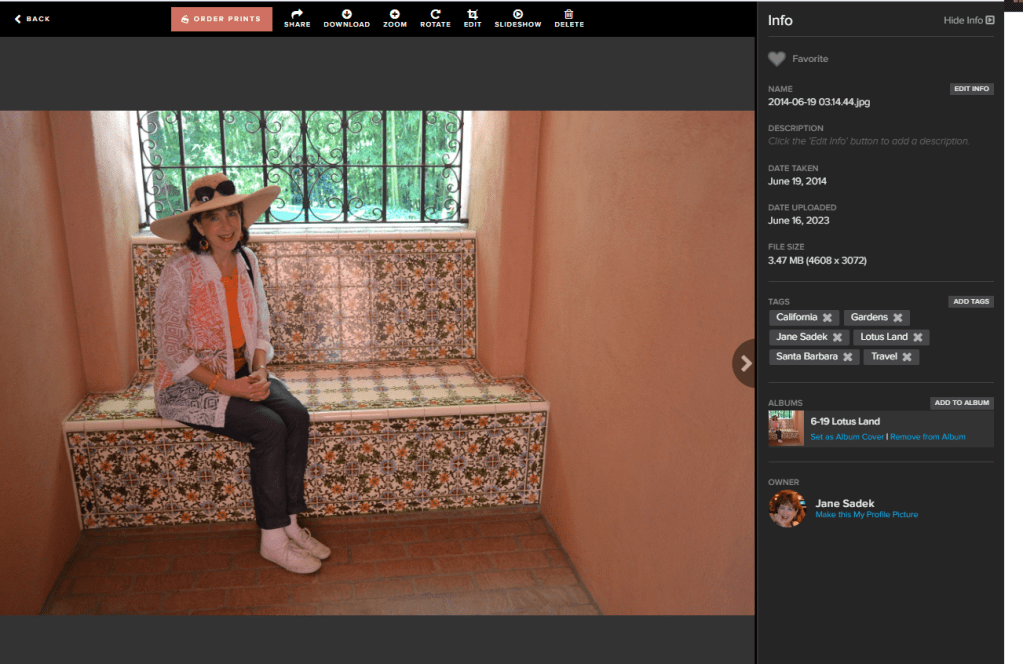
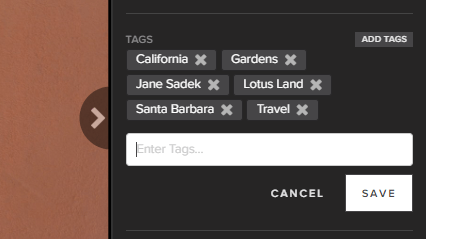
Whether you are in the Library or the Albums, you can always choose to click on an individual image (not the selection circle) and you will end up on a page like this. On the right side in the middle is the tag section. Click on the “Add Tags” button.
This box opens up and you can start typing, just as you did in the “Add Tags” box from the Library and the Albums section.
Go Give It a Try
If you already have a storage account, go online and give this handy tool a try. If not, it’s free to join FOREVER and you get your own 2GB trial account. Upload some photos and try tagging. I promise you can’t hurt FOREVER!
MEMORY KEEPING 101: ACCESS IMAGES WITH YOUR PHONE INSTEAD OF HAVING THEM ON YOUR PHONE
Having Images on Your Phone
Let’s face it! Smartphones have spoiled us! Some people do their whole life with their phone. They don’t have a desktop and their laptop might have dust on it, but their phone goes with them everywhere and they use it for everything.
Of course, you want to be able to share images with your phone, but you don’t have to have them on the phone to do that. In fact, having your photos on your phone creates all kinds of problems. What if the phone is stolen, you lose it, you run over it with your car or whatever other disaster might happen. Are the photos on your phone backed up? All of them? Or just some of them? Do you know how to access them?
Losing your phone, however that happens is awful. I know, because I left my phone on top of my car one time and drove away. I only thought of it when it sailed off my car onto the highway and was run over by multiple vehicles – it wasn’t pretty.
You know what else is awful? When I hear someone say, “I can’t take any photos because my phone it full. Phones come with free storage, like a drug dealer gives away free drugs. The point is to get you hooked and once you are, they’ve got you. Breaking away can seem overwhelming, but once you have the ease and security of FOREVER, you’ll discover it’s worth it.
Sure, there are lots of solutions available. You can rent storage or more storage, according to your situation, and upload to the cloud. You can go through and delete a bunch of photos. You could download the images to your computer or move them to some service like Google Photos. Yeah, but chances are you really don’t want to do any of those. You’d just like some sort of magic to happen.
Accessing Photos With Your Phone
So, what you’d like to have happen is for the photos on your phone to be somewhere safe, magically. Well, I can kind of do that for you. It will still suck if your phone gets lost, stolen or destroyed, but with everything else you’ll have going on, you’ll know your photos are safe, that monthly storage charge will disappear and you won’t get that darned notification your phone is full every time you turn around.
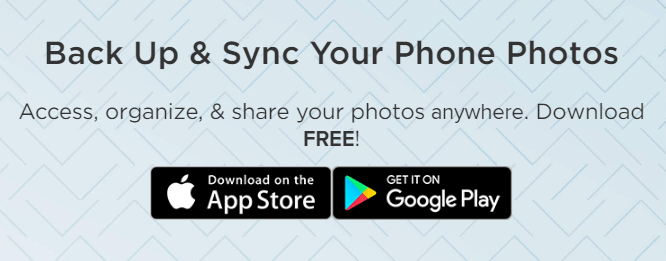
When you buy storage from FOREVER, you pay for it once and you get a free app to access the images on your phone. You can buy more when you need it, but paying for it will not be something you have to do the rest of your life. You’re not getting dinged every month for some little (or large) payment for your rented cloud space. In fact, your photos are guaranteed safe for your lifetime plus 100 years, so whoever comes after you won’t have to pay that annoying little fee either.
With the app, you can back-up whatever images you have on your phone and then you can set it to synch with FOREVER every time you take a photo. If your phone says you can’t take anymore photos, just laugh and hit the delete button. How good does freedom feel?
More Than Backing-Up & Synching
The FOREVER App does a whole lot more for you than back-up and synch with the photos you take. You get all the power of the FOREVER Library, Albums and Tagging Features, as well. Most of the things you can do on the FOREVER website, you can also do in the app. If you want to find out about the Library, then see THIS post. If you want to find out about the Albums, see THIS post. If you want to find out about Tagging, come back next week.
If you’ve ever scrolled and scrolled and scrolled to share a photo, then you’ll love the tools FOREVER has to organize, show and share your images. With a few clicks, instead of random scrolling, you can find that beach pic from years ago. And whether your sharing with some across the coffee table or across the world, it’s easier than you can imagine.
So, if your phone is holding your photos ransom, charging rental fees which will never go away (even if your photos do), then lets talk about FOREVER.
MEMORY KEEPING 101: 5% OFF EVERYTHING & FREE STORAGE
What the Club is not!
People are wary of getting signed up for stuff and I don’t blame them. Too often we are promised the world and all we get is a monthly charge for something and we can’t get rid of it.
One minute a friend is telling you about some miracle cosmetic and the next you discover you’ve joined their “team.” Or you sign up for some sort of discount, only to discover you suddenly have both a membership fee and a quota. I hate that.
FOREVER is different. It is always free to sign up and there is never an obligation to buy anything. FOREVER does not want you to join my team. Being a FOREVER Ambassador is a serious career path, not a discount program. Various discounts are available all the time without being anything except one of my FOREVER customers.
What the Club is!
However, if you are a frequent flyer with FOREVER or you’ve got a big purchase you want to make, then the Club could be something you are interested in. It is really a budgeting tool. You choose the amount of investment you want to make on a monthly basis, for as long as you want to make it and then you get out of the Club – easily by the way. You don’t have any hoops to jump through to end the membership. Just go online, access your account and stop the club, whenever.
When you use the Club to budget your Memory Keeping expenses, then FOREVER will reward you two ways. First, they’ll give you a 5% discount on virtually everything and you’ll get a gift of storage anytime you stay in the Club for 3 consecutive months.
Ways to Save
There are a number of ways to go about using the Club.
Dribblers like me
I myself am a dribbler. I invest $25/month each month, primarily so I can get that extra 5% off whatever I buy. You know how you can go into a store with a great coupon, but you can only use it on full price merchandise or there are so many other restrictions the coupon is not worth the paper it’s printed on. Or the company’s ongoing promotions without the coupon are a better value than the coupon. That’s not happening in FOREVER.
With FOREVER, I can spend my $25 whenever I want toandonly a very few items are excepted from the 5% discount. I also get to stack it up with whatever other deals and discounts are going on – including welcome coupons and referral coupons. That makes it a true bonus, not a come on.
And you know what else, on top of saving 5% on virtually everything, I like that 1/2 GB added to my storage every quarter. It might not be much, but it’s something and if I get it every three months like clockwork, it does add up.
Strategic Savers
Other people are more strategic in their investment plan. When they want something specific, they set a budget for their expense and save up for it. Let’s say someone wants to get a FOREVER BOX and pack it full of scrapbook pages. I’d sit down with them and estimate how much they’d need to spend for their box credit and overage to digitize all their pages.
Just for this discussion, let’s assume they have 500 page sides to digitize at the retail price of about $2 each and they want to invest $100 a month until they’ve saved up enough. Well, first we’d plan on them waiting until there was a 40% off deal going on, because that’s the biggest discount that’s ever offered for digitization. That takes the $1000 price tag down to $600 and their 5% discount would take it down to $570. $570 divided by $100 Club payments equals 6 months and that means they’d save up for that amount of time. During this period, they’d get 2GB of storage every 3 months, so after 6 months they’d have 4 GB.
Want to know something else? We’d make sure they bought their box on Club Weekend when Club Members can get free shipping, which would save them another $30 or so. So, this customer using monthly deals and the Club would get approximately $1078 worth of FOREVER for $600. That is value!
The Club Installment Plan
Some folks like instant gratification and don’t want to wait a six months to buy what they want. Let’s say someone has the same $100.00 a month, but they want to go ahead and buy 250 GBs of storage right now, on the installment plan.
Well, first they’d join the Club and invest their first $100. Forever storage rarely (if ever) has anything more than a 25% discount, which is available virtually all the time. So, they wouldn’t need to wait on a sale. The retail price is $2499 and with the 25% discount, it would be $1875. Then the Club discount would take it down another 5% to $1782 and they would choose the 24 month installment plan (about $75/mo). They’d set their monthly Club investment to go towards the future payments of their installment plan and each month, FOREVER would charge $100 to their credit card.
Since each month they’d pay in $25 more than they needed for a month’s installment, after 18 months they’d have enough to pay off the other 6 months. They would have earned 2 GB of storage every quarter for a total of 12. So, for $1800 they spent, they would have gotten $2600 worth of value.
These are just a few basic ways of using the Club. People who want to make really large investments, such as permanent streaming or Terabyte Storage packages, sometimes get very fancy in their maneuvering.
Review the Basics
So, your monthly investment can be as low $25 and the largest is $250, but nothing is stopping you from stacking up as many Club Memberships as you want. If you only have one purchase to make and all you want to do is get 5% off, you’ll want to get in and then get out as soon as your purchase is made. However, I do recommend staying in the Club for 3 months at a time so you can earn the free storage and take advantage of deals like free shipping. If you decide to stop investing, your dollars never expire, so you can never lose them, but your discount is only good during the months when you are actively paying into the Club.
If that’s no clearer than mud, I’ll be happy to answer whatever other questions you may have. Just give me a call at 972-971-5263.
Last month I walked you through a couple of easy, peasy AutoPrint projects step-by-step. AutoPrint is what you want to use to create very quick projects. The layouts are very simple and while you can make some edits, the primary goal is done.
Design & Print is the next level of (shall we say) fussiness. You want more in the way of decoration and more opportunities to add your own touches, but you also want the heavy of lifting of design to have been done by someone else.
Available Projects
While AutoPrint and Design & Print offer many of the same projects for you to choose from, there are some differences. I have compared the AutoPrint Offerings with the Design & Print Options.
Photo Books (In AutoPrint you have all these choices with each photo boo. In Design & Print, options for size, binding and style depend on design chosen, but all of these can be found in various designs.)
Sizes 8X8 -12X12
Softbound & Hardbound
Standard & Layflat
Photo Gifts (Varies)
Coaster Sets (Both)
Tabletop Panels (Both)
Notebooks (AP Only)
Magnets (Both)
Ornaments (D&P Only)
Puzzles(D&P Only)
Blankets (D&P Only)
Drinkware (Varies)
Water Bottles (Both)
Photo Mugs (Both)
Frosted Glasses (D&P Only)
Wall Decor (D&P Only)
Canvas Prints
Metal Panels
Cards (D&P ONly)
Calendars (D&P Only)
Photo Prints (AP Only)
Glossy & Lustre
Sizes 4X6 – 11X14
Selecting Your Photos and Your Design
When you have a project you want to do in Design & Print, I suggest you first go to your albums and set up one for the project. Then add all the photos you want to include in your project into the album. It’s also a good idea to get them into the order you want them to be in the project. This will not only get you prepared for making the project, but it could help you decide which design to use.
Then it’s time to choose the design for your project. According to your point of view, this part is either your favorite thing about the project or your biggest headache.
If you like shopping online, this part is fun. You can go in and browse around, checking available options for size, style, material and etc.. You can put together your whole project and then decide you want to change the design or the layout. You’ll love it.
I’ll admit it makes me a little crazy. In prepping for this post, I went in to find a coaster set project to walk you through and hit a brick wall. Artisan is my favorite way to design in FOREVER because I like to start with a blank page, but many people find a blank page daunting. They want a design template. FOREVER offers three design options because different people like different things.
Let’s Make a Blanket
Since I’m definitely not in the mood for coasters, let’s make a blanket. I’ll use the photos I have tagged as Floral for the images on the blanket. On FOREVER I would hover over the “Create & Print” Tab and a selection box comes up offering AutoPrint, Design & Print and Digital Scrapbooking & Deign. Under Design & Print, Photo Gifts are in the center and Blankets are at the bottom of that list. Click “Blankets.”
There are many, many design to choose from, but for this project I wanted to include as many floral photos as possible, so I used the “# Of Photos” filter to find the blanket designs which included the most images. I got two choices. (Ignore the pricing. The image I included shows the deals available on the day I wrote this post, not the day you are reading it)
When I clicked on the Photo Grid Blanket, here’s the screen I got. It advises me of all the options I have. There are two sizes, two orientations and two materials available to me and there is a big PERSONALIZE button. Let’s do that.
So, I went in and added a photo for each space and chose a Bible verse as my text. If I clicked on “Layouts,” the designer offered four options, but this was the one with the most spaces, so I chose it. I could still select my size, orientation and material. Then I could add it to my cart and order it!
The excitement inside America’s Dome was palpable. We were among the last few people showing up for the 7 PM opening session. We picked up our intro packet and stopped at the concession stand for something to eat. Minutes after we found seats the music started and I confess I was not ready for it.
Disclaimer – I am not a big fan of praise and worship music. I am on Team Hymnal. I don’t stand with my eyes closed and wave my hands in the air. If you do, that’s great, but it makes me think more about me than I do Him, so I don’t like to go there. Love Life was locked and loaded for praise and worship: Chris Tomlin, Tauren Wells, Phil Wickham and Brandon Lake. On Thursday night at 7 PM, the kickoff for the Joyce Meyers’ Love Life Women’s Conference, I was wrung out.
The musicians on the other hand were wound up. At 7 PM they blew on the stage and blew up the sound system. They were jumping and dancing and rocking and rolling, while I just needed to bow down. I knew they weren’t doing anything wrong, but for me, they weren’t exactly putting me in the right frame of mind for worship. For a few minutes I resented it and then the Lord made me aware of the fact that this was my problem, not theirs.
I bowed my head and asked for the power to worship, in spite of my preferences and my exhaustion. Almost as if I had communicated directly with the performers on stage, the atmosphere stilled. On the stage were Phil Wickham and Brandon Lake. Though I would still have preferred to turn the volume down, I could tell powerful worship was going on.
Too Much Music for This Old Woman
If I had one criticism of the Love Life Conference it would be that I felt there was entirely too much loud music. I’m probably one of three women out of the entire crowd that felt that way, but it was what I walked away with.
The opening ceremonies had been loud and frenetic. Then some crazy DJ guy would warm up the crowd before each session and you had to go early or you’d be sitting in a corner. Each performer got time during each session and then Friday night there was a concert. Needless to say, I did not go Friday night. It was just too much for this old lady. If some of that music had been quiet and peaceful, if there had been a hymn or two, if a lot of things, I might have been happier, but as it was I wished there had been a lot less music and a lot more teaching.
Is It Really Praise & Worship?
I have actually found a church in my area that sticks to traditional hymns and classical worship music for Sunday mornings. I love it. The lyrics are rich in Scripture, they profess the glories of God and the miracle of salvation. I feel worshipful and reverent as I join in with this music. I would welcome a couple of praise and worship choruses to round out our musical offerings, but I don’t see that happening.
I have also attended a whole lot of services with a praise and worship band. I watch others stirred to near frenzy while singing this music. Obviously, it moves them. I remain awkward and self conscious. I see band members who seem to only lack go-go boots and a cage to complete their performance. They’re up there waving their arms, shuffling their feet and sometimes thrusting their hips. That’s OK for Elvis in concert, but is it really worship?
I do not want to be Mrs. Morrison. During my teenaged years, occurring in the late sixties and early seventies, Mrs. Morrison was still giving lectures on the dangers of Rock and Roll. By then Rock and Roll was here to stay. I thought she was a nut case. Then during a service at what I call the Rock and Roll church, I understood why she was upset. Rock & Roll didn’t feel very worshipful to me.
I really wanted to be open-minded, but I knew I couldn’t worship when I was moments away from starting a Conga Line. As I have said before, if that does it for you, more power to you, but how about me? Are you as willing to spend time worshipping with traditional hymns and classical worship music for my sake? The resounding answer in modern churches is ‘NO!’
Since I was at the conference for spiritual renewal and what I was served was, for the most part, very loud Rock & Roll, I spent some time in quiet reflection. Had I become Mrs. Morrison?
My Conclusion
Music either honors God or it doesn’t. While I still might have turned the volume down, before the conference was over, I was a fan of Phil Wickham and Brandon Lake. Their music was all about the glories of God and the mercies of Our Savior. Their lyrics were right off the pages of Scripture.
To me, and I will confess this is my opinion, not a condemnation of the other singers, their music is not worshipful. To begin with it is very repetitive. The same words over and over and over. Matthew 6:7 says, “When ye pray, use not vain repetitions, as the heathen do: for they think that they shall be heard for their much speaking.” Along about the 20th time I say, “I love you Jesus,” it has lost all real meaning and is just sounds I am matching to notes.
It also seems very self centered to me. As I listened it focused on what the “worshipper” wanted to tell Jesus, not on the glories of God or the salvation of Christ and it had nothing to do with Scripture. “I love You, I worship You. I bow down. I lift my hands. I serve You. I need You.” As my mom used to say, “The emPHAsis seemed to be on the wrong sylLAble. “
So, if Joyce called me tomorrow and asked me what changes I would make, I’d tell her to cut down the time devoted to music, to bring traditional music to the stage and keep away from the vain repetitions. Someone else might tell you the music was the most meaningful part of the whole conference, but this is my blog, so I get to share my own opinion.
Come back next time and we’ll talk about what I did like. The preaching and teaching was powerful.
There are no hard and fast rules for creating albums in your FOREVER storage. You determine how you want them set up. You can set them up based on the subject matter, the time frame or the people. You can have as many or as few albums as you want and you can nest albums under the top level album for as deep as you’d like.
Some people keep photos strictly by date – with each year being an album, with nested albums for each month inside that and then an album for each day/event within the month. Others focus more on families, having one album for their immediate family, one for their own extended family and another for their spouse’s family. Perhaps the nested albums inside that would be by years or it could be broken down by people.
My choice is to have one album for travel and another for day-to-day activities. In the travel album, I have an album for each vacation. In my day-to-day album, the nested albums actually correspond to the various traditional scrapbooks I have created on a annual basis, but according to the scrapbook, it could be one year or multiple years. Then I have an album for all my completed FOREVER Projects and another for my Memory Keeping business.
I’m sorry this post is so long, but I wanted to include all the pertinent information in the same place and there’s a lot of it.
The Top Bars
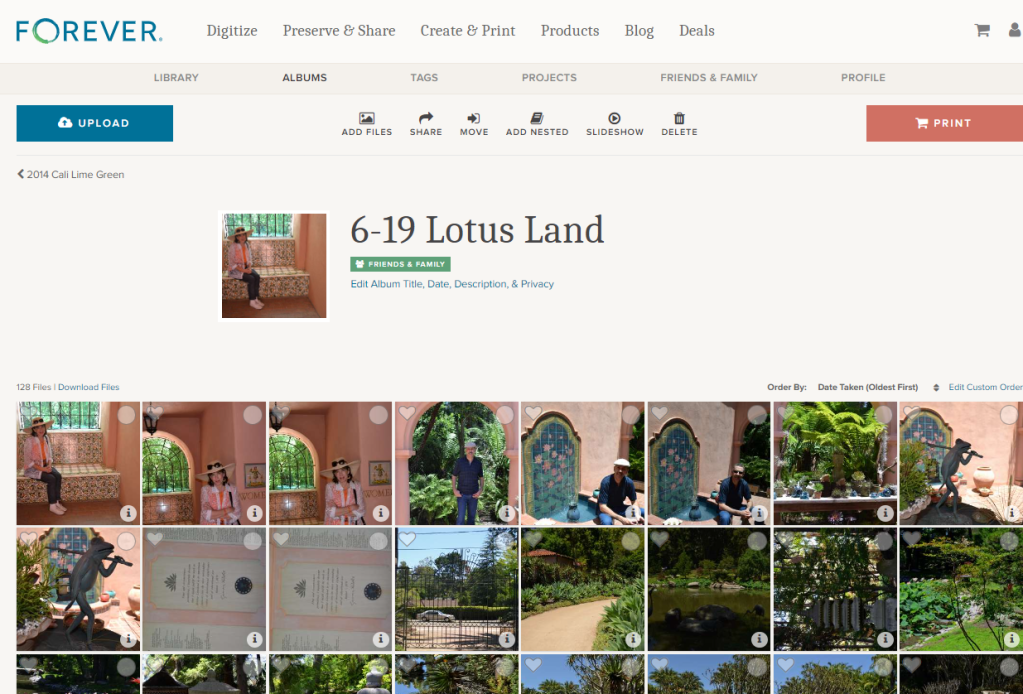
Looking at my album page above, you can see that it’s easy to access any place on the FOREVER site with the click of a button. Click “FOREVER” and you will be on the FOREVER Home Page. You can shop FOREVER by clicking Digitize, Preserve & Share, Create & Print, Products or Deals. “Blog” will take you to the FOREVER Blog, which has an encyclopedic reference library of posts dealing with everything from new products to how-to’s. You can go to your shopping cart and also take a look at your account.
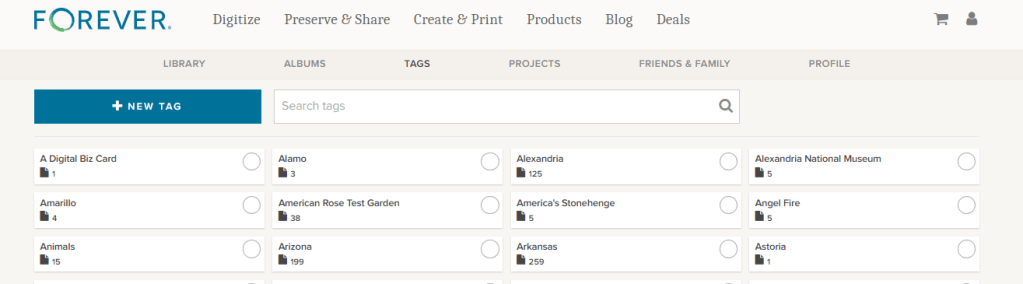
In the row below that, you have access to your Library, your Tags and your Profile. There’s also a link to your “Friends & Family.” Friends & Family are the folks you have chosen to share your photos with. We’ll talk about that more later.
Finally, you get to items specific to Albums. You can add a New Album, Search the Albums you have or take a look at Visited Albums. We’ll take a deeper look at Visited Albums later, also.
In the middle of the bar below these options is a Search Bar which allows you to use keywords, names and such to find specific images in your storage.
+ New Album
Hit the blue “+New Album” button and this “Create a New Album” dialog box will pop up. “Album Name” is the title you want for your album. You must create this name and it will show up below the photo you choose as a cover image for your file. For instance, below the photo with the ornate iron gate, I named my album “A Travel Journal.”
There are three Privacy Settings available and you must select one for each album. This will indicate who can see these albums in your storage. The privacy setting you chose for the top level album will apply to all the nested albums.
“Private” means for your eyes only. The only people who will be able to see these files is you, someone you have allowed to sign in with your credentials or anyone you have designated as a manager for your account, if you have chosen for your manager to have that sort of access. You can create a link and share the file, but it will not automatically be available to anyone else unless you decide to.
“Friends and Family” are people you want to have access to the images in your storage. They are completely under your control. You can invite them when you want to and take them out of Friends and Family at your discretion. However, if you would like for them to collaborate on an album with you, you must share the file with them, using the “Share” button. Then they can add photos to a file, but they still cannot modify the photos. They would need to be a manager for that.
“Public” means your files are accessible to anyone on the internet. This is not what most people want, but it could be what you want. You could set up a portfolio of projects you wanted the public to have access to or training films for your customers or even, like one of our users, a historical album of his service in WWII. The WWII Vet did not have any family who was interested in his photos, but he thought they had historical significance, so he wanted them to be available to anyone who was interested.
“Album Description” gives an overview of what’s in the album. You don’t have to put anything here, but if you are giving access to other people or you are setting up an archive which will be used for generations to come, then the more you include the better.
“Album Date” can be a single date or a date range. You do not need to fill this in at all, but as with the description, this information could be invaluable to future generations.
So, remember when I said you could share your albums with others and allow them to collaborate in those albums. There are a wide variety of uses for this feature, from a network of family albums to a team, club, business or other organization which uses a central FOREVER account. If you are a FOREVER customer with this type of access to other accounts, then this is where you would go to visit those albums which you had looked at before.
Individual AlbumOptions
If you have already added files to an album, then it will select an image for the preview. It can be changed to whatever you want. If the album is new and there are no photos in the album, then the preview will be a blue box, but as soon as you add photos, one will be automatically selected. The green box at the bottom of the box tells you the level of privacy chosen for that album, how many images are in that album and how many albums are nested below it.
Each individual album on your Album page has a small blue box in the corner. If you click on that, a drop down box gives you several choices of things you can do with that album.
The first is “AutoPrint.” A few weeks ago I published a post about AutoPrint, which creates easy, quick projects almost like magic. If you select AutoPrint here, FOREVER will start building a project with the items in this album.
“Upload” allows you to upload images from your device directly to this albums.
“Add files” will take you to the Library so you can add images already on FOREVER to this particular album. It does not duplicate the photo, filling up your storage. All your photos live in the Library and are merely displayed in the various albums you create.
“Move” takes a photo out of an album and moves it to another one. As with Add Files, the images live in the Library. You’re just asking FOREVER to let you view this image in a a specific place.
“Delete” deletes the image. FOREVER will remind you the image is being moved to the delete bin and will be deleted in 60 days.
More Individual Album Options
If instead of clicking on the arrow as we did above, you click on the preview, you are given a peek at all the nested albums in the album and given many options, some you had on the outside of the album, but others as well.
You’ll find Upload, AutoPrint, Add Files, Move and Delete, which do the same thing as I described above, but you’ll find other options as well.
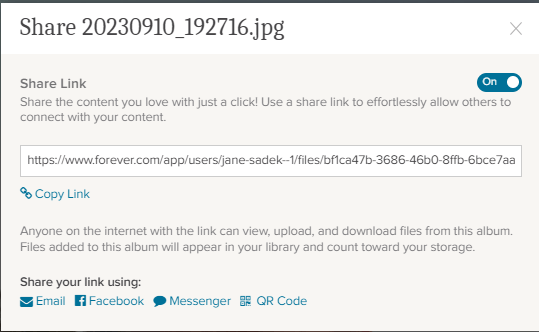
Click the “Share” button and this dialog button comes up. You can use it to share the entire album with someone with a share link. If you’d like for the person you share it with to be a collaborator, this is where you designate them.
The “Add Nested” button will add a new nested album to the album you are in. You will need to name it, but the Privacy Setting will automatically be the same as the album you are working in. You can add the other information as desired, but as I always say, the more info the better.
The “Slideshow” button will create a slideshow of all the images in the album, but will bein the slideshow, but it does not include the images in the nested albums within that album.
If you want to change the cover photo, click it and change it, but the image has to be in this album, not one of the nested album. You can also edit anything about the album with the “Edit ” button below the green box identifying the Privacy Setting.
If you click the circle on the left side of any of the nested items, you can then use any of the buttons I described above to perform that action in the nested items you’ve chosen. If you click anywhere else on the nested album, you will enter that nested album.
The only thing I have in my Top Level Albums are nested albums and the one image which is used as the cover photo. However, if you have multiple images in your album, you have more choices. Above this view are all the buttons I have previously described.
Notice on the right side, above the photos , it says “Order By.” When you click it, it allows you to choose the order based on the Date Taken or the Date Uploaded and you can select “Oldest First” or “Newest First.” That’s all the same as it is in the Library, but in your albums, you can also custom order the files according to your own preferences.
If you click on “Edit Custom Order,” you get a page like this that theoretically allows you to select the photos you want to move, then drag and drop them where you want. I say theoretically, because I’ve never been able to do that. I just click on a picture and try to drag it. I eventually get it to work, but I hope you have more luck. I am probably not holding my tongue right!
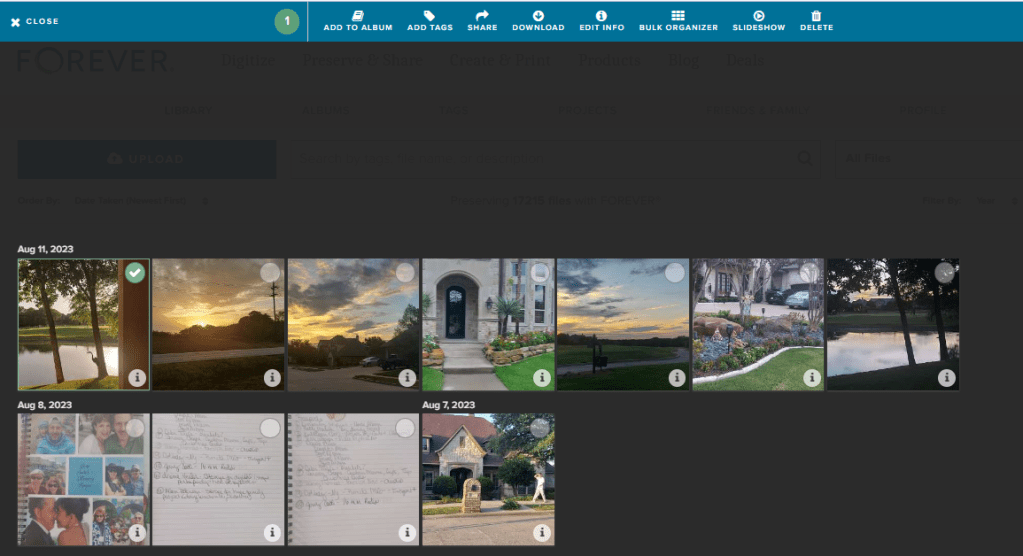
Whenever you are inside an album, you can chose favorites, by clicking the heart on the right side of a photo. If you use the circles on the left side, you are taken to a screen which will allow you to choose multiple images for a variety of operations shown below.
When you are in this screen you have access to many of the operations we have covered both a few weeks ago in the Library post and in this one, as well as some we haven’t seen before:
Add to Album will allow you to go get images from other albums you’d like to include in this album.
Move to Album takes the selected images out of this album and puts them in another.
Add Tags allows you to put shared tags on multiple images which you have selected.
Share is your tool for sharing a selection of photos with someone via a link.
Download is for adding photos from the album to your device.
Edit Info is a great place to change the name, description and/or date for selected image.
The Bulk Organizer is marvelous for quick curating of a number of photos at once. It will give you access to add the photos to another album, add tags, edit the names of a series of images, give a series of photos a description or change the dates of the photos. It is important to remember that what you do in bulk organizing overwrites whatever else you had input about the images, however, if you leave a section blank, it makes no changes. So, you could, for example, add tags and change dates, but leave everything else intact.
Slideshow lets you select images to include in a slideshow.
One of the more important buttons is Remove and this is the only place you’re going to find it. If you do not want to delete an image and it is already residing in other albums, then this button just takes it out of this nested album
Finally, Set as Album Cover allows you to choose an image to use as the cover of the album.
A Few Closing Thoughts
Though I have described the items in this post and the previous post on the Library from the standpoint of someone using FOREVER on a computer or laptop, most of these features are available on the app, just not in the exact format shown here. That means you can curate your albums on the go – waiting in the line to pick up your kids, sitting in a doctors waiting room, stuck in line at the grocery store or hanging at the pool.
Whether you are in the Library or in an Album, if you double click on an individual image you will be taken to a page on which you can provide info for that image. There is a lot of options there, so I will be covering those tools in a later post.
Finally, always remember I am here and happy to discuss your projects and challenges with you. If we need to ZOOM about something or sit down at your computer together (for local clients), let’s do it. Having access to your own Ambassador is part of what makes FOREVER so unique.
I’m here for you and so is the wonderful customer care staff at FOREVER. There is a comprehensive Help Center you can reach by scrolling to the bottom of any of the pages on the FOREVER site. Or you can just call or email. FOREVER’s Blog is a wealth of knowledge. Videos sprinkled throughout your Library, Albums and Tags will walk you though many processes. Or, like I said, I’m here, so just call me at 972-971-5263.
There is one question I ask a lot and this is it! It applies to many steps in the Memory Keeping process, but in our digital world, wondering what formats can be saved on FOREVER is a pretty important one.
If you are a general consumer with photos, video and audio on your devices and computer, then FOREVER is going to save pretty much anything you want it to. Here’s a list of all the things FOREVER will save.
As you can see, this is a pretty comprehensive list. In fact, I don’t even know what some of those formats do. However, there are things FOREVER can’t save (yet), so let’s talk about those.
Raw Files
Many pro and hobbyist photographers take photos in Raw. This is a a generalized category which creates huge files for the purpose of file manipulation. When we were in the real estate photography business, our photographers would take their shots in raw on the HDR setting. This meant the files were huge and that basically they were in parts. Our guys would take multiple shots in a variety of exposures for each image, which would then be processed to create one data rich file for editing. The purpose was to manipulate light, so that we could take a picture of a room with the curtains open and get everything in the room and everything outside with perfect lighting. Various photographers use a variety of other methods to do the same thing, but this is the method we used and a lot of other photographers do, too.
The difficulty with this is that different cameras take different types of raw photos. Our Canon camera took .cr2 and the DGI drone took .dng. Your Nikon takes something else and other cameras will take another format. And this is why FOREVER has not yet embraced RAW in it’s suite of supported files, yet.
While FOREVER will not save all these raw files, most of the time the raw state is just a temporary destination for files which will become jpg’s. That’s what we did. General consumers don’t want to handle or store the huge, unedited files. We always converted our raw files to jpg’s as we processed the files for delivery. While FOREVER doesn’t store raw files, yet, it does realize that for some photographers, this capability is a high priority.
I have spoken with Dr. Nathan Bowers, the VP in charge of R&D and supporting these files is on the short list of development with FOREVER, but there are technical challenges associated with it. Nathan would have been happy to explain these details to me, but I wouldn’t have understood. If you would, then perhaps you should call him, but for the time being, suffice to say, FOREVER can’t store Raw files, but we’re working on it.
HEIC
Those who use and are familiar with Apple know they sort of like to be unique. If you have an Apple phone, then this is the format your photos are taken in. Not to worry! While FOREVER will not store your photos in HEIC, it will automatically convert them to .jpg as you upload them. For 99% of the population, that’s fine. They actually don’t care what extension is attached to their files, they just want to save them. There are some proponents of HEIC who want to keep their files in that format and unfortunately, at this time, FOREVER cannot save these files. I say “at this time,” because an ongoing desire at FOREVER is to never say no to any format. At this time it is not possible to store .heic on FOREVER, but that won’t be the answer forever.
Various Documents
Let me start this part of the conversation here. You can save PDF files on FOREVER. The document files on your computer are much like the raw files from a camera, because the type of file created depends on a variety of factors. That’s why PDF was created in the first place.
PDF stands for Portable Document Format. It was designed to make your files portable, whatever format they were created in. Converting most files to PDF is easy. You just change the extension to .pdf and viola, you have a PDF which can be stored on FOREVER.
So, will FOREVER store your documents? Absolutely! Just save them as jpg’s and upload.
APPS
When one of my friends bought FOREVER storage, the first thing they wanted to do was save everything on their Quickbooks. Well, for one thing, Quickbooks is already saved and backed up. Perhaps not to the extent of FOREVER, but certainly safer than the photos on your phone or the VHS tapes sitting on a shelf.
After a little discussion, I discovered that what she really needed was not the whole app, but the reconciliation she created each month. Easy peasy! The reconciliation was a PDF doc. Now she saves those to FOREVER and is perfectly happy.
The point is that while you cannot save a whole app, probably what you want to save is some document which is already in a format FOREVER can save.
Specialized Formats
The items I have covered so far in this post are the most common questions I hear, however the longer I do this, the more formats I discover. Did you know quilters have a specific format for saving their quilt patterns and genealogist have their own format? The list goes on.
If you have a specialty format that you’d like to save on FOREVER, please let them know. The development team prioritizes projects based on need and demand. I know quilters and genealogists have their own formats, because I’ve been on ZOOM calls where Dr. Bowers has mentioned these formats as items on his development list.
In the meantime, many of these formats can be converted to something like jpg or pdf, which can be saved. Or you can take a picture of the file and save the picture. It may not be the complete digital file, but it’s better than nothing, until it can be saved on FOREVER.
Summing Up
While FOREVER cannot save every type of file in the world, the list of things they can save is very comprehensive and most files can be saved with a simple conversion to PDF. FOREVER was designed for the specific purpose of memory keeping and it does that very well for the vast majority of formats in which people have captured their memories. If you have something in particular you need to save that isn’t on the list above, let’s talk. You might be closer than you realize to keeping your memories on FOREVER.
TRAVEL THERE – ANOTHER PRIMARILY PRESIDENTIAL DESTINATION
If you follow my tags, you’ll find 19 posts about Primarily Presidential Destinations. I’ve got at least that many more on my wish list. The William J. Clinton Presidential Library was not on that list, but that’s only because I hadn’t really thought about it. I’d never been much of a fan and Little Rock was not someplace I was dying to go.
With Little Rock being about halfway between DFW and St. Louis it was a perfect stop over and I knew we’d have a few hours there on Thursday morning before we had to get on the road. I googled “Visit Little Rock” and the Library was one of the first attractions to come up. Then there was no question about it, fan or not, if it was a presidential library I was going.
Little Rock is a city under construction, but Wayz knew about it and threaded us through the detour signs. We arrived a few minutes before opening and caught up with our email and social media.
As I watched people park and head toward the building it wasn’t clear to me exactly where we were supposed to enter, because it’s one of those modern buildings where the entrance is fairly non-descript. In fact, you have to go under the building to enter it.
Women’s Voices, Women’s Votes, Women’s Rights
The ground floor is dominated by a glass-walled gift shop. You had to go through it to get to the special exhibition on the other side. The special exhibition was a series of quilts focused on women’s suffrage and and women’s rights.
The thought process of having a quilt exhibition was quite good. Quilting has always been a very female thing to do and in America women have used the quilts to document everything from family trees to stops on the Underground Railway. Quilts filled both the downstairs exhibition space and another gallery upstairs.
I found myself more interested in the modern process of quilts than I was their message. I guess I haven’t been paying enough attention at the State Fair of Texas Crafts Building. These weren’t the patchwork quilts I’ve admired during the rest of my life. Pictures were printed on the cloth and then over-sewn by machine. I’m not doubting the creativity and skill of the women who crafted these quilts, I’m just gonna be honest and say I like old-school quilts better.
Deb, the conversation starter, mentioned to someone we were headed to a women’s conference. Her new friend perked right up and wanted to know more. That was until Deb told her it was a Christian conference. Then all the perk deflated out and we were told to enjoy the exhibit. They’d obviously wished we were headed out to wear vagina caps or beat up some right to life advocates. In another gallery of the special exhibition Deb engaged the guards with a description of Allsopp & Chappele. They followed us around the gallery capturing information about the restaurant on their phones.
Touring the Permanent Exhibits
Even though I wasn’t a big fan of Bill, I was impressed by his Library. There’s all the usual obligatory Presidential Library stuff – memorabilia from his presidential campaigns, a replica of his Oval Office and an orientation theater. I was surprised to learn in the film how important his saxophone was to him and that it was almost the career path he chose. Would the world be a better place if Bill Clinton had been a professional sax player? In the film he said political activism won out over the saxophone, but I have a sneaky feeling that was due more to Hillary Rodham, who he met about that time, than it did the actual political activity.
One of my favorite parts was a timeline that dominated the second floor. It combined important achievements of his presidency with world events, so you are reminded of their historical setting. Around the timeline were alcoves focused on various themes of his presidency and letters from famous people were displayed, sometimes with Bill’s reply.
In comparison, in the George W. Bush Library, the first two galleries are given over to “No Child Left Behind” and 9-11. While Bush sees the education agenda as his crowning glory, I see it as his biggest failure. Any reminder of 9-11 is upsetting to those of us who lived through it. So by the time I get to the rest of the exhibits I’m not in the mood to celebrate his other successes. Points go to Mr. Clinton.
I will admit, Clinton accomplished many of his goals. My problem with him is that I see a direct correlation between what he “accomplished” and many of the troubles we have today. I believe his intentions were good and sincere, but like many good and sincere people, he didn’t look down the road and consider what the results of his good intentions would be.
And then there’s Monica Lewinski. I wondered if they’d even address it in the Library and I have to give them kudos for having the guts to do so. However, I found humor in the way they chose to present it. It wasn’t Bill admitting he’d sinned, it was some commentary over whether his actions were actually impeachable or not. Evasive into perpetuity. He’s not the only bad boy in the presidential line-up, but will any of us ever forget “I did not have sex with that woman,” and the blue dress. Oh, and the meditation on what the word “is” might actually mean.
The primary reason I am not a fan of Bill is that I disagreed with what he was trying to accomplish – no surprise! He’s a Democrat and I am a Republican. But the whole Sex in the Oval Office thing was an embarrassment to our nation and as always, the coverup was worse than the sin. When are our leaders going to learn to step up, confess their sins and move on. Instead we have to have months/years of investigations, which in the end just spend money we don’t have to promote the political careers of the incumbents. I am so tired of it!
The third floor was like dessert, because it contained the gifts to the Clintons from other world leaders and countries. The presidential gifts are always my very favorite thing to see. There was a table setting from one of their state dinners, something the libraries always seem to have and one of the Frist Lady’s evening gowns, another presidential library staple.
And speaking of the First Lady, I was very impressed by the low key role she played in the library. Of course she was there, including her efforts to fix health care, but her presence was not overpowering. I jokingly call Ronald Reagan’s library the Nancy Reagan Library, because I left knowing more about her than I did him. Her stamp is on every single exhibit. Not so with Hillary Rodham Clinton, who actually played a larger role in her husband’s career than Ms. Nancy did. Points go to Mrs. Clinton.
So, I enjoyed my visit to the William J. Clinton Presidential Library. I heartily recommend that you visit when you can – and of course, that you eat at Allsopp & Chapple, but don’t stay at Day’s End.
There are other activities on the campus of the Library, but we needed to get on down the road. The Love Life Conference would start that evening, so we needed to be in St. Louis in time to attend. Come back next week and we’ll be on the road again to St. Louis.
MEMORY KEEPING 101: A LITTLE INCENTIVE TO GET STARTED
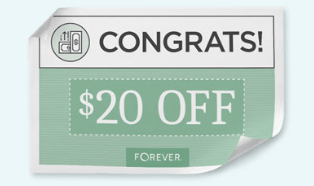
The $20 Welcome Coupon from FOREVER
I want you to discover FOREVER! I know I rave about it all the time, but I’m not sure you know how easy it is to get started. I probably also fail to tell you FOREVER has $20 waiting for you to sweeten the pot. Here’s how it works!
It Starts With My Link
FOREVER has assigned me a unique and specific link. They want you to sign up with an Ambassador you know. Someone who you feel comfortable with. They do not want to be an anonymous website like so many of web-based companies out there which assign you a number and talk to you through bots. They have a wonderful Customer Service staff and a great help page, but they want you to have a real live Ambassador of your very own.
That link takes you to FOREVER. According to the device you use, you may immediately be asked to provide your email and create a password. It’s OK, it’s free. If it just takes you to the Home Page, click on Log In in the upper right hand corner and then under the green Log In button, there’s a link “Need an Account? Sign Up Free”. Click that and you will go here.
Fill it in and hit the Sign Up button. That’s it! Welcome to the wonderful world of FOREVER, but don’t stop there, because you need to claim your $20.
FOREVER Will Send You an Email
When your sign up is through, go to your email. If you don’t see an email from FOREVER then check all those spam folders. Confirm your email address and then FOREVER will send you your Welcome Coupon.
Twenty dollars is waiting for you. When you open the Welcome Coupon email I suggest you either print it out and/or save it someplace where you can find it again.
Near the bottom of that email is a code. That’s your $20. You’re going to want that when you make your first order. Many clients are ready to buy when they join. They cut and paste their code into their order and they are done. But I also have clients who aren’t ready to buy from the get go. That’s why I want you to print it out or save it somewhere you’ll be able to find it later.
In Fact, FOREVER Will Send You a Lot of Emails
So, one of the reasons FOREVER wants you to verify your email address is because like everyone else, they want to send you all their stuff – and that’s why you have an Ambassador. FOREVER stuff is great if you are about to start a bunch of projects, because the emails will keep you informed of all the great promotions which are going on. If you’re just sticking your toe in the water and aren’t interested in the stuff, when you get your first promo email, go to the bottom and click either “update your preferences” or “unsubscribe from this list.” Then you can tell them thanks, but no thanks – but wait until after you get your $20 coupon!!! I don’t want you to miss that.
Use That Coupon!!
First of all, you have 60 days to use that coupon. On Day 61, it will no longer be valid. So please find a way to use it within 60 days of signing up. The coupon will work with most things on FOREVER, with a few exceptions – gift cards, events, FOREVER Club memberships etc., but for merchandise, it’s all good.
Stack your deals!! Many, many, many companies are quick to send you a coupon, but then trying to use it is almost impossible, because you can’t use it with any other offers. That’s not so with FOREVER, except in very, very rare cases, which will be clearly marked. You can stack your $20 welcome coupon with all the deals on the Deals page, as well as with The FOREVER Club discount, which I would be happy to explain to you.
Get the best price! At the first of every month, FOREVER informs its Ambassadors about all the deals for the month. When you know what you want to buy, just give me a shout before you hit the buy button. I can let you know if you can get a better price by waiting a day or a week.
And that’s it! Twenty dollars towards your Memory Keeping project. You can also get $20 for referrals, but we’ll talk about that and The FOREVER Club another day!