
MEMORY KEEPING 101: EVERY IMAGE MATTERS
Telling Every Picture’s Story
So, a couple of weeks ago, I went over the editing capabilities in the lightbox for every photo in FOREVER. It was a lot, I know, but it will always be here for you. Now I want to talk about the amazing curating tools available.
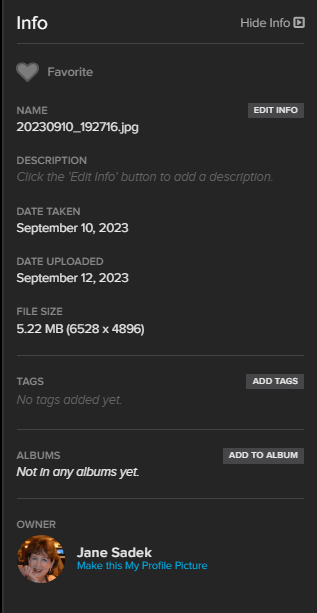
First up? Is this a favorite photo of yours, then click the heart right under “Info” and it will go red. When you are in the library (or any album), you can sort by favorites and they will all come up for you.
Next click Edit Info. This is where you get to tell the image’s story. This particular photo is brand new in my Library, so I will show you how I do it.
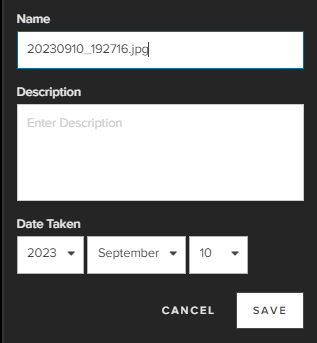
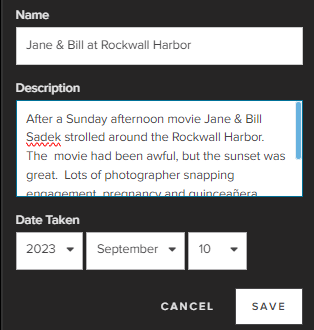
As you can see, I put the names of the people in the photo and the place in the title. That’s what works for me. I don’t need the date, because that was already picked up from the metadata. I can change it if I need to. However, I waxed eloquent in the description. I gave our full names, where we were and explained why we were there. I talked about what was going on around us and mentioned the location was close to our home.
You can go on for as long as you need to for the description. If there are 100 people in the photo – name them all, if you like. Tell what the occasion was, why it was special and whatever other info you think might be of interest to future generations. Naming things like cars, shops, articles of clothing and other items may have important historical information in the future. Having the description of a ceremony or family tradition might thrill someone a few generations from now.
Now, get ready for this. If you are in your app on your phone, you can use the microphone to tell the story, instead of typing it. Voice to Text technology can be a lot of fun. Imagine showing an old family photo to your grandmother, pressing the microphone and saying, “Grandma, tell me who this is and what is going on?” You’ll capture the past in your grandmother’s words. Can’t get much better than that.
I’ve talked about tagging before, so I won’t take up more of your time here. If you’d like to learn more, click this link.
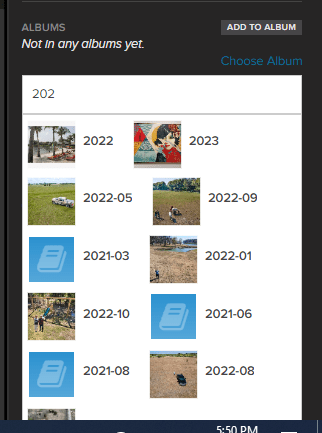
Also in the lightbox, you can add the image to any album. When you click Add to Album a space will open and you can start typing. FOREVER will begin to find albums which match what you type. Your image will always reside in the library, but you can add it to as many albums as you want without it taking up more space in your storage.
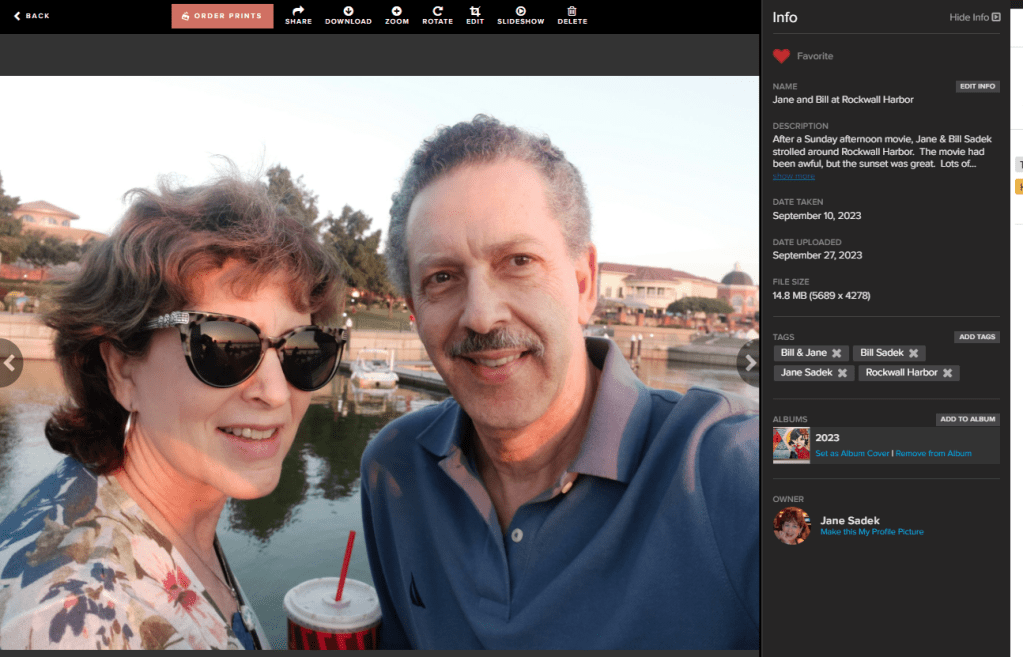
And there we are! I edited the photo to keep the focus on Bill and me. I used a filter to make us look extra pretty. I chose the image as a favorite chose a name for the photo and described it, added some tags and put us in the 2023 Album. I’m done! I can click the arrow on the right side and move to the next photo.
If you need some help with any of this, you can call me, or use any of the great videos in FOREVER’s Getting Started section. Where’s that? Right on the front page of the site.

This link is always available to you right under the first image on FOREVER’s home page. When you click Get Answers, this is what you see! Enjoy!



 jane sadek