
MEMORY KEEPING 101 – YOUR FOREVER TAGGING TOOL
Three Levels of Organization
With your FOREVER Permanent Storage you have three ways to organize your media. I have told you about two in recent weeks, the Library and Albums. By way of review, your Library is where all the photos in your account reside. Whether you upload them to the Library or an Album, the actual photo will be stored in the Library and your Albums are merely a way of accessing them. For that reason, you can add a photo to as many albums as you like without taking up more storage.
Your Library has a variety of tools you can use to sort, filter and order the images. You can also use the search bar to find images by tags, file name or description. Some people find this to be all they really need and they never get around to using the Albums or Tagging. Most of us love having other tools for curating.
I find Albums to be my favorite curating tool. I choose the categories I want for my top level Albums and then nest related albums beneath them. I can continue to nest other albums under those secondary albums for as deep as I need. It is important to note the images are not “in” the albums, they only show up there. (I will confess that initially I thought I was supposed to “move” images into albums and then I could delete them out of the library. Thankfully, the images remain in the Delete Bin for 30 days and I was able to rescue them, but then I had to repopulate my Albums.)
So Why Tag?
Until I found FOREVER, I was never happy with the way any program, app or service wanted me to organize my photos. Some people identify with organizing by year or with pre-designated categories. I didn’t. If creating your own album names is threatening to you, I will be happy to help you set up something, but for me, the ability to set up my own system was pure heaven.
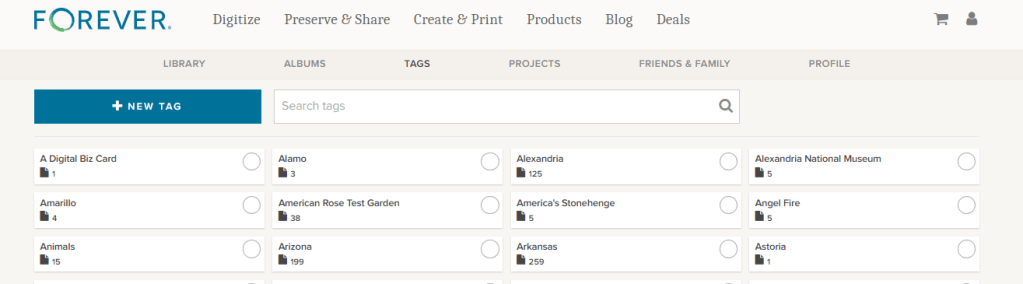
If you want to know more about how I set up my account, see my post about Albums. It works for me, but I was even happier when I discovered the cross-referencing power of tagging. I’m not always interested in looking at a photo in the context it was taken. Instead I want to find a photo for a certain purpose.
One of the best examples of why you might need tagging involves other people. Let’s say there’s a birthday or anniversary coming up and your family/friends want to gather up great photos of the honoree. Without tagging, you’d have to recall what years or events or places you were with that person to find the images of them. If you’ve tagged your photos with the name of the people in your photos, then all you have to do is go to the Tags section of your storage and find the file for that person. Then enjoy choosing from all the images you have of that person. FOREVER even allows you to show them in a variety of orders to assist in your search for just the right photos. You can also click the hearts as you find those you like.
Multi-Level Tags
But that’s only one reason why you might want to use tags. You can use them for lots of things besides identifying people. The most important photos in my account are my travel photos, so I created a tag called “Travel.” That way, if I’m just in the mood to see a variety of travel photos, I can go to my tags and choose travel. I created a tag for “Cruises” and also for each country, state and/or city I have visited. If I want to see all the photos from my trips to Egypt – boom. I have a “Museums” tag, but also other tags for favorite museums so I can go directly to those.
When it comes to people, I have a tag for “Family” and for “Jane and Friends”, as well as for family members and close friends of which I have lots of photos. I have a Tag for “Bill and Jane” in case I just want photos which have both of us in them.
See, I can have as many tags as I want, so I don’t have to be stingy. If I think I might need to find something using a certain tag, I create it – but that’s me. Some people would be overwhelmed by all those tags. Well then, you do it your way!
So How Do You Do It?
There are many ways to go about tagging. I will go through those I use most often, but there is no wrong or right way to do it.
From the Library
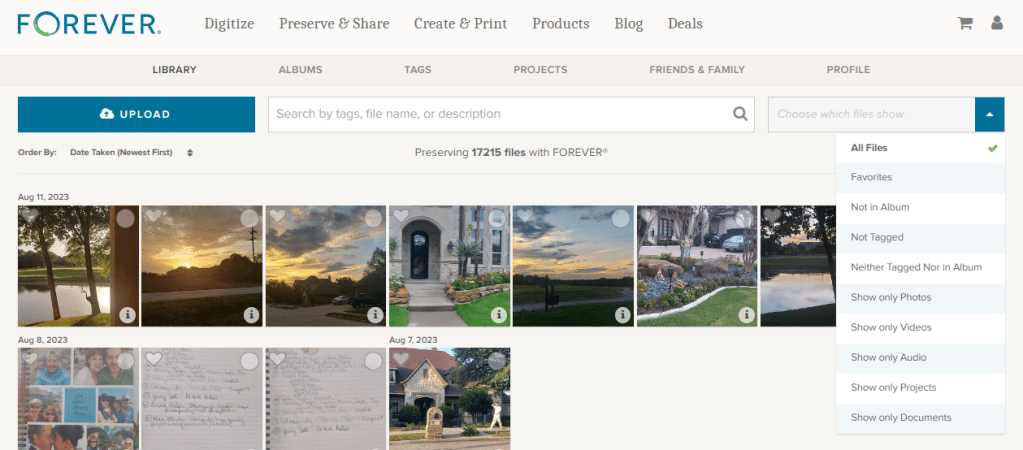
If you want to do some high level tagging, like “Travel” or “Family” then the easiest way is to go to the Library and instead of “All Files”, select to see “Not Tagged”. From that view, start clicking the circle on all the photos you want to include in a tag. (You can do up to 500 at a time.)
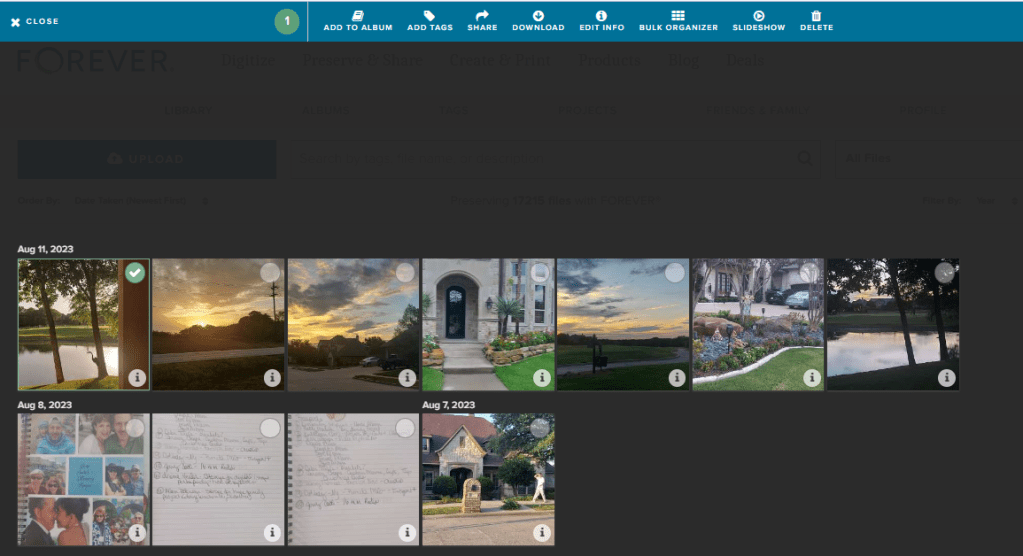
As you click you’ll be taken to an area where you have a choice of actions including “Add Tags”. Once you have chosen all you want to include, clicking “Add Tags” will take you here.
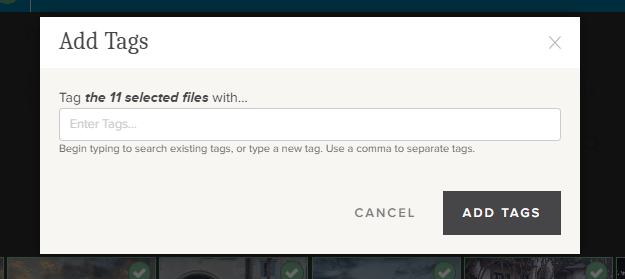
Then you just start typing in the tags you want. You can either add new tags or as you type, FOREVER will match what you have typed with available tags. Hit the “Add Tags” button and you are done.
From Albums

If you want to tag from an Album, you have to go deep enough to be in a file with photos in it. You cannot tag the Albums. Then you do exactly what you did in the Library. Start clicking and you will be in an area where you had the same choices you did above and you will do exactly the same thing.
From Individual Images
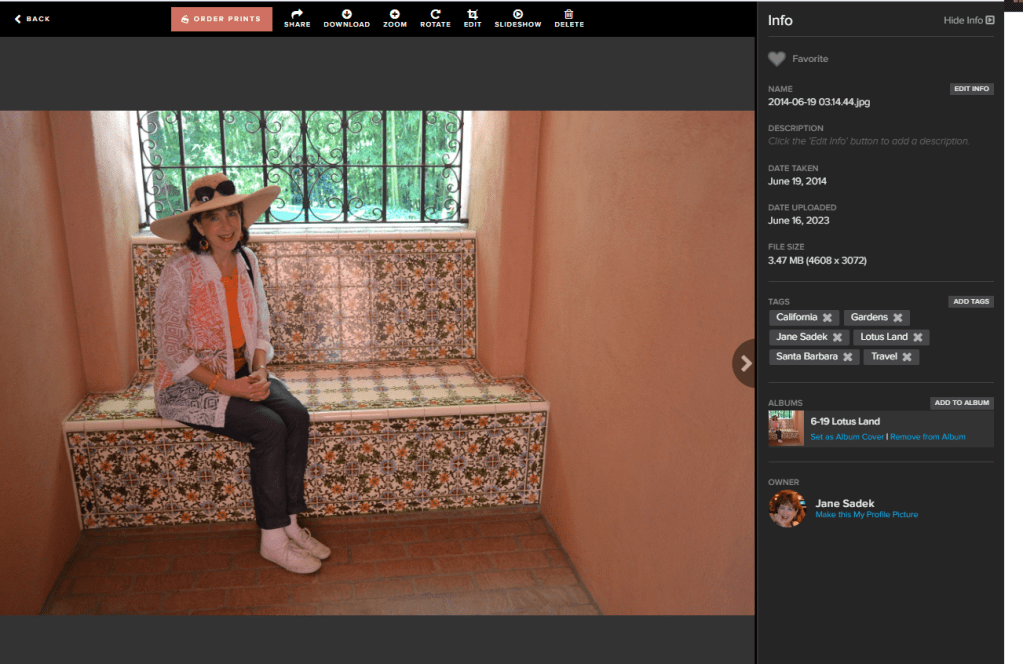
Whether you are in the Library or the Albums, you can always choose to click on an individual image (not the selection circle) and you will end up on a page like this. On the right side in the middle is the tag section. Click on the “Add Tags” button.
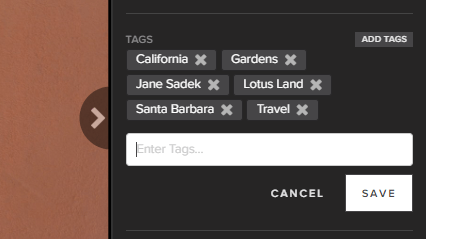
This box opens up and you can start typing, just as you did in the “Add Tags” box from the Library and the Albums section.
Go Give It a Try
If you already have a storage account, go online and give this handy tool a try. If not, it’s free to join FOREVER and you get your own 2GB trial account. Upload some photos and try tagging. I promise you can’t hurt FOREVER!


 jane sadek
1 thought on “Tag Along for Organizing”