MEMORY KEEPING 101: DESIGN & PRINT PROJECTS
AutoPrint vs. Design & Print
Last month I walked you through a couple of easy, peasy AutoPrint projects step-by-step. AutoPrint is what you want to use to create very quick projects. The layouts are very simple and while you can make some edits, the primary goal is done.
Design & Print is the next level of (shall we say) fussiness. You want more in the way of decoration and more opportunities to add your own touches, but you also want the heavy of lifting of design to have been done by someone else.
Available Projects
While AutoPrint and Design & Print offer many of the same projects for you to choose from, there are some differences. I have compared the AutoPrint Offerings with the Design & Print Options.
- Photo Books (In AutoPrint you have all these choices with each photo boo. In Design & Print, options for size, binding and style depend on design chosen, but all of these can be found in various designs.)
- Sizes 8X8 -12X12
- Softbound & Hardbound
- Standard & Layflat
- Photo Gifts (Varies)
- Coaster Sets (Both)
- Tabletop Panels (Both)
- Notebooks (AP Only)
- Magnets (Both)
- Ornaments (D&P Only)
- Puzzles(D&P Only)
- Blankets (D&P Only)
- Drinkware (Varies)
- Water Bottles (Both)
- Photo Mugs (Both)
- Frosted Glasses (D&P Only)
- Wall Decor (D&P Only)
- Canvas Prints
- Metal Panels
- Cards (D&P ONly)
- Calendars (D&P Only)
- Photo Prints (AP Only)
- Glossy & Lustre
- Sizes 4X6 – 11X14
Selecting Your Photos and Your Design
When you have a project you want to do in Design & Print, I suggest you first go to your albums and set up one for the project. Then add all the photos you want to include in your project into the album. It’s also a good idea to get them into the order you want them to be in the project. This will not only get you prepared for making the project, but it could help you decide which design to use.
Then it’s time to choose the design for your project. According to your point of view, this part is either your favorite thing about the project or your biggest headache.
If you like shopping online, this part is fun. You can go in and browse around, checking available options for size, style, material and etc.. You can put together your whole project and then decide you want to change the design or the layout. You’ll love it.
I’ll admit it makes me a little crazy. In prepping for this post, I went in to find a coaster set project to walk you through and hit a brick wall. Artisan is my favorite way to design in FOREVER because I like to start with a blank page, but many people find a blank page daunting. They want a design template. FOREVER offers three design options because different people like different things.
Let’s Make a Blanket
Since I’m definitely not in the mood for coasters, let’s make a blanket. I’ll use the photos I have tagged as Floral for the images on the blanket. On FOREVER I would hover over the “Create & Print” Tab and a selection box comes up offering AutoPrint, Design & Print and Digital Scrapbooking & Deign. Under Design & Print, Photo Gifts are in the center and Blankets are at the bottom of that list. Click “Blankets.”
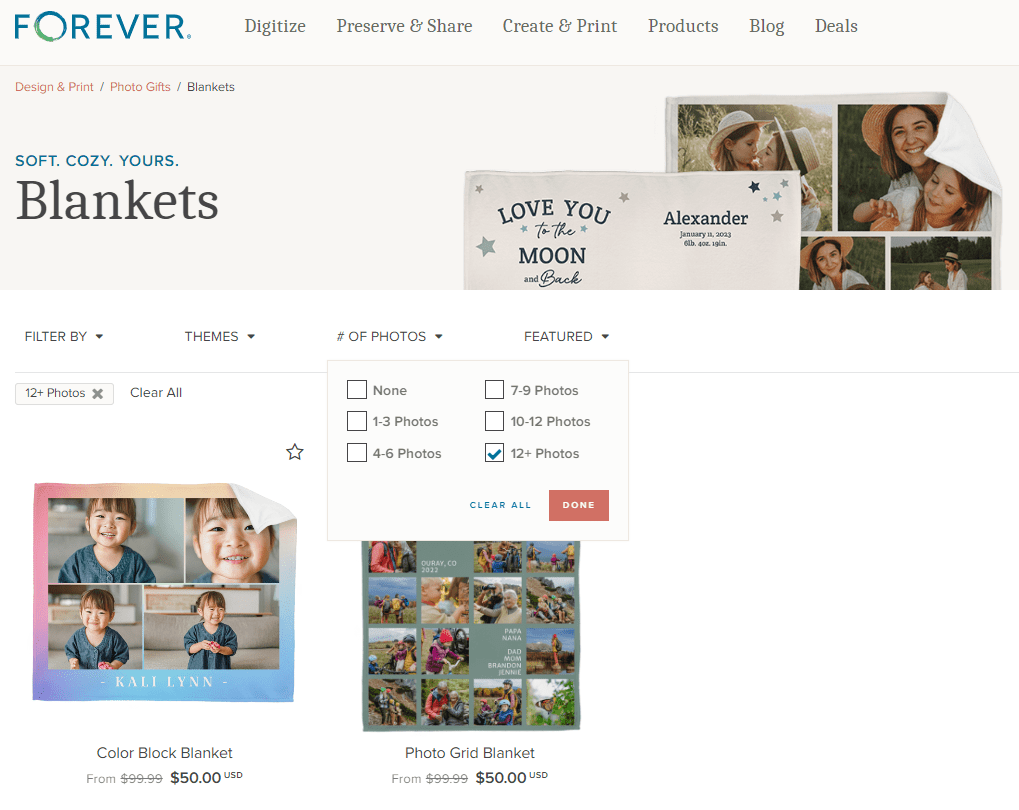
There are many, many design to choose from, but for this project I wanted to include as many floral photos as possible, so I used the “# Of Photos” filter to find the blanket designs which included the most images. I got two choices. (Ignore the pricing. The image I included shows the deals available on the day I wrote this post, not the day you are reading it)
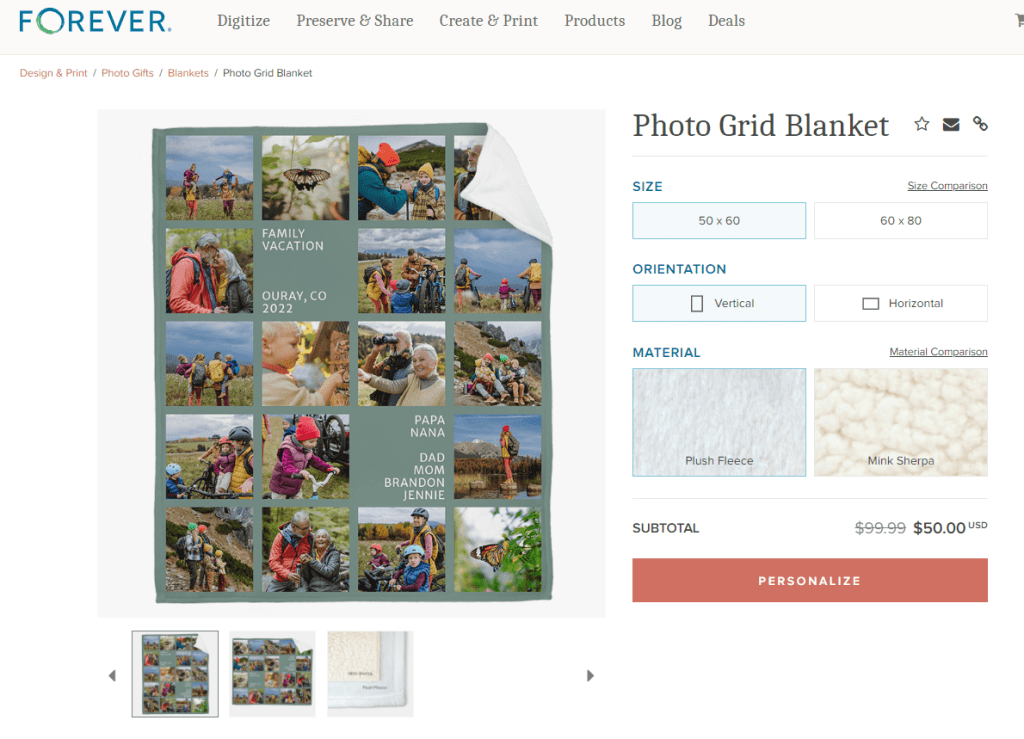
When I clicked on the Photo Grid Blanket, here’s the screen I got. It advises me of all the options I have. There are two sizes, two orientations and two materials available to me and there is a big PERSONALIZE button. Let’s do that.
So, I went in and added a photo for each space and chose a Bible verse as my text. If I clicked on “Layouts,” the designer offered four options, but this was the one with the most spaces, so I chose it. I could still select my size, orientation and material. Then I could add it to my cart and order it!
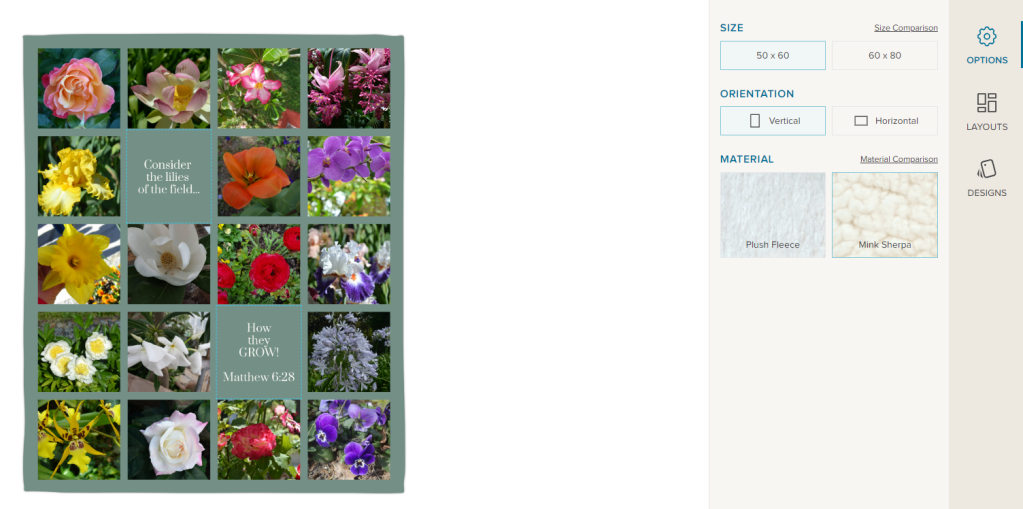
I like this a lot, but honestly, I would prefer a design without text and I’d probably choose a different background color. And that’s why I love Artisan, but that lesson will be next month. Here’s the link to the project so you can take a look at it: https://www.forever.com/app/users/jane-sadek–1/containers/c7f1ebef-e74c-4069-9d00-0c75dfd7daf8/6ao6nbcgjnp7v0b3adq7j2lrt


 jane sadek